Comments
You can leave comments on a page if this is allowed by the administrator.
You can add comments to a page both in view mode and edit mode:
-
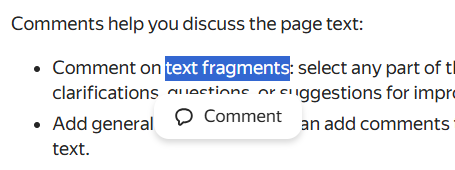
In page view mode or visual editor mode, highlight the phrase in the text you want to comment on.
If the page is open in Markdown markup mode, switch to the visual editor using the button in the toolbar. How to work in the editor
In page view mode, you can comment on text fragments if the
Settings → Experiments → Comments in preview option is enabled. -
On the pop-up toolbar, click Comment.
-
Enter your comment text and click .
If you switch to Markdown markup mode after adding a comment, the fragment with the comment will get a special identifier, for example:
&[text with a comment](135329). Don't delete this markup, or you won't be able to click on the text fragment to go to the comment.
-
In the top right corner of the screen, click Comments.
-
At the bottom of the comment panel, enter text in the Add comment field.
-
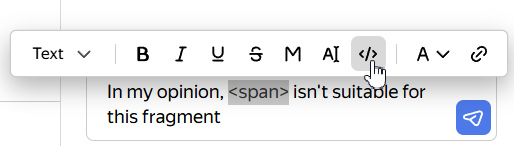
To change the formatting of text in a comment, select a portion of text and use the buttons on the pop-up toolbar.
-
Click .
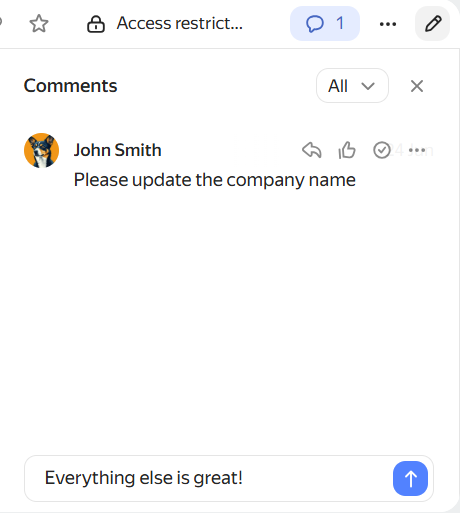
Users subscribed to the page will receive a notification about your comment.
Viewing comments
If a page has comments, their count is displayed in the top right corner of the page next to the Comments icon.
-
To open the comment list, click the icon.
-
Text with comments is highlighted yellow on the page. To jump to the comment, click on the highlighted text.
-
You can also go from a comment back to the highlighted text. Just click the blue-marked quote at the top of the comment.
Replying to comments
To reply to a comment, hover over it and click Reply. The user you replied to will receive a notification.
You can't reply to comments inside a discussion.
Adding reactions to comments
To add a reaction to a comment:
-
Hover over the comment and click . This adds the corresponding reaction.
-
To add a different reaction, hover over and choose an emoji from the drop-down list.
You can add multiple reactions to the same comment. To remove a reaction, click on it under the comment.
Marking comments as resolved
If your comment was addressed, hover over it and click Resolve comment . Only the page author and co-authors can mark other users' comments as resolved.
To return a comment to active status, click at the top of the comment panel and go to the Resolved list. Hover over the comment and click Reopen . The comment will move to the Open list.
Comment replies can't be marked as resolved.
Editing or deleting comments
You can edit or delete your own comment. Deleting a comment will also delete all replies to it.
To edit a comment:
-
On the Comments panel on the right, hover over the comment and click → Edit.
-
Edit the comment.
To change the formatting of text in a comment, select a portion of text and use the buttons on the pop-up toolbar.
-
Click .
To delete a comment, hover over it and click → Delete.
Sharing a comment
To copy a direct link to a comment, hover over it and click → Copy link.
Disabling comments
Comments are enabled by default.
On a selected page
Page authors can disable comments on a page.
- At the top of the page, click → Settings.
- Turn off the Page comments option.
Across the entire organization
A Wiki administrator can disable comments on all pages for all employees.
- In the left panel, click Administration.
- Under General settings, turn off the Comments on page option .