Sharing access to a wiki page via an invite link
If you need to periodically grant new users access to a page, you can create an invite link for them. When a colleague follows the link, access is automatically granted.
Limitations
-
Invite links only work for members of the organization.
-
Users with access via the link will not see the cluster structure — only the single page will be available to them.
-
When the link expires, users who accessed the page through it will retain their access and will be able to open the page using a direct link.
Creating an invite link
-
At the top of the page, click the button with the access type, for example All employees.
-
Under Invite link, select a role for all invited users:
- Reader — can only view the page and subpages.
- Editor — can edit the page and view subpages.
- Editor+ — can edit or delete the page, and create a subpage.
-
Click Create.
The link is automatically copied to the clipboard. To copy it again, click Copy.
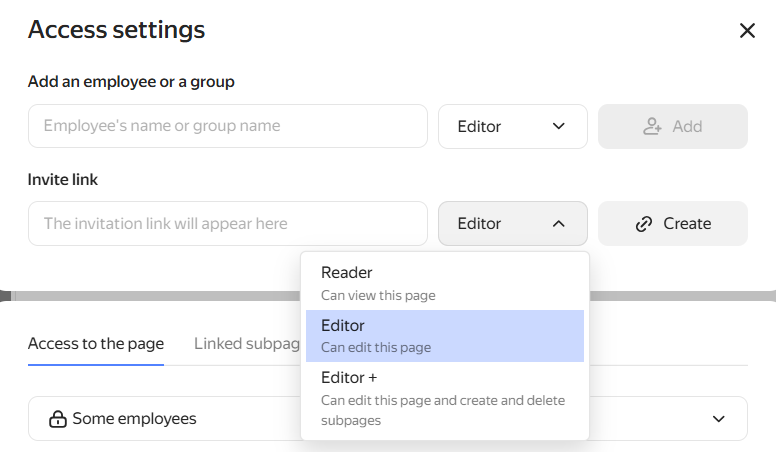
Creating an invite link
Selecting the invite link validity period
You can change the validity period at any time while the link is active.
- Click the current expiration date, for example March 3, 2026, 18:08 .
- Select a new period: Day, Week, Month, 3 months, or Year.
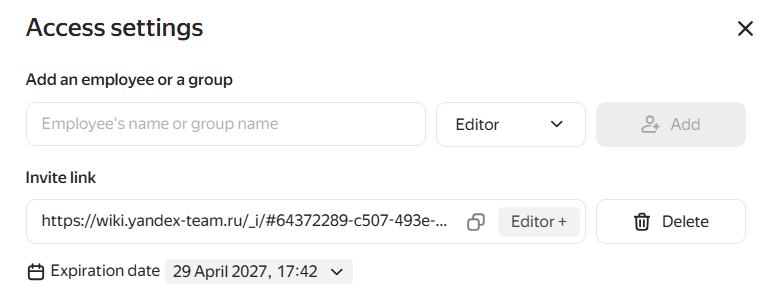
Changing the validity period
Removing a user with access by link
You can view invited users in the access settings, under Via an invite link.
To revoke access for a user, click their role, for example Editor , and select Remove from the dropdown list.
To revoke access for all invited users, click → Remove everyone to the right of the list.
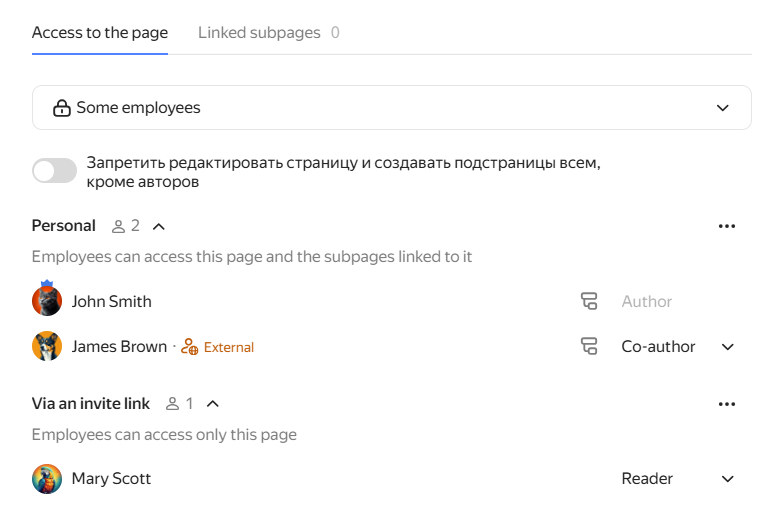
List of users with access