Yandex Metrica counter
An administrator can connect a Yandex Metrica counter to Wiki. Metrica will show how users navigate the knowledge base, which pages they read most often, and which ones they read less frequently.
Step 1. Create a counter
- Go to metrika.yandex.ru and sign in to your Wiki administrator account.
- In the top-left corner, click Add counter. The new counter constructor opens.

Step 2. Configure counter parameters
In the Website address field, enter wiki.yandex.ru.
You can choose other settings without restrictions. You can change them later. For details about all counter parameters, see the Yandex Metrica help: Creating and installing a counter .

Step 3. Fill in the site profile
These parameters don't affect analytics, but they help the service suggest appropriate settings and tools. Fill them in as shown in the screenshot or skip this step by clicking Continue.

Step 4. Copy the counter number
- Under Setup, click Start using. The counter page opens.
- Copy the counter number, for example
108681297.

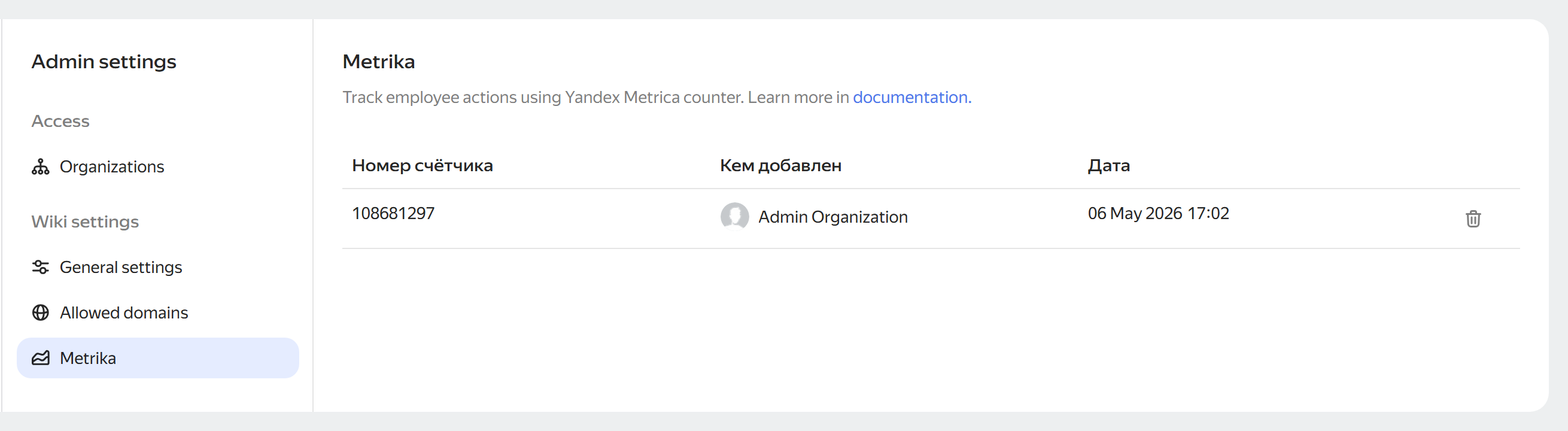
Step 5. Connect the counter to Wiki
- Go to Wiki and in the left panel, click Administration.
- Open the Yandex Metrica counter section.
- In the center of the screen, click Add counter.
- Copy the counter number from Yandex Metrica and paste it in the field.
- Click Add.
Step 6. View statistics
You can view the collected statistics on the counter page in the Yandex Metrica service. To do this, click the counter name in the metrika.yandex.ru/list section.
