Yandex Messenger
To receive Yandex Tracker notifications in Yandex Messenger, set up a subscription and select Messenger as the notification channel. How to set up a subscription
If the standard subscription capabilities are not enough, you can use a trigger to integrate with Messenger, as described on this page.
Let's assume that you need to automatically send notifications to Messenger whenever an issue changes its status. For example, to track when releases are ready for testing. To do this, set up a trigger that tracks the statuses of Release issues. When an issue changes to Ready for testing, the trigger sends an HTTP request to post a message in a chat.
To send notifications from Yandex Tracker to Yandex Messenger, you need a robot account that delivers messages to your chats. Create a Messenger bot, add it to a chat, and set up a trigger that sends messages through the robot using HTTP requests.
Step 1. Create a Messenger bot
-
Sign in to the organization account as an administrator.
-
Go to the Bots in Messenger page in the Yandex 360 organization account.
-
Click Create bot.
-
In the window that opens, enter the bot's Name and upload a photo.
-
Click Create. A token is automatically generated for the bot.
-
Save the token in a secure place. The bot uses the token to authorize all operations.
Step 2. Add the robot to a chat
-
In Yandex Messenger, add the robot to the chat where you want to send notifications from Yandex Tracker.
-
After adding the robot, send any message to the chat.
-
Get the chat ID that you need to send notifications from Yandex Tracker:
-
Open the web version of Messenger and find your chat.
-
In the browser address bar, you will see a URL similar to this:
https://yandex.com/chat/#/chats/0%2F0%2F3d0c333b-f333-33d3-b333-d3aa******** -
Copy the last part of the URL and replace
%2Fwith a forward slash (/). You will get a chat ID, for example:0/0/3d0c333b-f333-33d3-b333-d3aa********
-
Step 3. Set up a trigger in Yandex Tracker
Create a trigger
-
Sign in to Yandex Tracker. You need administrator permissions for the queue in which you are setting up the trigger.
-
In the left-hand panel, click Queues and select a queue.
-
In the top right corner of the queue page, click Queue settings.
-
In the left panel, select Automation.
-
In the top right corner, click Create → Trigger.
-
Enter a name for the trigger, for example, Messenger notifications.
Set up trigger conditions
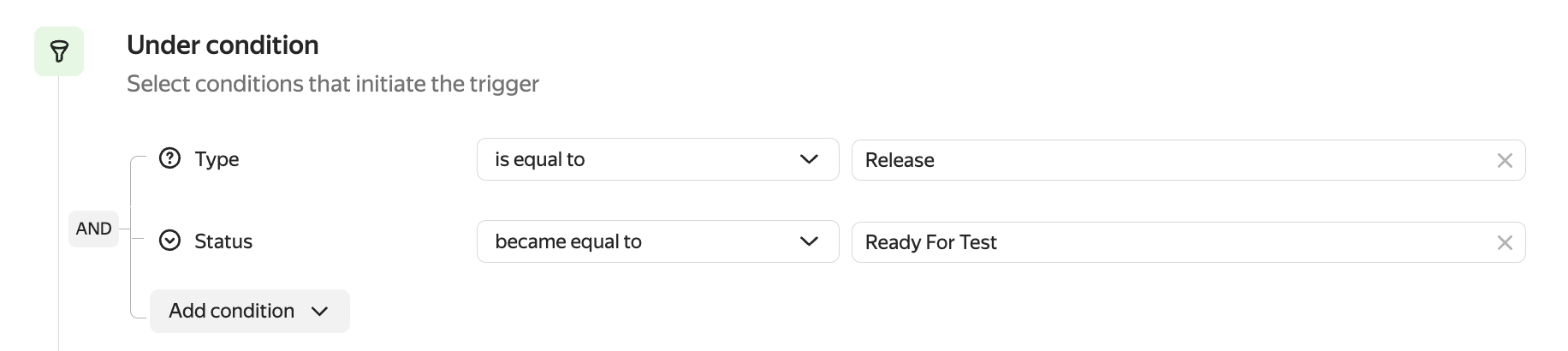
Set the conditions for the trigger to run when a Release issue changes to Ready for testing:
-
Add the condition Type → equals → Release.
-
Add the condition Status → became equal to → Ready for testing.
-
Make sure that the AND logical operator appears to the left of the condition group so that the trigger runs when all conditions are met.
Set up trigger actions
Set up the trigger actions:
-
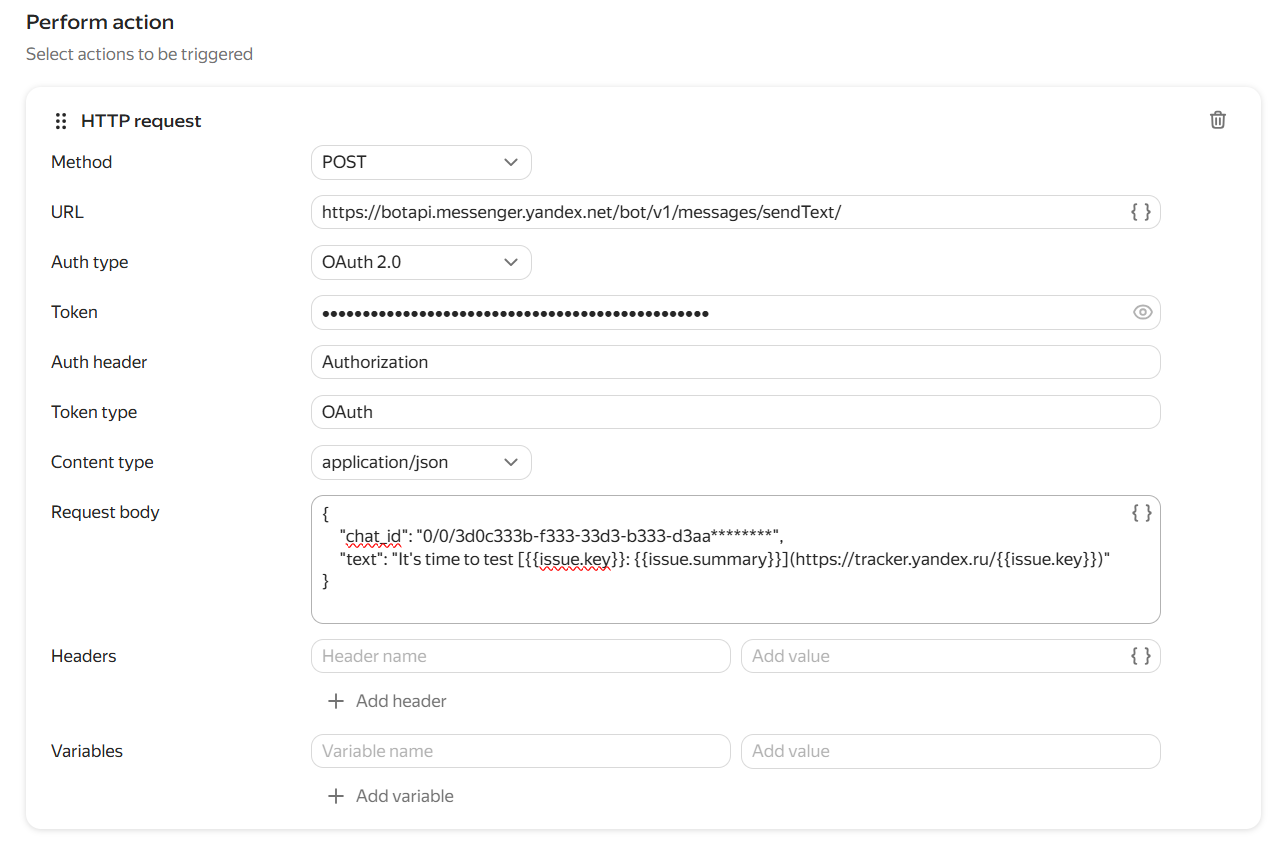
Click Add action and select HTTP request.
-
Set up the request:
-
Method: POST.
-
URL:
https://botapi.messenger.yandex.net/bot/v1/messages/sendText -
Authorization method: OAuth 2.0.
-
Token: the token value you received when registering the robot.
-
Token type:
OAuth. -
Content type: application/json.
-
Request body: choose one of the following options:
Send a message to a group chatSend a message to a userWhen you specify the
chat_idparameter, the message is sent to the group chat with this ID.{ "chat_id": "<chat_ID>", "text": "Time to test the issue [{{issue.key}}: {{issue.summary}}](https://tracker.yandex.com/{{issue.key}})" }Specify the chat ID that you obtained from the chat URL as the value of the
chat_idparameter.Instead of
chat_id, you can use theloginparameter to send a message to a user in a direct chat.{ "login": "<user_login>", "text": "Time to test the issue [{{issue.key}}: {{issue.summary}}](https://tracker.yandex.com/{{issue.key}})" }To add issue field values to the request body, click { } to the right of the input field and select the field name.
-
Leave the headers empty.
For details about Messenger API methods, see the documentation.
-
-
Save the trigger.
Check the trigger
To test the trigger, change a Release issue to Ready for testing. The trigger sends a Yandex Messenger message: Time to test the TEST-123 issue: Configure triggers.
A special code that grants access to data on behalf of a specific user.
A robot is a service account that Tracker uses to perform automated actions in issues.
A trigger is an automated rule. It performs actions on an issue when specified conditions are met.