Creating a checklist
A checklist is a list of items that need to be completed to resolve the issue. Having completed an item, mark it off it in the checklist, and you won't miss any important detail when working on the issue.
Create a checklist
-
Open the issue page.
-
Click Add checklist.
-
Name the first item in the list.
-
If necessary, specify the assignee and deadline for this checklist item.
-
To add an item, click Save. If you decide not to add an item, click Cancel.
-
To add another item, click Add item.
Managing a checklist
-
To change a name, assignee, or deadline, click the checklist item.
-
To delete an item, click to the right of the item's name and select Delete item in the submenu that appears.
-
To mark a checklist item as completed, set a flag on the left of the item's name.
-
To unmark a checklist item, remove the flag on the left of the item's name.
-
To move an item up or down the list, click and drag the item to the desired location in the list.
-
To hide or show all the items, click Checklist at the top of the list.
-
To add an item to the checklist, click Add item at the bottom of the list.
-
To delete the checklist, click and select Delete checklist at the top of the list.
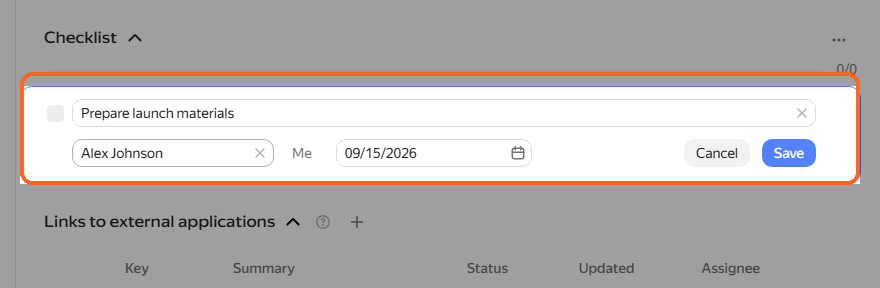
Editing a checklist item
Creating subtasks from checklist items
You can create subtasks from checklist items in a single click.
Creating a subtask from a checklist item
-
Select the checklist item you need.
-
Click to the right of the item's name and select Convert to sub-issue in the submenu that appears.
The name of the created issue will match the checklist item name. The Assignee and Deadline fields will be filled in if they were specified in the checklist item.
The checklist item will be deleted.
Creating subtasks from all checklist items
To create subtasks from checklist items, click at the top of the item list and select Convert to sub-issues.
Subtasks will be created from all checklist items that are not marked as completed. The checklist items will be deleted, except for those marked as completed.
The created subtasks will appear in the Linked issues → Subtasks list.
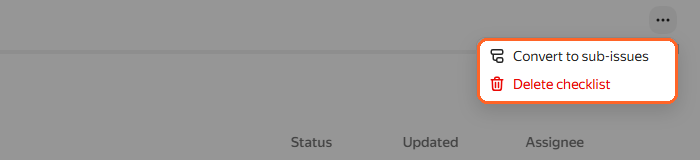
Creating subtasks from checklist items