Yandex Tracker changelog for October 2026
- Icons and covers for boards, projects, and dashboards
- Improvements to the queue creation tool
- Employee workload on the Gantt chart
- Customizing the menu
- New API methods for dashboards and widgets
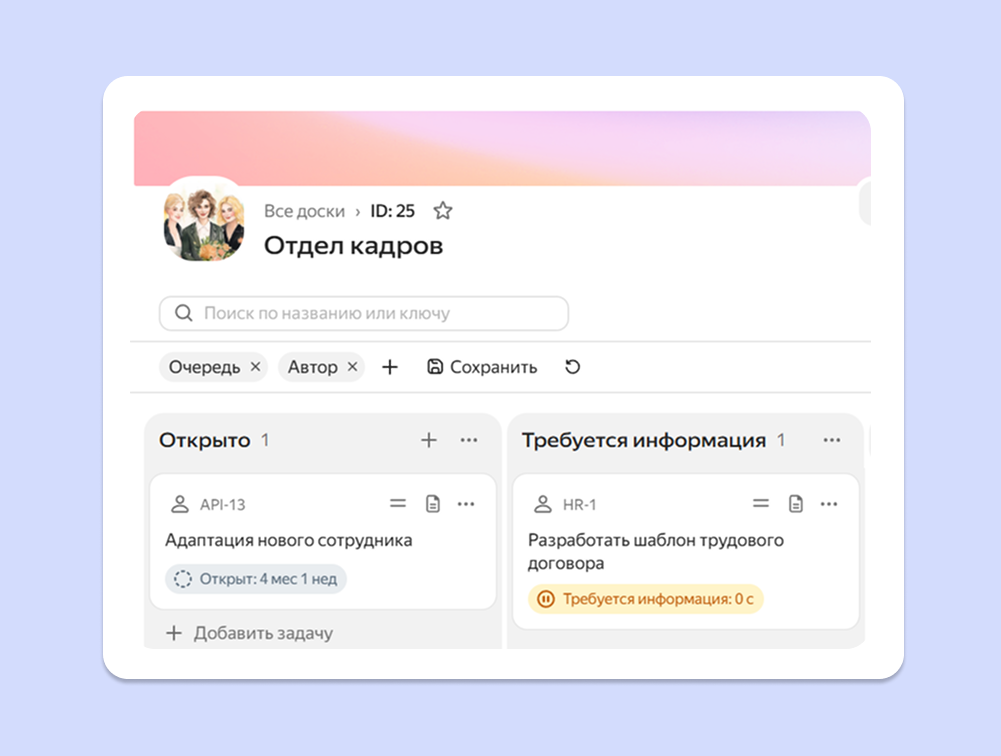
Icons and covers for boards, projects, and dashboards
You can now customize an icon and cover for boards, projects, portfolios, goals, and dashboards. The icon appears next to the name and helps you quickly find the object in the list, while the cover defines the visual style of its page.
How to select an icon and cover:
- for a board — see the article Changing a board icon and cover;
- for a project, portfolio, or goal — see the article Changing an icon and cover for a project, portfolio, or goal;
- for a dashboard — see the article Changing a dashboard icon and cover.
Improvements to the queue creation tool
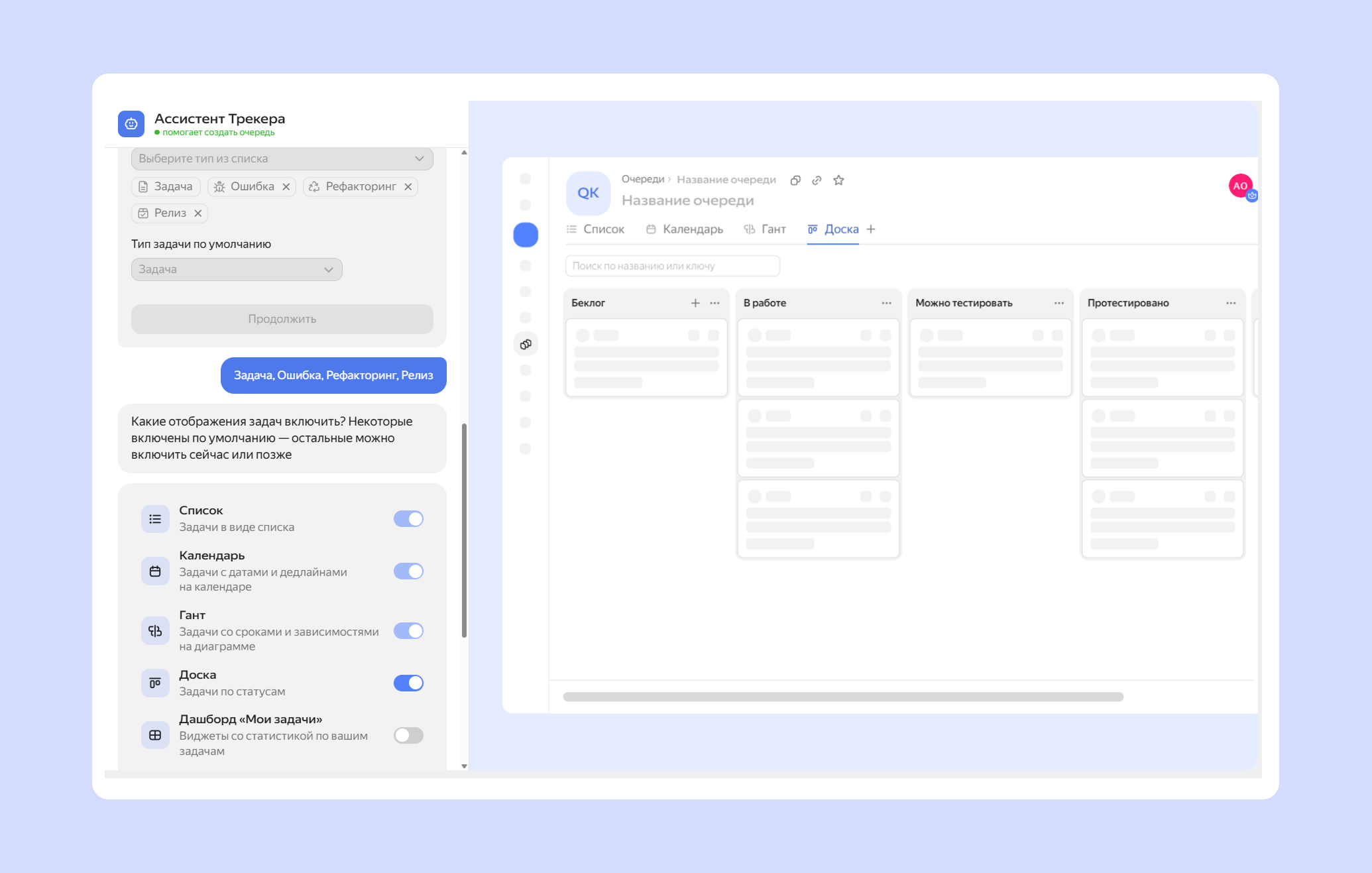
Creating a suitable queue has become easier: now you can see in advance how it will look after configuration.
The From template method now includes new industries, such as education and sales. You can add test issues: they will help you see how different issue statuses look on the board or on the Gantt chart.
In the From scratch method, you can now not only build your own workflow, but also enable all suitable ways to display issues, such as a board or a dashboard with statistics.
For more information about queue creation options, see Creating a queue.
Employee workload on the Gantt chart
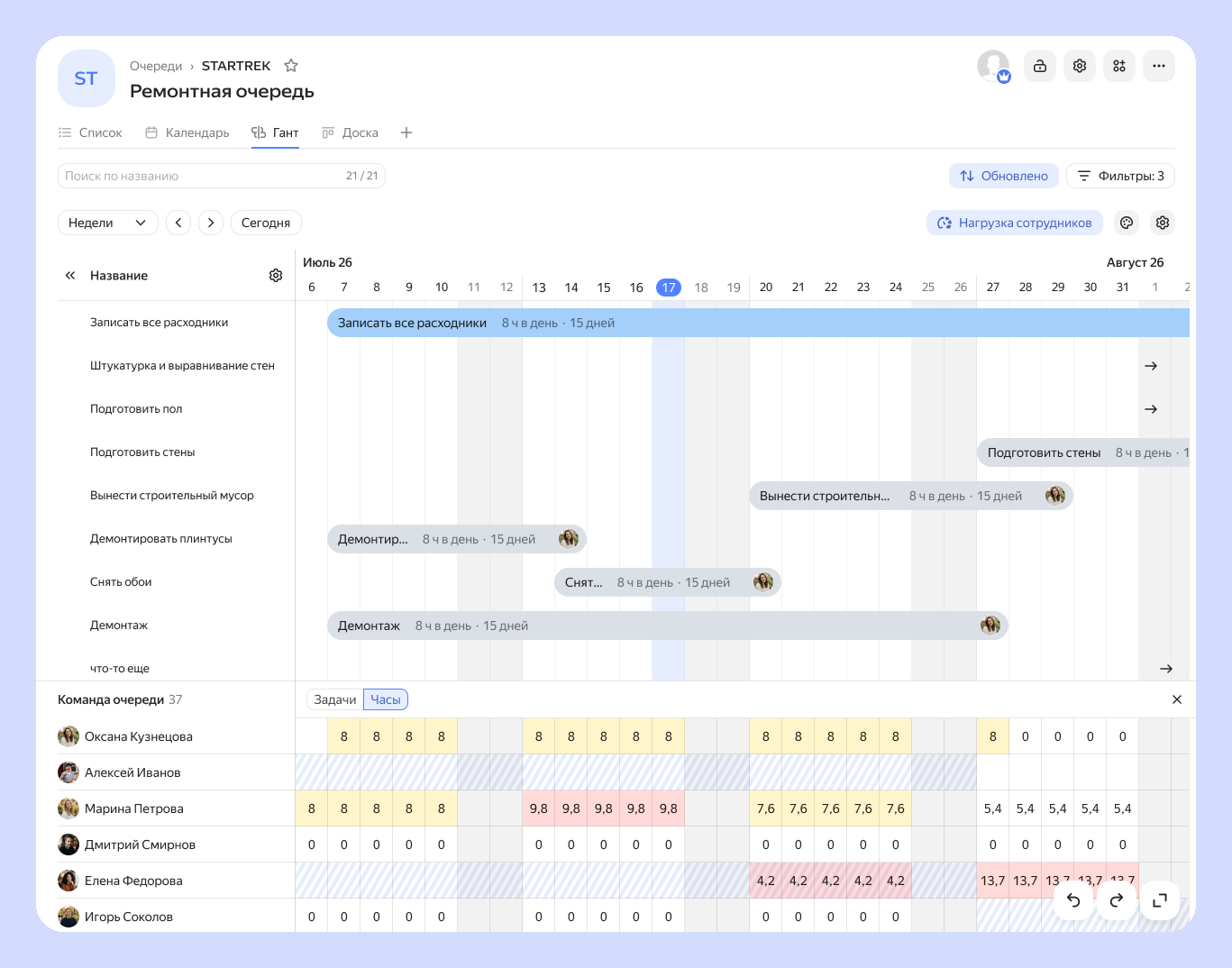
When planning issues on the Gantt chart, you can now check an employee's workload: if a cell is red, all working time is already taken; if it is yellow, there is very little free time left. If you add employee absences, such as vacations, sick leave, or business trips, they will also be displayed on the chart. For more details, see the article Check employee workload on the Gantt chart.
Customizing the menu
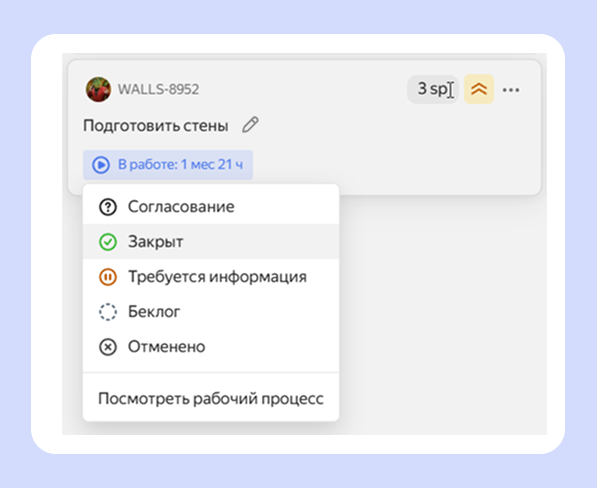
Now you can quickly update an issue right on the board: for example, move the deadline or assign a new assignee. To do this, click the desired parameter and select a new value.
For details on how to add parameters to an issue card, see the article Display important issue parameters on the board.
New API methods for dashboards and widgets
The API now provides methods to search, copy, and update dashboards, as well as manage their access permissions. Widget methods support all available widget types and return their placement coordinates.
For details, see the Creating a dashboard section.
