Discuss an issue with colleagues
The main place for communication within an issue is the comments. Here you can show your results, ask questions, discuss details, and record agreements.
Unlike messaging or email conversations, comments in Tracker are saved in the issue permanently, are visible to all participants, and help to reconstruct the sequence of events and decisions made.
Get a colleague's attention
If you need a response or action from a specific person, mention them in a comment by clicking Invite. The user will receive a prominent notification, even if they aren't subscribed to the issue.
Don't invite colleagues just in case
An invitation is a request for action. If you use it too often, notifications become noise. If a colleague only needs to follow the issue, add them to Followers. How to do this
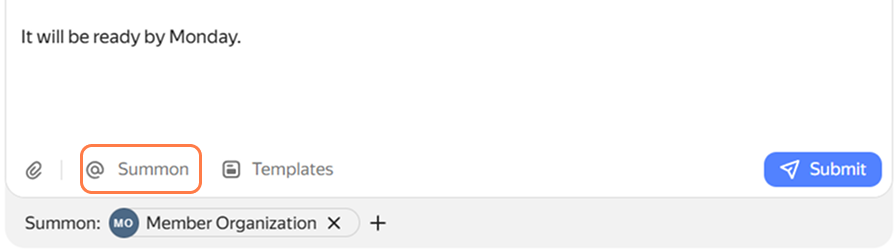
Reply to someone else's comment
If a discussion is already underway in the issue and you want to respond to a specific message, click Reply in the upper-right corner of the comment. The text from that comment will appear as a quote in your input field, making it clear to other participants what you're responding to.

What you can include in a comment
In a comment, you can:
- Describe what you did and the result you got.
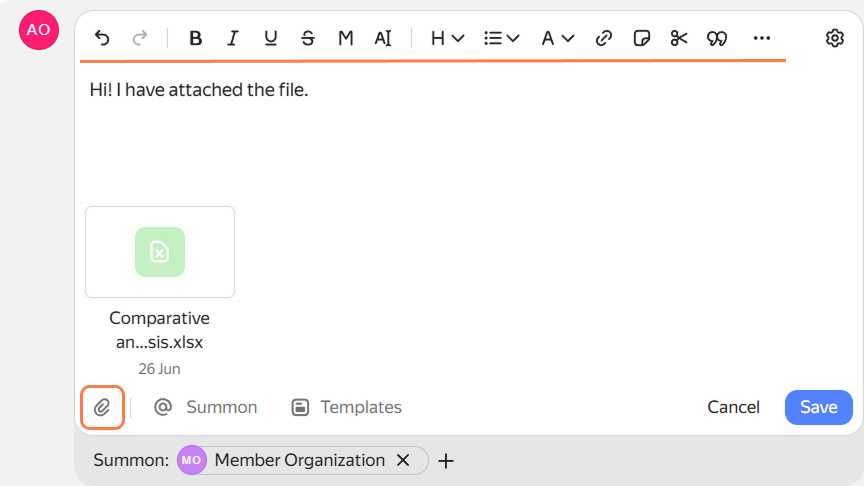
- Format the text: add headings, lists, emphasis, or quotes.
This is useful when the comment is long and its structure is important. - Add a file: drag and drop it onto the comment or use the button.
- Insert a link to a document in Wiki or an external page.
If you are attaching an issue, just specify its key, for example,MARKETING-12. The key will automatically turn into a formatted link.
When the comment is ready, click Send. Issue participants who are subscribed to changes will receive a notification.
Edit or delete a comment
You can edit or delete your own comment:
- To edit a comment, hover over it and click . An edit mark will appear next to it, which all issue participants will see.
The text is also saved in the change history: to view the original comment text, go to the History tab. - To delete a comment, hover over it and click → Delete.