Find your issues, board, projects, and goals
If you're opening Tracker for the first time, some work objects might already be set up: a queue, workflow, board, project, or goal. Usually, this is done by a manager or team lead. Your task is to find your issues or projects and start working with them.
View my issues
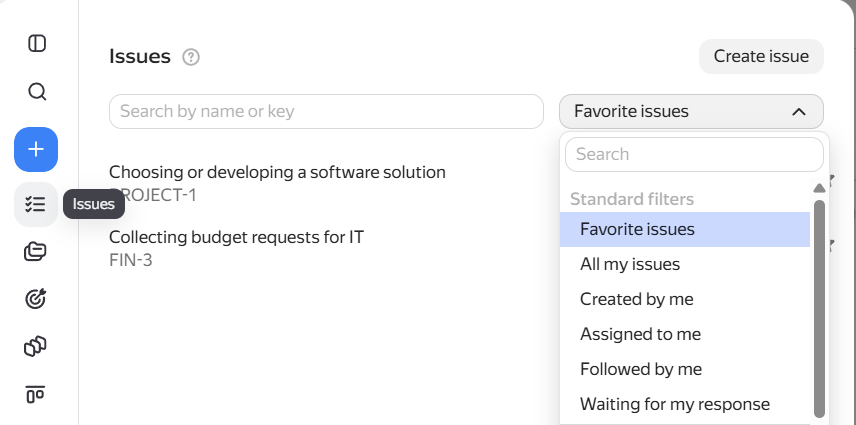
The issues you work with are collected under Issues in the left panel. Click it and select a filter:
- All my issues – issues where you are the author or assignee, where you were invited to comment, and your favorite issues.
- Reported by me – issues that you created.
- Assigned to me – issues that you need to complete.
- Followed by me – issues where you are added to the followers list.
- Needs response – issues where someone addressed you in the comments.
To view more data: deadlines, participants, and other parameters, click Full list of filtered issues at the bottom: a page with an extended set of filters will open. Learn more in the section Find issues by exact conditions.
Find issues by exact conditions
When you have many issues, the ready-made selections under Issues might not be enough. For example, you might need to find not all your issues, but only those in a specific queue, with the In progress status, and with a deadline this week.
For this type of search, use:
- Extended filter set: to switch to it, under Issues, click Show all, or click Full list of filtered issues at the bottom of the list. You can save the conditions you set up and use them again.
For details, see the article Creating and configuring an issue filter. - Query language: a text-based method for searching issues. It's more complex than filters but offers even more possibilities. To use it, on the page with extended filters, click the Query language button. For details, see the article Query language in Yandex Tracker.

Example of an extended filter
Get to your team's board
Ask your colleagues for a link to the board where you'll plan issues — it's easier than searching for it using filters.
You can also go to the board directly from an issue that is added to it:
- Open the issue and find the Boards parameter in the right panel.
- Hover over the board name and click Go to board.
To avoid searching for the board again later, add it to your favorites: open the board and click the icon at the top. Your favorite boards are stored under Issue boards in the left panel, under the Favorites filter.
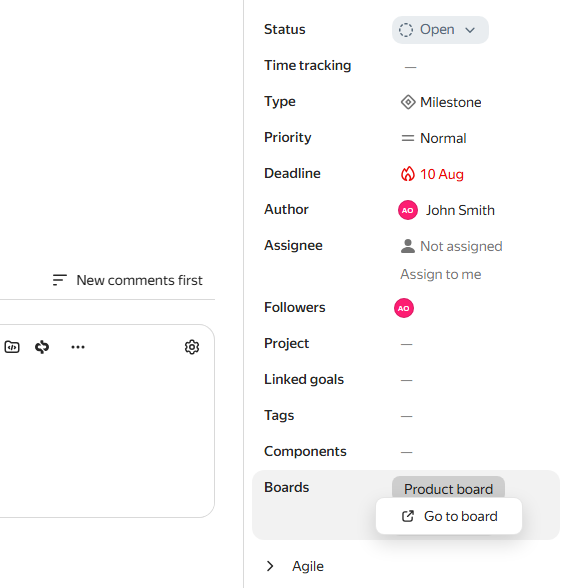
How to go to a board from an issue
Find projects you participate in
Projects are an optional tool. Your team might not use them. If you're not sure whether you need projects, check with your manager or team lead.
A project combines issues from different queues that are worked on to achieve a specific result. This could be launching a mobile app or redesigning a website's homepage.
You can open a project in two ways:
- From the Projects and portfolios section in the left panel: click it and select the My projects and portfolios filter.
- From the issue page: find the Project parameter in the right panel. If the issue is added to a project, its name will be here. Hover over the name and click Go to project.
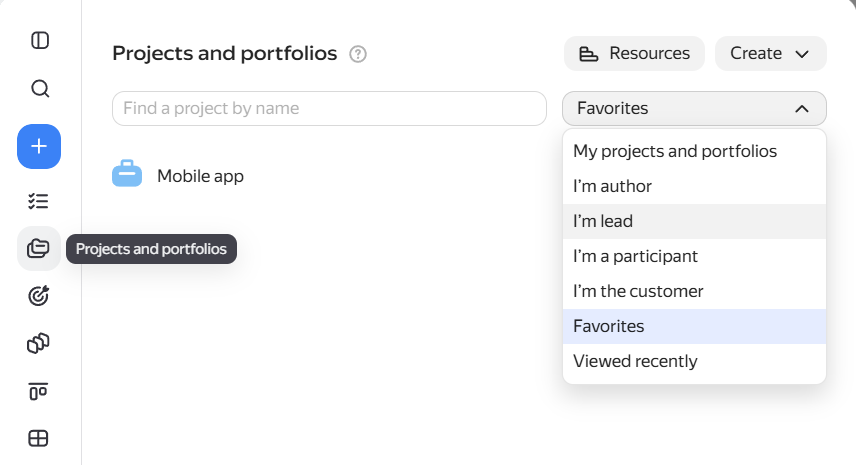
Find goals you're working on
Goals are an optional tool. Your team might not use them. If you're not sure whether you need goals, check with your manager or team lead.
A goal describes a development strategy or the desired outcome of the team's work. For example, "Increase conversion by 15%" or "Enter a new market by Q3".
To open goals related to you, click Goals in the left panel and select the My goals filter.
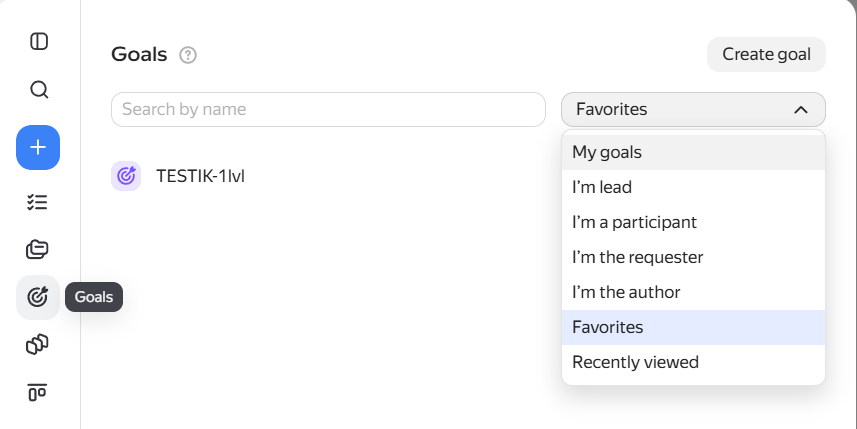
Set up quick access to needed pages
Add to favorites
If you frequently open the same issues, boards, or dashboards, add them to your favorites: click the icon at the top of the page. They will be stored in the sections on the left panel, under the Favorites filter.
Set as the Tracker home page
If you have one most important filter, board, or dashboard, you can set it as your Tracker home page. To do this, click Settings in the left panel and go to the Interface tab. Under Home page, select the page that will start your workday.