View goal information in the Tracker mobile app
In the app, you can view all goal updates and stay up to date on task progress, even when you're not in the office.
View parameters
The goal page displays its main parameters: status, deadline, and owner. To view the list of all participants and other information, tap Parameters.
If the goal description is long, part of the text will be hidden. To read the full description, tap About the goal.
View progress, key results, and subgoals
The project progress is shown on the indicator under the Progress section heading.
The length of the bar on the indicator shows the percentage of work completed to achieve the goal: achieved key results and subgoals.
Below the progress indicator, you'll find:
- A list of key results
- A list of subgoals
View links
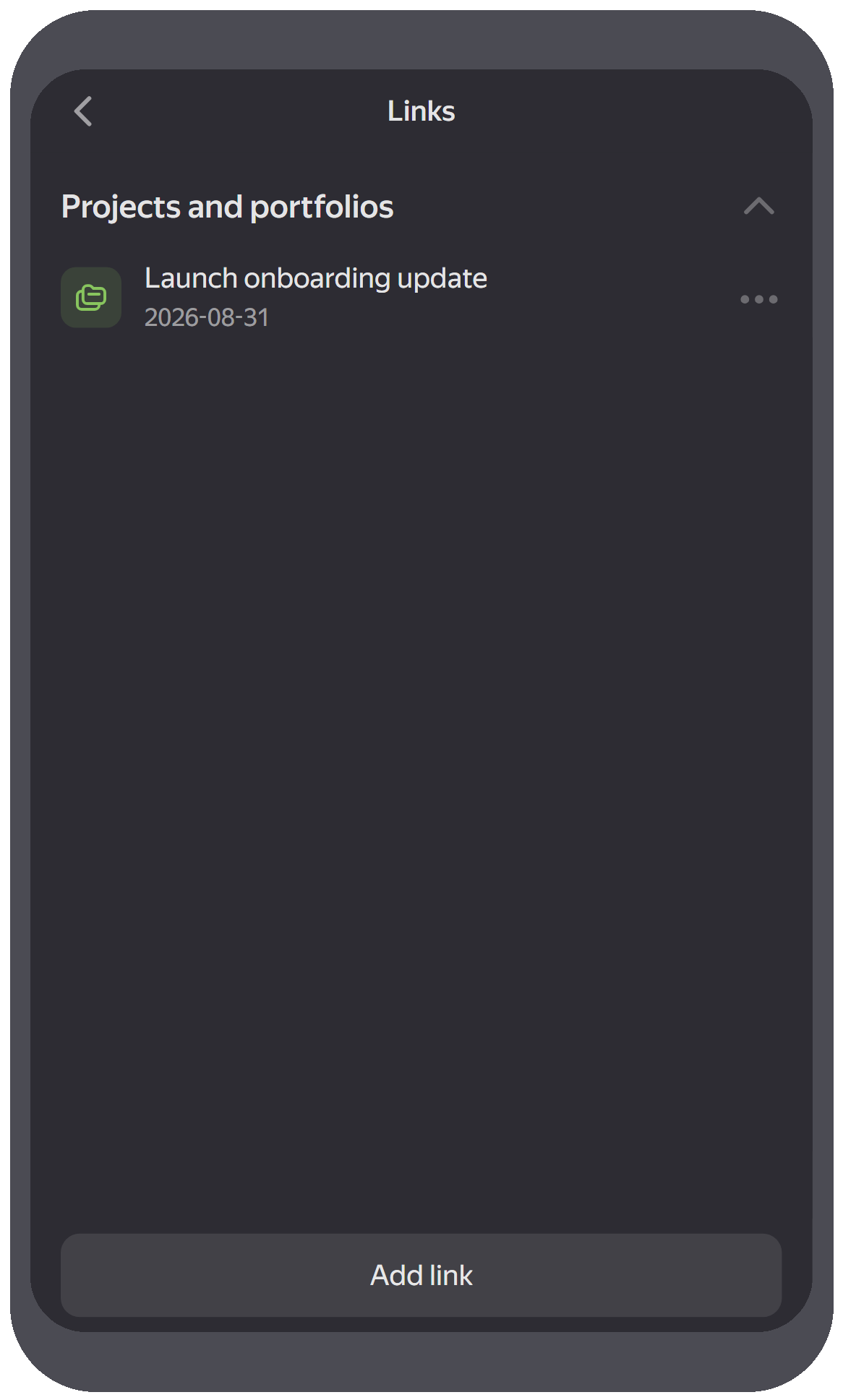
Other goals, issues, projects, and portfolios linked to the goal are located in the Links section.
Linked goals are grouped by link type:
- Blocks
- Depends on
- Projects and portfolios
View goal files
You can find all attachments from the description and comments under Files on the issue page. To open a file or expand an image to full screen, tap it.
After opening the attachment, you'll be able to do the following:
- To share a link to the attachment, tap → Copy link.
- To download the attachment, tap → Download.
- To delete the attachment, tap → Delete.
To download all attachments, go to the Files section and select Download all.
View comments and updates
-
To view all comments or add a new one, scroll down the goal screen to the Updates section.
For information on how to work with comments, such as replying to them or adding reactions, see Adding comments to issues. -
To view all actions in the goal and the names of their authors, tap History.