How to create a queue
Each issue belongs to one of the issue queues. Usually, issues that share a common topic are grouped into a queue. These can be issues of a project, department, or team.
There are three ways to create a queue in Tracker:
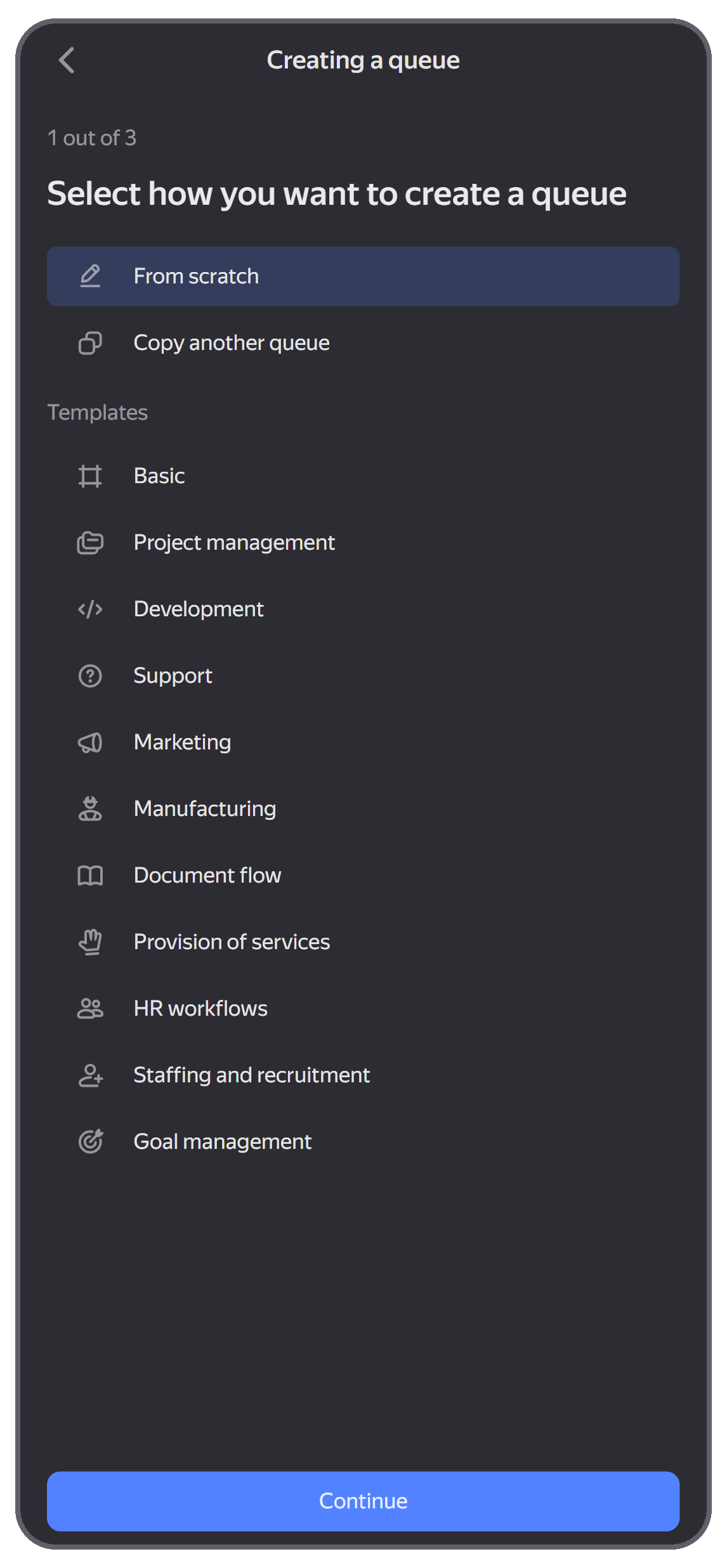
Creating a queue using a template
-
On the home screen, click → Queues and select at the bottom.
-
Select a suitable template. Check which settings will be added to the queue: statuses, issue types, fields, and issue views.
-
Enter the name and key of the new queue.
-
Specify who will be able to view issues in the queue:
- All employees — issues in the queue will be available to all organization employees.
- Me and issue participants — issues in the queue will be available only to the queue owner and users specified in the Author, Assignee, Followers, and Access fields.
-
Click Next. The new queue will appear under → Queues.
Manually creating and setting up a queue
If you want to configure the main settings yourself, create a queue from scratch:
-
On the home screen, click → Queues and select at the bottom.
-
Select the From scratch option.
-
Enter the name and key of the new queue.
-
Specify who will be able to view issues in the queue:
- All employees — issues in the queue will be available to all organization employees.
- Me and issue participants — issues in the queue will be available only to the queue owner and users specified in the Author, Assignee, Followers, and Access fields.
-
Select issue statuses. For more information about configuring statuses and transitions: Workflows: how to set up statuses, transitions, and issue types in a queue.
-
Click Next. The new queue will appear under → Queues.
Copying a queue
If Tracker already has a queue with suitable settings, copy it:
-
On the home screen, click → Queues and select at the bottom.
-
Select the Copy another queue option.
-
Enter the key or name of the queue whose settings you want to copy.
-
Enter the name and key of the new queue.
-
Click Next. The new queue will appear under → Queues.