Project milestones
Milestones indicate certain events in a project's timeline. With milestones, you can monitor the completion of project stages. For example, the Web app launch milestone will show that all the issues required for the launch are completed and you can proceed to the next stage.
A milestone has no start and end dates, as it indicates the deadline of a key event in the project timeline.
Project milestones in Tracker are displayed in the About the project tab under the project description. They are sorted by deadline, starting from the closest one.
On the project Gantt chart, milestones are shown as a diamond.
Adding the Milestoneissue type to a queue
A Milestone is a special issue type, i.e., to start using milestones in a queue, you should first add the Milestone issue type to a workflow in this queue. If you created a queue using workflow templates, the Milestone issue type may already be available in your queue, so you don't need to add it to your workflow manually.
To add the Milestone issue type to your queue, follow this guide. Only the queue administrator can do it.
Adding a milestone to a project
There are several ways to add a milestone to a project:
-
On the About the project tab, under Milestones, click Add.
-
On the Issues tab, click Add milestone.
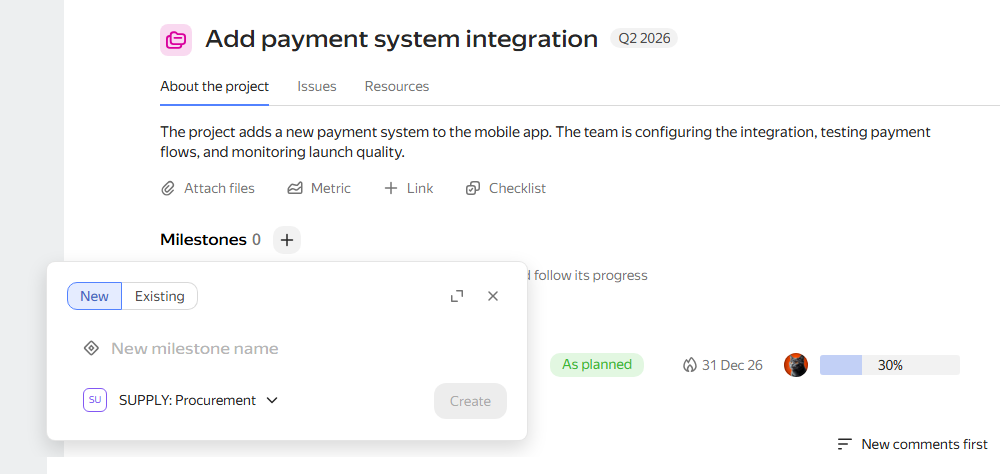
In the add milestone window, the list will suggest queues whose workflow includes the "Milestone" issue type. If there are no such queues, you can use the button in this window to add "Milestones" to the queues where you have administrator rights. To do this, start entering the queue key and select it from the list. If you don't have permission to configure the queue, contact your administrator.
A queue key is a unique code for a queue consisting of Latin characters, for example TEST. The key is contained in the link to the queue and its issues, and you need to specify it in API requests and auto action settings. You can't change the key after creating the queue.