How to create a portfolio and add projects
In this section, you will learn how to manage your portfolios:
- Creating a portfolio
- Setting up a hierarchy
- Editing multiple projects in a portfolio
- Deleting a portfolio
Creating a portfolio
To create a project portfolio:
-
Go to any page a portfolio can be created from:
- In the left panel, select Projects, then click Create → Portfolio.
- In the list of portfolios and projects, on the Structure tab, click Create portfolio under the list.
- In the list of portfolios and projects, on the List tab, click Create portfolio under the list.
-
Enter a name for the portfolio, set the end date, and click Create.
-
On the Description tab, add information:
-
Portfolio description: What you are working on and what goals you want to achieve.
-
File: Add the portfolio files.
-
Metric: If you have a DataLens chart that tracks key portfolio metrics, embed it on the portfolio page. For more information about adding a metric, see this guide.
-
Link to project: Add a link to a project.
-
Checklist: Specify the portfolio's key milestones or goals. You can work with a portfolio checklist just like an issue checklist. For details, see Creating a checklist.
-
In the right panel, specify the portfolio parameters.
Description of portfolio parameters
- Status: Specify the current stage of the portfolio.
- Start date and Deadline.
- Lead, Customers, Followers, and Participants: Start typing the name or login of the employee and select a relevant option from the list.
- Included in the portfolio: Specify the parent portfolio.
- Tags: Add or select the tags that would make it easier to find the portfolio.
-
By default, a new portfolio is available to all organization employees. How to restrict access to a portfolio
Copying a portfolio
To create a new portfolio based on an existing one, use the copy option.
-
Open the portfolio you want to copy.
-
In the top right corner, select Actions → Copy project portfolio.
-
Configure the portfolio copy options:
- Specify who will have access to the copied portfolio: All employees or Members only.
- To copy the portfolio's files and attachments, enable the Copy files and attachments option.
- To add the source portfolio's projects to the portfolio, enable the Include same projects in portfolio option.
- To copy the values of the portfolio's main fields, enable the Copy main field values option.
-
If you selected the Copy main field values option, fill in the Summary, Start date, Deadline, and Responsible fields. By default, the field values will be copied from the source portfolio.
-
Click Create copy.
Setting up a hierarchy
You can add a project or portfolio to several additional portfolios and work with it just like any other. If a project is worked on by several teams, it will appear in the portfolio tree and on the Gantt chart of each team.
Adding a parent portfolio
-
Go to the project or portfolio page and click the Included in the portfolio field in the right panel.
-
Select the portfolio type: main or additional.
You can add a project or portfolio to one main portfolio and several additional ones, but no more than 40 in total, including the main one.
-
Start typing the portfolio name and select the option you need from the list.
-
Click Save.
Adding a nested portfolio or project
-
Go to the portfolio page.
-
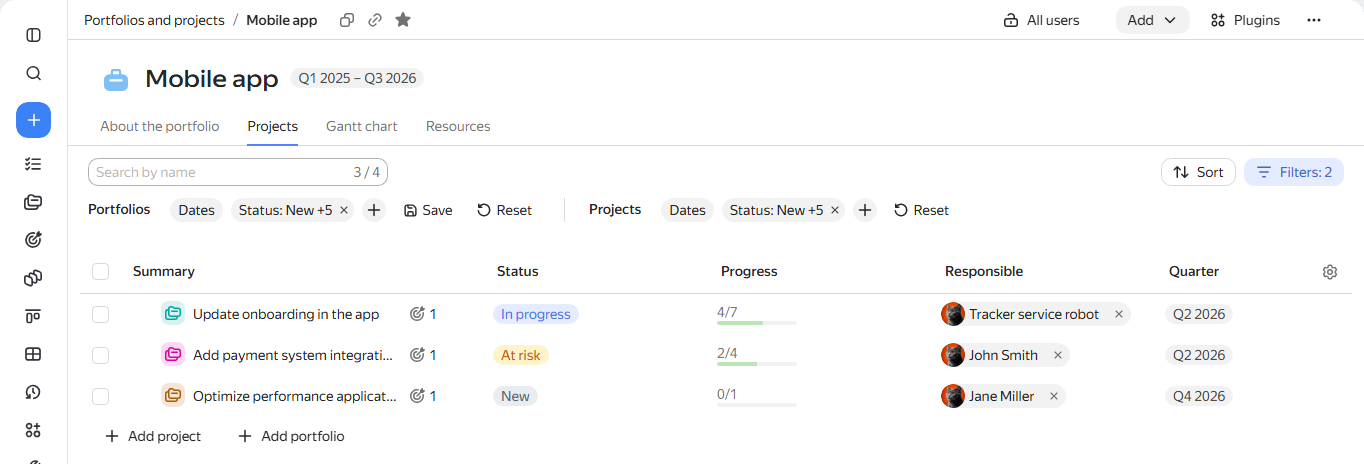
In the top right corner, click Add and select Portfolio or Project:
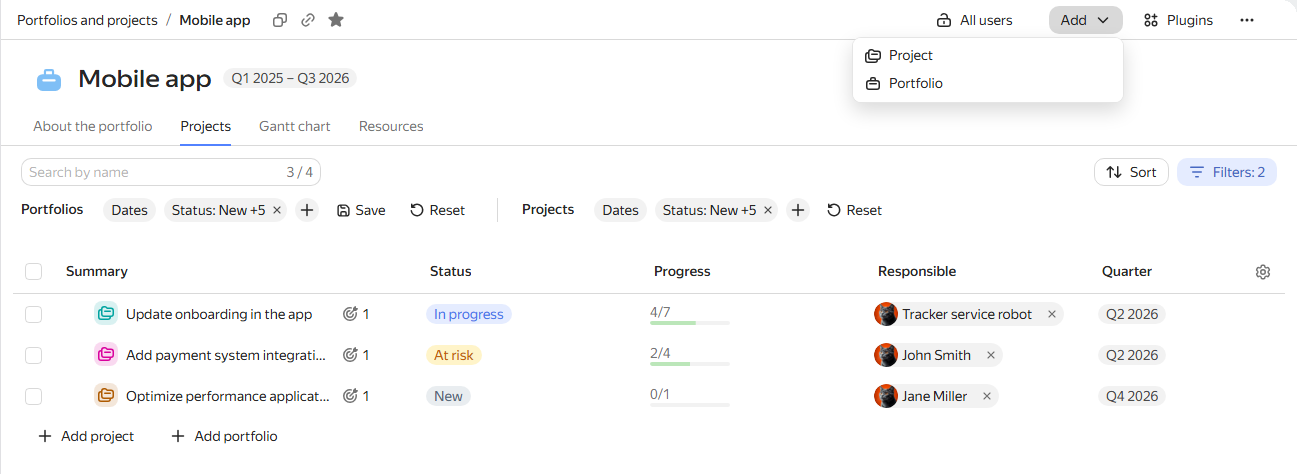 Create newAdd existing
- Click New.
- Enter a name for the project or portfolio.
- In the Deadline field, specify the end date. By default, the end of the current quarter is set as the end date. If you do not know the end date yet, click to reset the value.
- Click Create.
The current portfolio will become the main one for the new project or portfolio.
- Click Existing.
- Start typing the project or portfolio name and select the option you need from the list.
If the existing project or portfolio already has a main portfolio, the current portfolio will become an additional one for it.
Bulk editing projects in a portfolio
To make changes to several projects from one portfolio at once:
-
In the left panel, select Projects and open the portfolio you need.
-
In the selected portfolio, go to the Projects tab.
-
Select next to the portfolios and projects you want to edit.
To select all the listed portfolios and projects at once, select above the list.
-
Under the list of portfolios and projects, select the operation you need:
- Change status: Select a status from the list.
- Assign a lead: Enter a login or name in the search bar and select the user.
- Move to portfolio: In the window that opens, select an existing portfolio or create a new one on the relevant tab. If one or several of the selected projects and portfolios already belong to another portfolio, this operation will remove them from the previous one and add them to the newly selected one.
- → Edit parameters: In the window that opens, change the parameters you need and click Apply. If the fields you need are not in the list, add them by clicking Edit parameter list.
- → Delete: Delete the selected projects and portfolios.
-
After the operation is complete, a notification will appear in the bottom right corner showing the number of portfolios and projects that were successfully changed.
Deleting a portfolio
A portfolio can be deleted by its author or the user specified in the Lead field.
To delete a portfolio:
-
In the left panel, select Projects or follow the link https://tracker.yandex.com/pages/projects and open the portfolio page.
-
In the top right corner of the page, click and select Delete project portfolio.