Sprints: development iterations
In Scrum, work is split into sprints, or development iterations of a set duration. At the start of each iteration, the team estimates issues and plans the upcoming sprint. In Tracker, you can create sprints, add issues to them, and track progress.
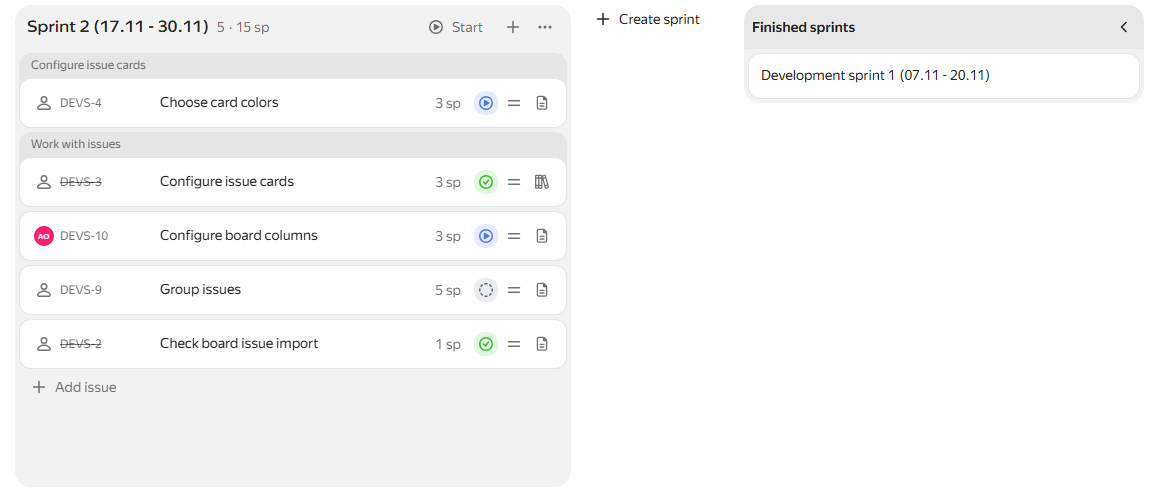
Sprints are available on With backlog and sprints boards. If you use a Basic board, enable sprints and other Agile tools: Enabling Agile tools.
Planning a sprint
Step 1. Evaluate the effort required to resolve the issues
Evaluate the effort for the backlog issues. The effort is measured in Story Points that determine the relative complexity of the project's issues. Each team decides internally how to define the effort needed to complete their issues. You can specify the estimated effort on the issue page in the Story Points field.
Use Planning Poker on the issue board to assess the complexity of issues within your team.
Step 2. Create a new sprint
The Backlog tab on a newly created board already has a sprint. If you have not planned it yet, proceed to the next step. To create a new sprint:
-
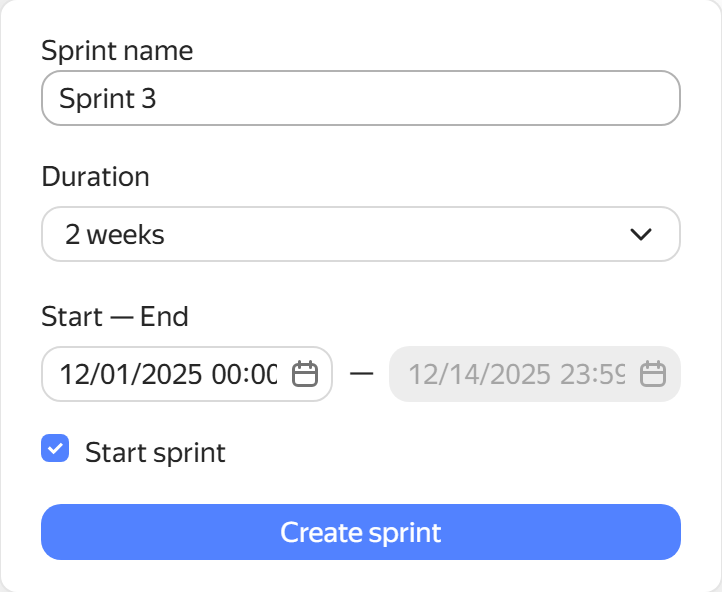
In the Backlog tab, click + Create sprint to the right of the board.
-
Enter a name for the sprint, its duration, and start and end time. To start the sprint right away, leave the Start sprint option enabled.
-
Click Create sprint.
Step 3. Add issues to the sprint
There are several ways to add an issue to a sprint. By default, you can't add issues to a completed sprint. To do this, first show the sprint: View completed sprints.
-
On the Backlog tab, drag an issue from the Backlog column to the sprint's column.
-
In the backlog or on the board, select the issue card, then click → Add to sprint and select the sprint you need.
-
On the issue page, enter the board name or ID in the Boards field of the left panel and select a sprint in the Sprint field under Agile.
-
To quickly add many issues, use bulk editing: on the board, on the card of one of the issues, click → Select and click the other issues you want to add to the sprint. Once you select all issues, click Add to sprint in the bottom panel of the board and select the one you need.
Editing a sprint
To edit a sprint:
-
On the Backlog tab, to the right of the sprint title, click → Edit.
-
In the window that opens, you can rename the sprint, change its duration and start and end time, as well as enable the Start sprint option.
-
To save your changes, click Edit sprint.
Starting or completing a sprint
When you've planned all your sprint issues and the start date arrives, click Start next to the sprint in the board's Backlog tab.
When the sprint ends, complete it:
- In the Backlog tab, click Complete next to the sprint.
- If the sprint has incomplete issues, choose whether to leave them in the current sprint, return them to the backlog, or move them to a new sprint.
- Click Complete.
The completed sprint appears under Finished sprints.
View completed sprints
By default, completed sprints and their associated issues are hidden from the board. To view and manage completed sprints:
-
In the upper-right corner of the Backlog tab, click Finished sprints.
-
Hover over the sprint and click Show
The sprint appears on the board next to active sprints, and you can move issues to it.
-
To hide a completed sprint, click Hide next to its name.