Backlog: a project issue list
A backlog is a list of issues or product features to implement in Agile methodologies. A backlog usually contains all project customer requirements and user requests.
In Tracker, you can manage a backlog on the Backlog tab of a board with a backlog and sprints. Sort issues by priority and relevance. Remove closed issues, duplicates, and issues that you do not plan to work on.
Move issues that you need to complete soon from the backlog to sprints: Sprints: development iterations. To move an issue, drag its card from the backlog to the sprint list.
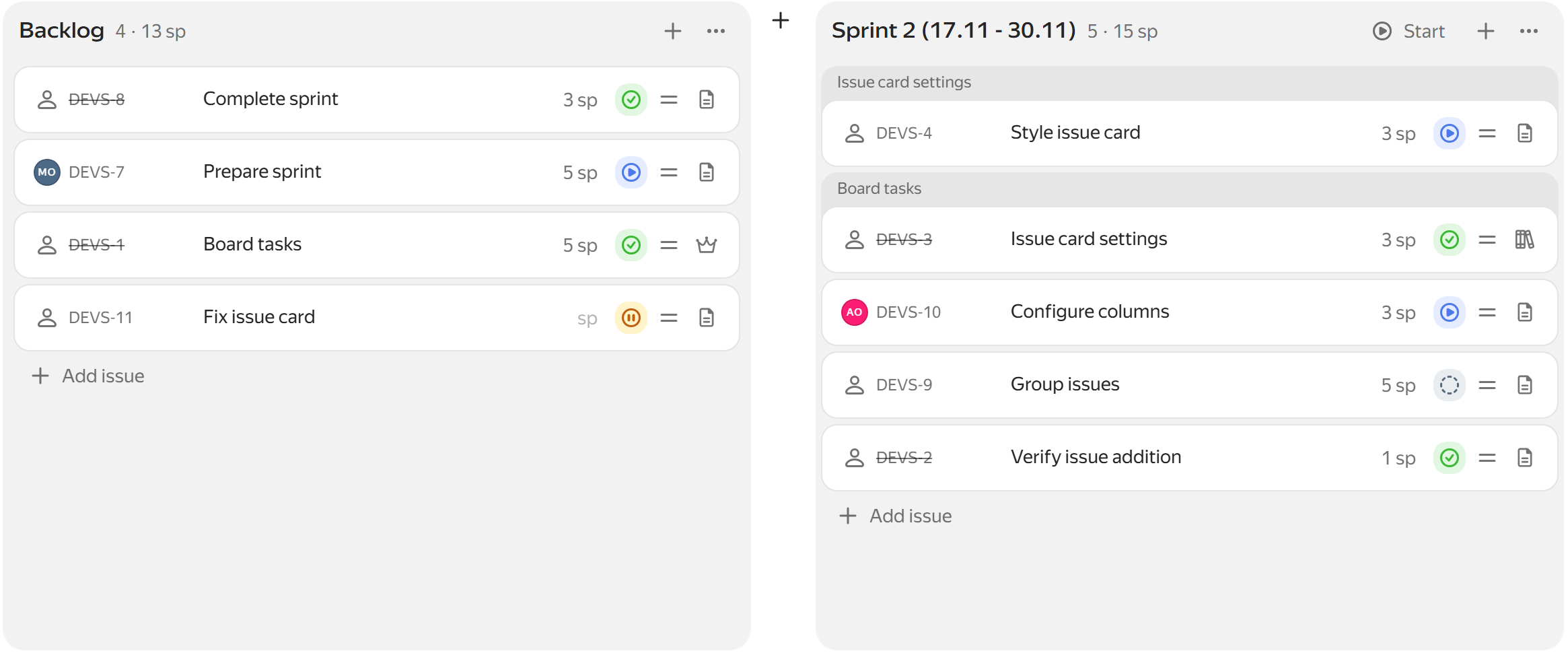
A backlog in Yandex Tracker
A backlog is available on With backlog and sprints boards. On a Basic board, you can enable a backlog and other Agile tools: Enabling Agile tools.
You can't enable a backlog or other Agile tools on a project board.
Adding issues to a backlog
Issues are added to the backlog when you add them to a board from an issue page or set up automatic issue import by parameters. For details, see From the issue page and How to configure automatic issue addition.
To add a single issue:
- Decide where to add an issue (to the backlog or sprint) and click + Add issue in the appropriate section.
- Select an existing issue or create a new one right on the board.
To add a group of issues, such as all issues from a queue with a certain assignee, use issue auto-import:
- On the board, click Settings → Automatic issues import and removal.
- Under Adding issues to the board, click + Add parameters. Select a parameter from the list and set its value. For example, to add all issues where you are the assignee to the board, select the Assignee parameter and set it to Me. To add more parameters, repeat the step.
You can also add a group of issues using bulk edits:
- On the issue search page, select the issues you need.
- In the bulk actions panel at the bottom of the page, click → Add to board.
- Find the board by name and click Apply.
Add a column to the backlog
In addition to backlog and sprint columns, you can create custom columns and use them as an additional backlog section with manually selected issues. For example, a separate backlog column can hold issues that need to be discussed with the team during the nearest planning or issue estimation session.
To add a column:
- In the left panel, click Issue boards and select a board.
- Open the Backlog tab.
- To the right of the Backlog column, click the Add column button.
- Enter a column name and click Add.
- If you need to limit the number of issues in an additional column, to the right of its name, click → Edit and specify the maximum number of issues.
Filtering, grouping, and sorting issues
Like on a board, you can filter, group, and sort issues in the backlog:
How to remove issues from the backlog
-
Hover over the issue you want to delete.
-
Click → Remove from backlog.
The issue is removed from the backlog and the board.