How to add issues to a board
To track and manage issues on a board, first add them to it. We recommend configuring automatic issue addition. Then all issues with the parameters you choose will appear on the board. For example, you can add all issues assigned to specific people or all issues in your team's queue.
You can also add issues manually. This is useful when a board needs to include a specific issue that doesn't match the automatic addition conditions.
You can add no more than 2000 issues per board.
You can add the same issue to multiple boards.
How to configure automatic issue addition
Set up a board so that all issues you need to track are added automatically. To do this, select issue parameters by using a filter. For example, add all issues in your queue that have a specific component.
If an issue's parameters change to match the filter conditions, including when a new issue is created, the issue appears on the board.
To set up a filter for automatic issue addition:
-
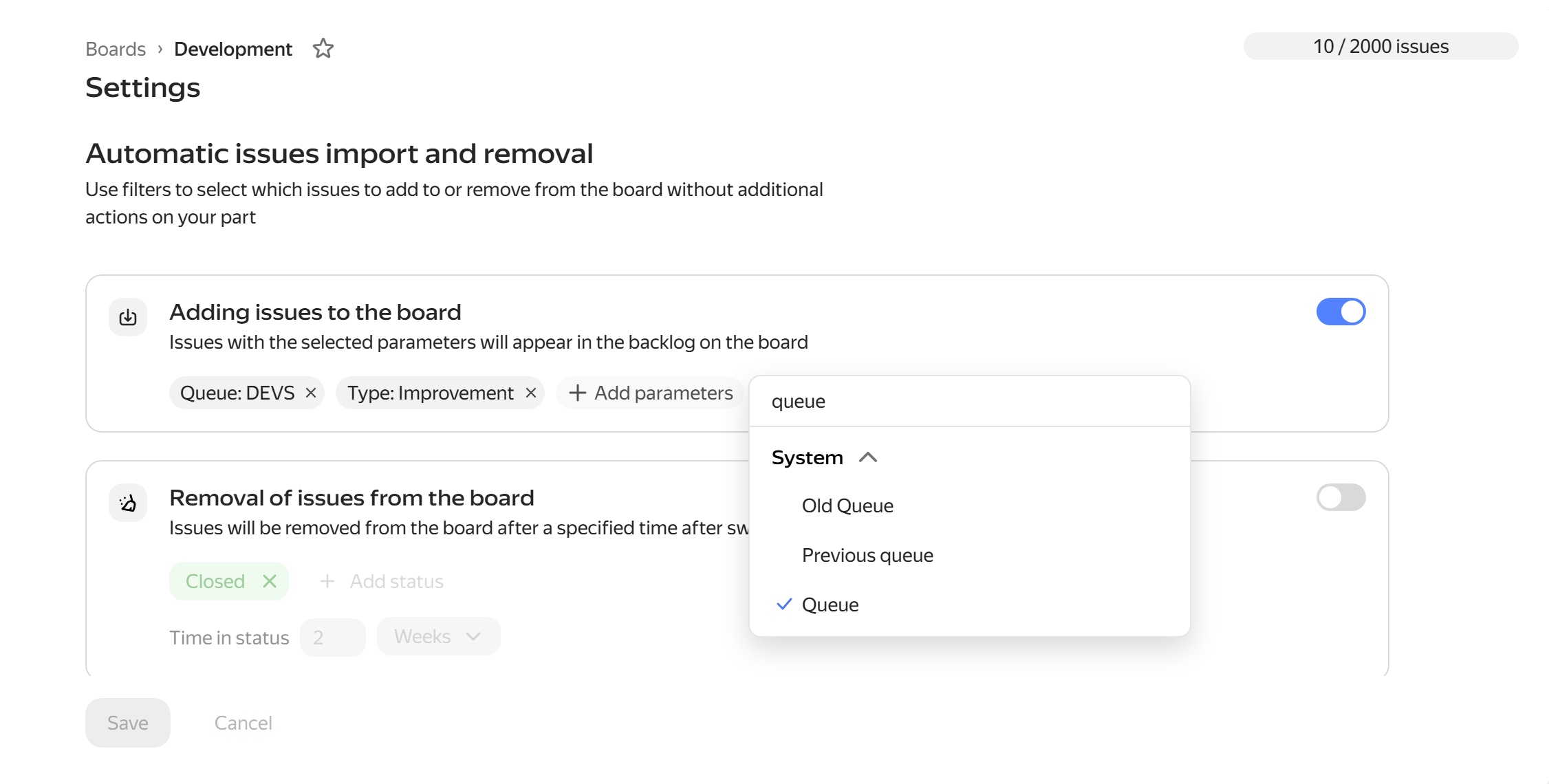
In the top right corner of the board, click the Settings button. The Automatic addition and removal of issues page opens.
-
Under Adding issues to the board, click + Add parameters. Select a parameter from the list and specify its value.
For example, to add all issues where you are the assignee to the board, select the Assignee parameter and set it to Me. To add more parameters, repeat this step.
To find a local field of a specific queue, before the field name, type the queue key and a period (for example,
DEVS.Tester). -
Click Save.
When saving the filter, the issues that meet the specified conditions will be added to the board, except for:
- Issues that cannot be edited by the user who set up the filter.
- Issues already added to the board.
- Issues that meet the conditions for automatic removal from the board.
- Issues that were previously added to the board automatically but were later removed manually.
Subsequently, all issues that meet the filter parameters will be added to the board, ignoring the listed exceptions.
How to add issues manually
To add an existing issue to a board, you can find it by name or fill in the Boards field on the issue page.
You can also create a new issue right on the board: How to create an issue on a board.
From the board page
-
In the left panel, select Issue boards, then select the desired board from the list.
-
In the leftmost column, click the icon and select Existing issue.
-
Start typing the key or name of an issue and select a suitable option from the list.
From the issue page
-
Open the issue page.
-
In the right panel, in the Boards field, start typing the board name and select a suitable option from the list.
If there is no Boards field, add it using the Edit parameter list button.
Note
An issue will also be added to the board if you specify the name of a sprint on your board in the Sprint field. How to use sprints.
How to add multiple issues
You can add multiple issues to a board at once by selecting them on the queue page or in an issue filter: How to search for issues.
-
Open the queue page or the issue search page .
-
Select the issues you want to add to the board.
-
In the bottom panel, click and select Add to board.
-
Search for the desired board by name and click Apply.
How to create an issue on a board
You can create a new issue directly on a board. All you need to do is enter the name and specify the queue — you can fill in other fields later.
-
In the left panel, click Issue boards and select a board.
-
In the leftmost column, click the icon and select New issue.
-
Enter the issue name.
-
From the drop-down list, select the queue in which the issue will be created.
If you can create an issue in the queue only using a form, you'll see the Select form button on the screen.
-
Click Create or press Enter.
Where to find added issues
-
When you add an issue to a Basic board, it appears in the column that matches the issue status.
If the added issue is not displayed on the board, make sure its status is linked to a column. To view statuses that aren't used on the board, click next to the rightmost column. How to find unused statuses
-
If the board has custom columns that aren't linked to statuses, the issue appears in the column with unsorted issues. What are custom columns
-
When you add an issue to a board with a backlog, it appears in the backlog. Backlog: a project issue list
Automatically remove issues from the board
To prevent a board from getting overloaded when it reaches the limit of 2000 issues, you can configure automatic removal of issues from the board. For example, to remove all closed issues or issues that were closed several months ago.
How to prevent a board from getting overloaded
To keep the number of issues on a board within the limit, follow these guidelines:
- Only add issues that you plan to complete in the foreseeable future, such as within the next six months.
- Configure automatic removal so that issues in specific statuses are automatically removed from the board.
- To review closed issues that have already been removed from the board, use the issue search page . If you're using a board with a backlog and sprints, the Backlog tab includes a link to a filter with issues from a completed sprint: View completed sprints.
- To work with all your issues, for example, to analyze them using filters or sorting, use queues instead of adding every issue to a board.
-
In the top right corner of the board, click the Settings button. The Automatic addition and removal of issues page opens.
-
Under Removal of issues from the board, specify the statuses that will be the condition for removing issues from the board.
-
Specify the duration an issue must remain in the specified statuses before it is removed from the board.
Once an issue moves to one of the specified statuses and stays in it for the specified time, it will be removed from the board.
A queue is a space for issues related to a single process, product, team, or department. A queue helps you store issues in one place and manage work according to common rules.
A filter is a tool for searching for issues by conditions. For example, you can find issues in a specific queue where you are the author or assignee.