Adding issues to a board
Set up the board to match your workflow: display important issue fields and highlight tags with color. You can change the values of fields displayed on the issue card directly on the board.
Display important issue parameters on the board
You can add values of any fields you want to see on the board to issues.
- In the top-right corner of the board, click → Story Points.
- Select the parameters to display on the board and click Apply.
To see the total Story Points for issues in each column, add the Story Points field.

Highlight issues with specific tags or components
To quickly find issues with specific tags and components, highlight them with color.
- Display the Tags or Components parameters on the board.
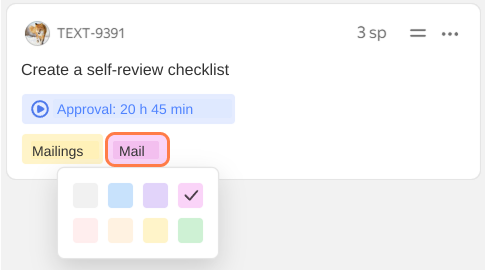
- Click the tag or component name on the board: a palette will appear.
- Select the desired color in the palette.
Update an issue directly on the board
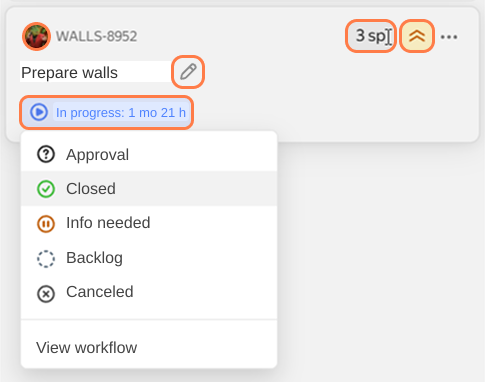
You can quickly update an issue directly on the board: for example, move the deadline or assign a new assignee. To do this, click the desired parameter and select a new value.
You choose which parameters appear on issue cards: Display important issue parameters on the board.
When changing an issue status, keep in mind that some transitions may be unavailable due to workflow rules. For example, if an issue cannot be closed without going through the Approval status. To view allowed transitions, click Status in the status list.
Update multiple issues at once
-
Select issues in one of the following ways:
-
Hold Ctrl + Shift on Windows or ⌘ + Shift on macOS and click the desired issues.
-
In an issue, click → Select, then select the remaining issues.
-
-
On the panel at the bottom of the board, select an action.