Filter, group, and sort issues on a board
Configure how issues are displayed on a board or in a backlog: filter out unnecessary issues, group the rest, and set the card order.
Filter issues
If there are too many issues on a board, hide unnecessary ones using filters. You can choose a saved filter, create a new one, or apply several filters at the same time.

-
In the upper-right corner, click Filters. The filter setup panel appears above the board columns.
-
Click . Select the parameter to filter issues by and specify its value.
Add multiple parameters if needed.
-
To cancel the filter, click Reset.
Save and manage a filter
Save a filter to reuse it or pin it at the top of the board.
-
In the filters panel, click Save.
-
Enter a filter name.
-
Select who the filter is pinned for at the top of the board: only you or all users. Pinned filters appear as buttons at the top of the board.
-
Click Save.
Saved filters are available to all users. After creating a filter, you can only pin it for yourself. To pin a filter for all board users, create a new filter with the required setting.
To pin, edit, or delete a saved filter, in the upper-right corner of the page, click and select Manage filters. Then select the filters to show on the board, or click next to a filter name.
Group issues
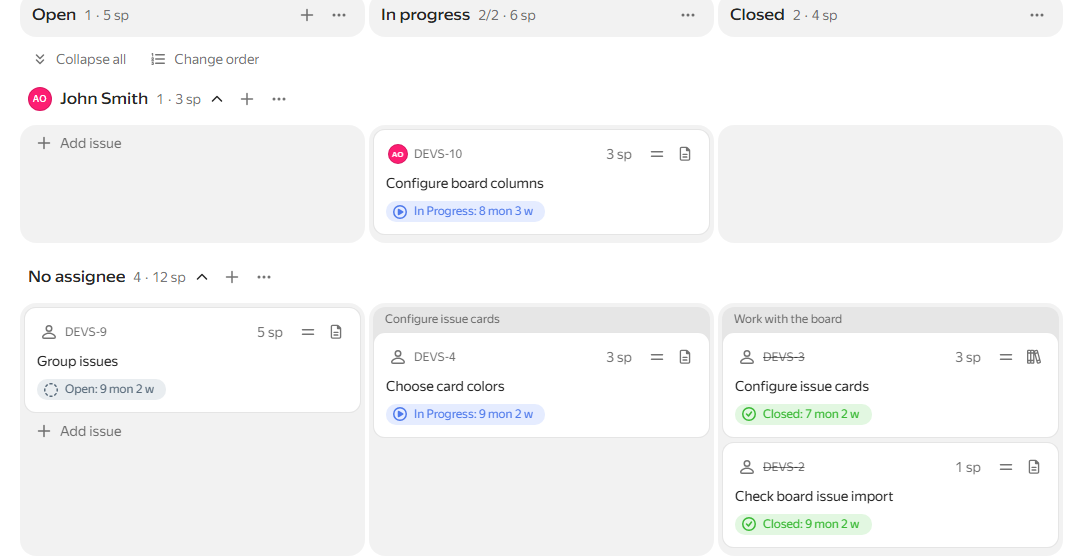
You can group issues on a board or in a backlog by a parameter. Each group appears as a horizontal lane with issue cards. In Kanban, these lanes are called swimlanes.
-
At the top of the board, click No grouping.
-
Select a grouping parameter, for example
Assignee.
All issues with the same value for the selected parameter are combined into groups. To change the order of groups, click Change order and reorder the parameter values.
You can set the maximum number of issues in a group:
-
To the right of the group parameter value, click → Maximum number of issues.
-
Specify the issue limit and click Save.
To add an issue to a group, click Add issue below the issue list. The new or existing issue gets the field value used for grouping. When grouping by queue, you can only create a new issue. When grouping by author, status, or type, you cannot add issues.
You can drag issues between groups on a board or in a backlog. When moving an issue, its value for the grouping field changes.
Sort issues
You can rank issues manually or sort them by parameters, such as priority, deadline, or assignee. At the top of the board, click Sorting and select a parameter. The button next to it changes the sorting direction.