How to create a board in Yandex Tracker
Create a board
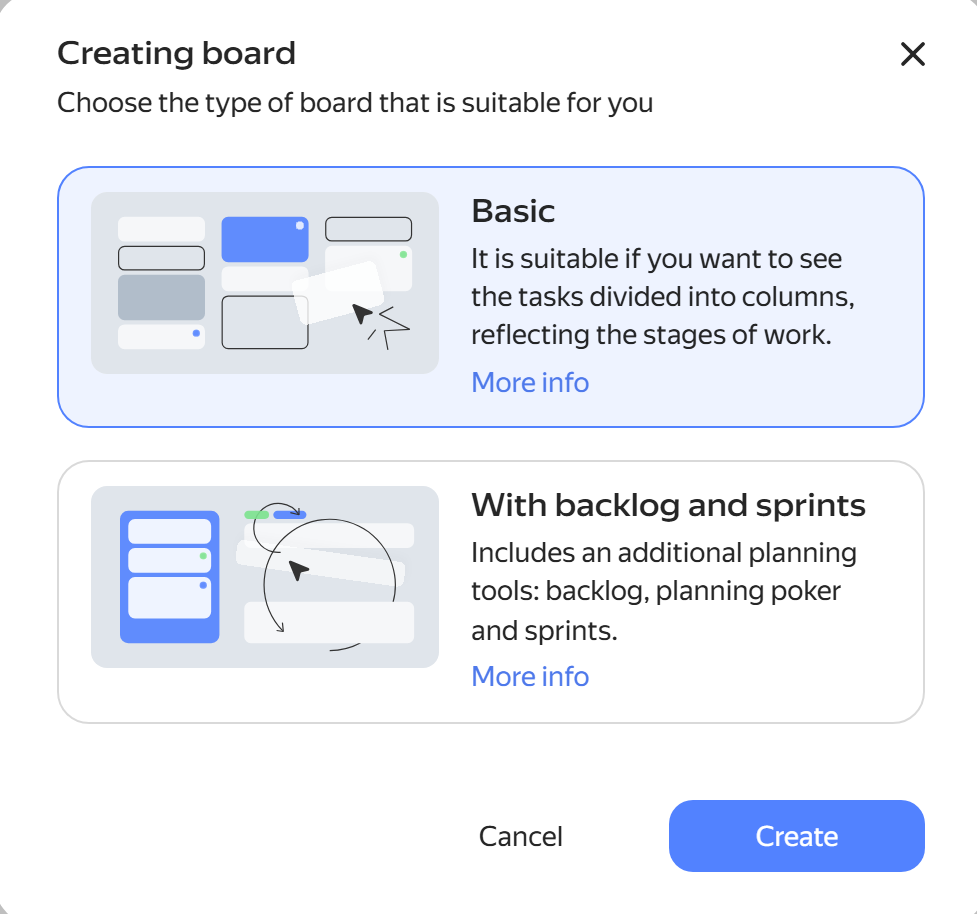
Choose the board type that suits your team's workflow:
- Basic: For processing a flow of issues and assigning them to team members.
- With backlog and sprints: For planning work in iterations with Agile tools.
You can start with a basic board and later enable backlog and sprint management tools if needed. How to enable Agile tools
Create a basic board
Basic boards work well for any team and help you organize issues in columns based on their status.
To create a basic board:
-
In the left panel, click Boards → Create board.
-
Select the Basic board type and click Create. This will create a new board named New board. This board field is editable, so you can change its value and rename the board.
It already has some columns with Open, In progress, and Closed statuses. You can delete the columns, add other ones, or create custom columns not associated with issue statuses.
After adding issues to the board, you can customize the layout of issue cards, group and filter issues, and move them across the board columns. You can enable a backlog for a basic board to convert it to With backlog and sprints format. No rollback is possible.
Create a board with a backlog and sprints
With backlog and sprints boards are good for Agile teams because they allow them to create a backlog, manage sprints, estimate issue complexity, and analyze burndown charts.
To create a board with a backlog and sprints:
-
In the left panel, click Boards → Create board.
-
Select the With backlog and sprints board type and click Create. This will create a new board named New board. This board field is editable, so you can change its value and rename the board.
It consists of three tabs:
- Backlog: Use it to create an issue backlog and sprints.
- Board: Use it to sort backlog issues by status or custom column (this tab is similar to Basic board).
- Burndown chart: Shows the issue completion rate and the remaining amount of work within a single sprint.
After adding issues to a backlog, you can plan sprints, customize the layout of issue cards, group and filter board issues, and analyze their completion rate.
Deleting a board
If you no longer need an issue board, its owner or users with full access can delete it. How to set up access to a board
When you delete a board, all issues added to it remain in Yandex Tracker.
To delete a regular board:
-
Open the board.
-
In the top-right corner, click and select Delete board.
-
Confirm the deletion.
You can delete a project board from the list of all boards. The issues will remain in the project. How to delete a project board
When you delete a project, its linked board is also deleted.
A project is a set of issues from different queues where work is being done towards a common result. This could be launching a mobile app or redesigning a website's homepage.
A project helps you track: how many issues are done, how many are left, and whether the team is meeting deadlines.