Setting up automatic issue creation
To manage the workflows for official employment and onboarding of new employees, create a queue where you will track procedural matters, provision of equipment and access permissions, and the progress of probation period. Automate the creation of an appropriate issue pool when the candidate issue is closed with the Hired resolution.
Create a queue for new employees
- Create a queue using the HR processes template.
- For example,
Employment Queue. - Set up a workflow or create a new one if needed.
- For the workflow, specify the default issue type, for example
Новые сотрудники. - Set up queue access permissions to protect employee personal data.
Add issue types
Create separate issue types for various procedures related to employment and onboarding of new employees. For example, to issue access permissions and equipment, create an issue type Доступы и оборудование:
- Click Queue settings in the top right corner of the
Employment Queuepage. - In the left panel, select Workflows.
- Click Add issue type and select an issue type from the list.
- To add a resolution, such as Resolved, hover over the issue type line and click .
Only an administrator can create new issue types. Make sure the issue types are unique.
Set up a trigger in the Candidates Queue
To automate replication of issues from the Candidates Queue to the Employment Queue, create a trigger that will fire when the candidate issue status changes to Hired:
-
Click Queue settings in the top right corner of the
Candidates Queuepage. -
Select Automation in the left-hand panel.
-
In the top right corner, click Create → Trigger.
-
Enter the trigger name, for example
Кандидат принят. -
In the Under condition section, specify Status → became equal to → Hired (the status you created in the Candidates Queue workflow). Read more about trigger conditions here.
-
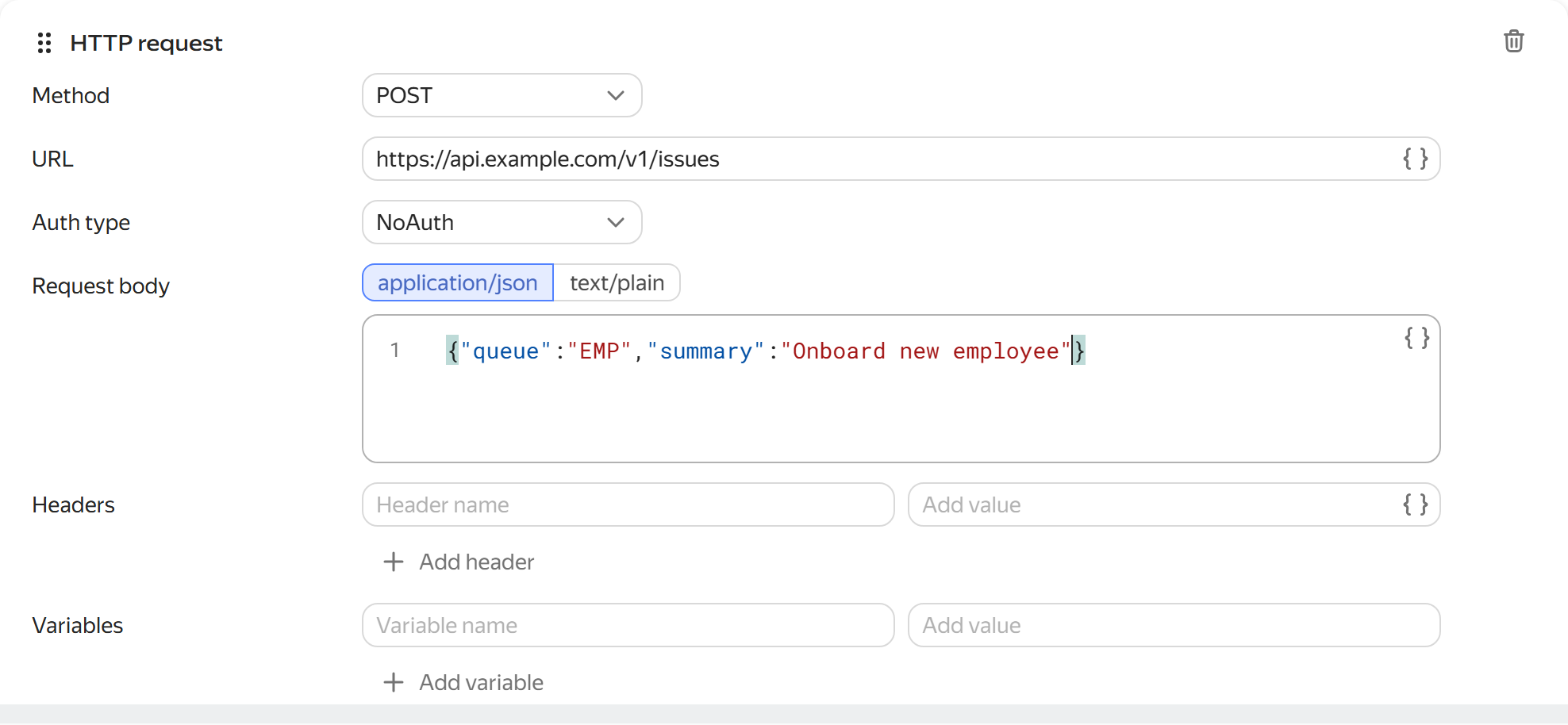
Under Perform actions, select HTTP request.
-
In the form that opens, enter the request parameters. In the Request body field, set the parameters of a new sub-issue. To substitute the values from the original issue, use variables:
Field
Content
Method
POST
Address
https://api.tracker.yandex.net/v3/issuesAuthorization method
OAuth 2.0
Token
<OAuth-токен>(see Guide to getting a token)Authorization header
Authorization
Token type
OAuth
Content type
application/json
Request body
{
   "queue": "<Employment_Queue_key>",
   "summary": {{issue.summary.json}},
   "description": {{issue.description.json}},
   "type": "<New_Employees_issue_key>",
   "parent": "{{issue.key}}"
}
Headers
Header:
X-Org-IDorX-Cloud-Org-IDValue: Organization ID.
To get the organization ID, go to Administration → Organizations and copy the value from the ID field.
The parameters that you pass in the request body using variables must be filled in in the original issue, otherwise the trigger will not fire.
-
To save the trigger, click Create.
Set up a trigger in the Employment Queue
After the candidate's issue is copied to the employees queue Employment Queue, you need to create several sub-issues related to the new employee in the same queue, for example: Доступы и оборудование, Оформление документов, Испытательный срок. To automate sub-issue creation, create a trigger that will fire when the new employee's issue status changes to In progress. To make the trigger fire only for issues of type Новые сотрудники, specify this type in the trigger conditions.
Create a trigger
- Click Queue settings in the top right corner of the
Employment Queuepage. - Select Automation in the left-hand panel.
- In the top right corner, click Create → Trigger.
- Enter the trigger name, for example
Новый сотрудник. - In the Under condition section, set two conditions:
- Status → became equal to → In progress (the status you created in the Candidates Queue workflow).
- Type → is equal to → New employee (the issue type you created in the Candidates Queue workflow).
Read more about trigger conditions here.
- Under Perform actions, select HTTP request.
- In the form that opens, enter the request parameters as you did earlier. In the Request body field, update the issue
typedescriptionand key, for example:
{
    "queue": "<Employment_Queue_key>",
    "summary": {{issue.summary.json}},
    "description": "Выдать доступы и оборудование",
    "type": "<issue_key_Access_permissions_and_equipment>",
    "parent": "{{issue.key}}"
}
Add actions
To automatically create other sub-issues, add the appropriate actions to the trigger:
-
Under Perform actions, select HTTP request.
-
Fill out the form as you did earlier. In the Request body field, update the issue type description and key, for example:
{ "queue":"<Employment_Queue_key>", "summary":{{issue.summary.json}}, "description":"Probation period", "type":"<Probation_Period_issue_type_key>", "parent":"{{issue.key}}" } -
Repeat the steps to add actions for other issues.
-
To save the trigger, click Create.
Test the triggers
- On the
Candidate Queuepage, select the test issue and change the status to Hired. - Make sure a new issue has appeared on the
Employment Queuepage. - Open the issue and select In progress in the status field.
- Make sure the queue now contains all the appropriate sub-issues.