How to find goals in Tracker
Use ready-made filters to search for your goals or set up your own search conditions by any parameters.
Find my goals
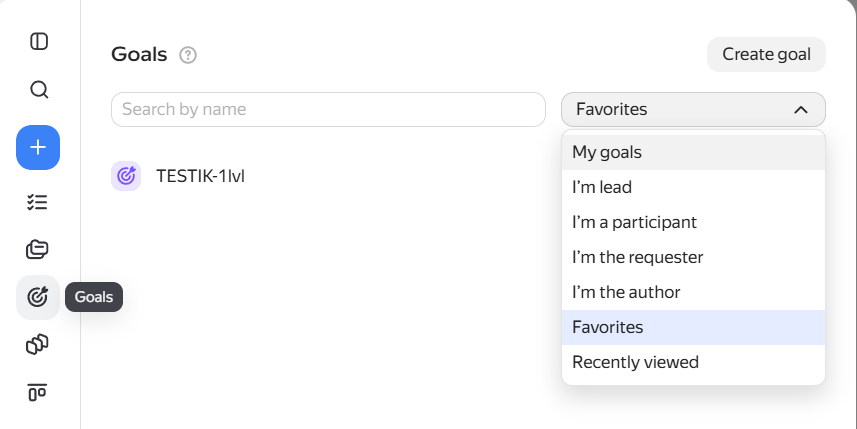
The goals you work with are collected in the Goals section in the left panel.
To make it easier to navigate the goal list, we've added filters:
-
My goals — goals where you are the author, owner, participant, or client.
-
I'm author, I'm owner, I'm a participant, or I'm a client — goals where you have the corresponding role.
-
Favorites — goals you've marked with the icon.
-
Recently viewed — goals you've opened most recently.
Find goals by any parameters
Using the filter, you can set any criteria: for example, find achieved goals of a specific author. The last search conditions you set will be applied the next time you open the goals page.
Step 1. Open the goal list
In the left panel, click Goals → Show all or follow the link https://tracker.yandex.com/pages/goals .
Step 2. Add search conditions
-
Click Add a field for filtering.
-
Select a parameter to search for goals, set its value, and click Apply.
-
To find an employee's goals, select the Participant or owner parameter, specify the employee, and click Apply. The results will show goals where they are a participant or specified as the owner.
-
To search among your goals, select a preset filter, such as My goals .
-
If you made a mistake or changed your mind, clear the search conditions:
- To remove one parameter from the search conditions, click to the right of it.
- To remove all search conditions you've set, click Reset.

When you click a goal, it opens in a new window by default. To have goals open in the side panel, click Settings on the left, and under Interface select Open issues → In the side panel.
How to work with the search results list
Change the goal list view
At the top, select the goal list display option:
-
List — a flat list that does not show links between goals and key results.
-
Structure — a tree-like list that shows links between top-level goals and their child goals, or subgoals. In addition to parent links, you can view blocking links: hover over Links.
Key results of goals are also displayed as nested items with the icon. For more details, see Adding key results.
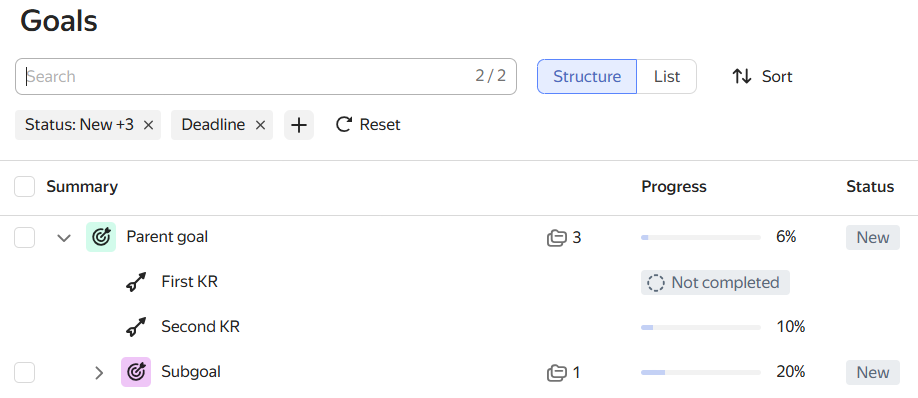
To view the structure of a specific top-level goal, in the Structure view click Add a field for filtering, add the search parameter Top-level goals, and specify the desired goal.
If you search for goals by parameters, in the Structure view the filter conditions will apply to both parent and child goals. For example, if a top-level goal does not match the filter conditions, it will not appear in the list along with all its child goals.
Changing goal parameter values
- You can change the goal name directly in the list: hover over it and click .
- To change the owner or a date (for example, "Deadline"), click the current value and select a new one from the drop-down list.

Changing table columns
The goal list is presented as a table with parameters, such as "Status", "Progress", and "Author". You can add parameter columns to the table or remove unnecessary ones:
To quickly find an issue in a filtered list, type text in the Search by issue name field.
You can customize the list with search results: sort or group issues, select columns with parameters. For more information, see How to configure the issue search results list.
Open the issue list with extended search capabilities: click Issues → Show all or go to https://tracker.yandex.com/issues .
To search by a local field of a specific queue, enter the queue key and a dot before the field name (for example, DEVS.Tester). For more information about local fields, see Local issue fields.

Sorting the goal list
To set a list sorting parameter (for example, by deadline in descending order), use the button at the top of the page:
- On the search parameters panel, click Sorting and select a parameter.
- To change the sort direction, either descending or ascending, click the icon that appears after selecting a parameter.
You can quickly sort the list by a table parameter: hover over a column and click the icon.
Grouping the goal list
Goals in search results can be divided into groups, for example, by responsible employees. To do this, at the top click No grouping and select a grouping parameter from the drop-down list.
Bulk actions with goals
Goal lists support bulk editing operations that let you apply the same changes to multiple goals at once. To do this:
-
In the left panel, select Goals and open one of the lists:
- the link to the full list of goals for the selected filter;
- Show all.
-
Go to the List or Structure tab.
-
Check the box next to the goals you want to change.
If you want to select all goals in the list at once, check the box above the list.
-
Below the goal list, select the desired operation:
- Change status — select a status from the list.
- Assign an owner — enter a login or name in the search field and select a user.
- → Edit parameters — in the window that opens, change the required parameters and click Apply. If the required fields are not in the list, add them using the Edit parameter list button.
- → Delete — to delete the selected goals.
-
After the operation is completed, a notification will appear in the bottom-right corner showing the number of goals for which the changes were successfully applied.