How to create a goal
Creating a goal
-
In the left panel, open Goals, then click Create goal in the upper-right corner or follow the link https://tracker.yandex.com/createGoal .
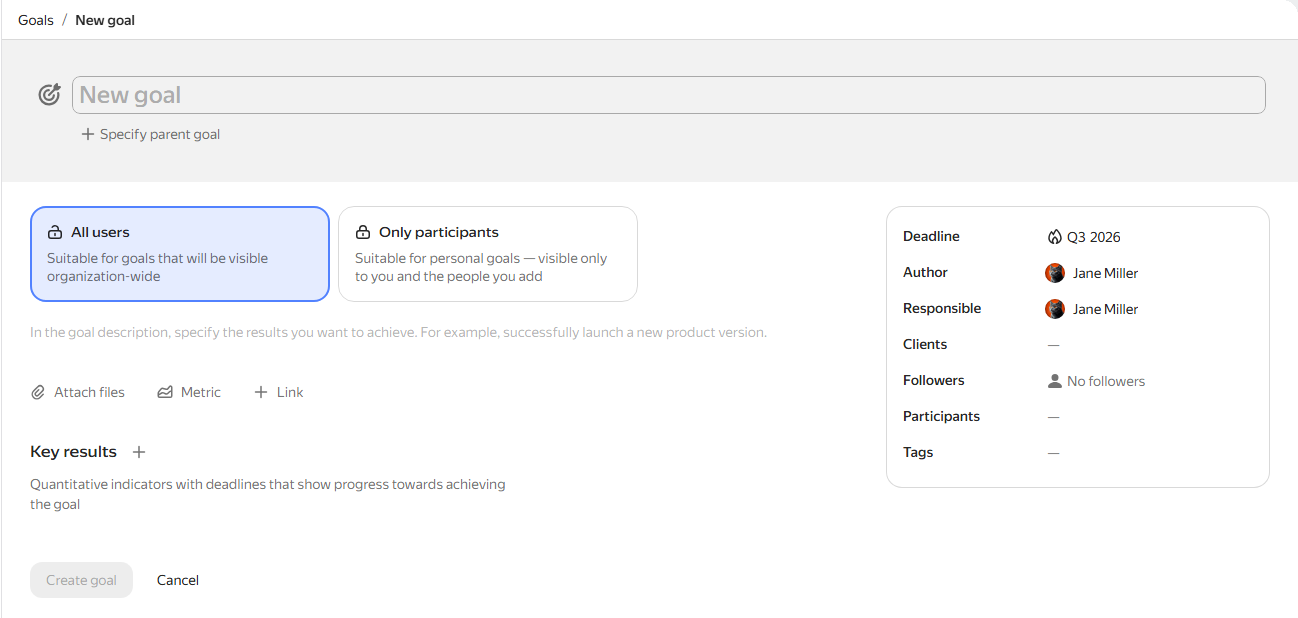
-
Enter the goal name.
-
If the new goal is a subgoal of an existing one, click Specify parent goal under the title. Start typing the goal name and select the matching option from the list.
-
Select access permissions for the goal. The goal can be available to:
- All users — by default, all employees and robots in your organization can view the goal.
- Only participants — only the employees specified in the Author, Responsible, Participants, or Followes parameters can view the goal.
-
Enter the goal description. The description should make clear what result you expect once the work is complete.
-
Add the goal's Key results. For each key result, you can specify an assignee, deadline, and measurement method.
-
Fill in the fields in the block on the right:
- Deadline — the deadline for achieving the goal. You can specify a particular date or a quarter.
- Responsible — the employee responsible for achieving the goal. By default, the Responsible and Author fields show the user who created the goal.
- Customers — the employees who set the goal for the company or a department.
- Participants — the employees involved in achieving the goal.
- Tags — labels you can use to filter goals.
-
If necessary, set up the goal's links or attach files.
-
Click Create goal.
How to copy a goal
To create a new goal based on an existing one, use the copy option.
-
Open the goal you want to copy.
-
In the upper-right corner, select Actions → Copy goal.
-
Configure the goal copy options:
- Specify who can access the copied goal: All employees or Only for participants.
- To copy the goal's files and attachments, enable the Copy files and attachments option.
- To copy the goal's key results, enable the Copy key results option.
- To copy the values of the goal's main fields, enable the Copy main field values option.
-
If you selected the Copy main field values option, fill in the Name, Description, Deadline, and Responsible fields. By default, the field values are copied from the source goal.
-
Click Create copy.
Deleting a goal
-
Open the goal page.
-
In the upper-right corner, click Actions → Delete goal.