Gantt chart in projects Tracker
A Gantt chart in Tracker is a tool for creating a work schedule. The Gantt chart for a project displays all of its issues.
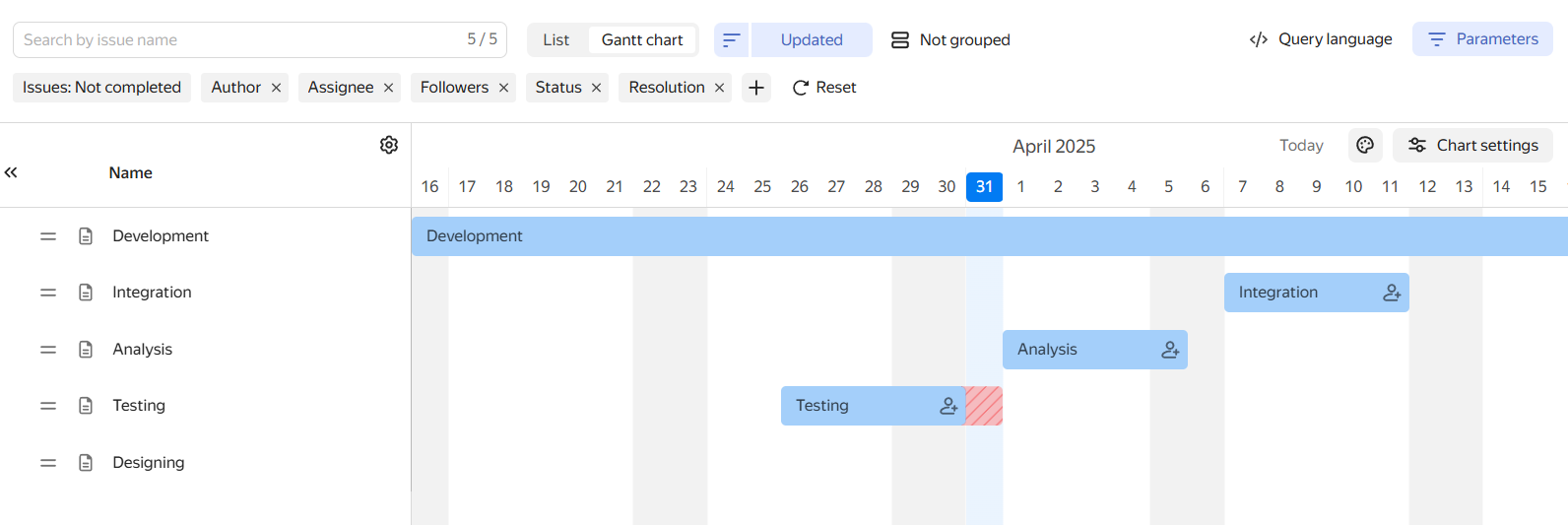
Issue deadlines are shown on the chart as bars that run along the time axis. The start of each bar corresponds to the issue start date, and its end corresponds to the deadline. If an issue isn't closed by its deadline, the bar turns red.
To open the chart:
- open the project page and go to the Issues tab.
- Select the Gantt view.
How to read the chart
-
The list of project issues is displayed to the left of the chart. By default, each issue shows its priority, type, and name: you can change this set of parameters. Changing the table columns
-
If the start or end dates of a project or issue are not specified, they are not displayed on the chart. To set deadlines, hover over the chart next to the relevant row and place the bar on the timeline. Changing issue deadlines
-
Arrows between issues indicate links of the "Depends on — Blocks" type. Updating links between issues
-
To change the time scale, select Week, Month, or Quarter in the bottom right corner of the chart. The scale settings persist after refreshing the page or opening the chart again.
-
To expand the chart to full screen, click at the bottom.
How to assess employee workload
When planning issues on the Gantt chart, you can check an employee's workload: if a cell is red, all working time is already taken; if it is yellow, there is little free time left. For more information, see the article Check employee workload on the Gantt chart.
How to reorder issues
To reorder issues on the chart, hover over the issue you need and drag it by the icon.
Updating links between issues
The Gantt chart shows Depends on – Blocks issue links, provided that the Start date and Deadline fields are filled in for both issues and the Show blocking links option is enabled for the chart. Links appear as an arrow pointing from the dependent issue to the blocking issue.
You can edit issue links on the Gantt chart.
-
To add a Depends on – Blocks link, hover over the issue bar until dots appear to the right and left of the bar.
-
To make the selected issue dependent, click the dot on the left and drag it to the blocking issue.
-
To make the selected issue blocking, click the dot on the right and drag it to the dependent issue.
If the dependent issue deadline is earlier than that of the blocking issue, the arrow is red. You can enable automatic update of start dates and deadlines for dependent issues.
-
-
To delete a link between issues, click the link arrow and then click Delete link.
External blockers
If an issue has blocking links that are not part of the current project (external blockers), an icon with their count will appear to the left of the issue bar on the chart.
-
To enable displaying external blockers in the issue list, go to Chart settings → Show external blockers.
In the issue list, external blockers are highlighted in gray and displayed under the dependent issue. If the hierarchical view is enabled (the button on the filter panel), blockers are displayed under the issue branch. External blockers cannot be moved in the list, but you can open and edit them.
-
You can change the start dates and deadlines for external blockers in the same way as for other issues on the chart. Changing issue deadlines.
-
To delete links between external blockers and their dependent issues, click , and then Delete link.

Changing issue deadlines
-
If the deadlines for a sub-issue are not displayed, you can set them right on the Gantt chart: move the pointer over the chart area next to the issue name to select an approximate date, and click the chart to pin the issue bar.
-
To shift the start date and deadline by the same value, drag the bar along the time access.
-
To change the project duration, drag the left edge of the bar (the start date) or the right edge of the bar (end date).
Assigning an issue
On the Gantt chart, you can appoint or change the issue's assignee:
-
Click on the issue bar.
-
Enter the name of the employee to assign the issue to.
If you do not see the button on the issue bar, go to Chart settings and select the assignee item in the Issue bar section.
Displaying the issue list section
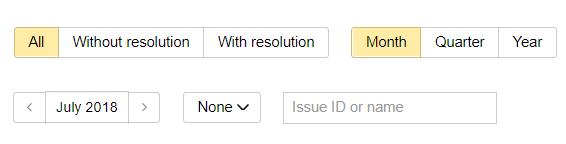
If you need to keep only the issues that match your criteria in the list or sort the list, use the buttons on the panel at the top.
To add a condition:
-
Click Add a field for filtering.
-
Select a parameter, set its value, and click Apply.
Sorting the issue list
To set a list sorting parameter (for example, by deadline in descending order), use the button at the top of the page:
- On the search parameters panel, click the Sorting button and select a parameter.
- To change the sorting direction (descending or ascending), click the icon that appears after you select a parameter.
Grouping the issue list
You can divide the issues in the search results into groups, for example, by assignee. To do this, click No grouping at the top and select a grouping parameter from the drop-down list.
Changing the table columns
The project issue list is presented as a table with issue parameters, such as "Key", "Issue", and "Assignee". You can add parameter columns to the table or remove unnecessary ones:
To quickly find an issue in a filtered list, type text in the Search by issue name field.
You can customize the list with search results: sort or group issues, select columns with parameters. For more information, see How to configure the issue search results list.
Open the issue list with extended search capabilities: click Issues → Show all or go to https://tracker.yandex.com/issues .
To search by a local field of a specific queue, enter the queue key and a dot before the field name (for example, DEVS.Tester). For more information about local fields, see Local issue fields.

Changing an issue parameter value
-
To change an issue status, priority, or date (for example, "Deadline"), in the list to the left of the chart, click the current value and select a new one.
-
To change the issue type to "Milestone", hover over the issue name and click → Convert to milestone. Project milestones

Chart settings
Displaying the issue bar
Above the timeline on the right, click Chart settings and select a setting under Issue bar:
-
To show the issue name on the issue bar, select the name item.
-
To show the assignee icon on the issue bar, select the assignee item.
-
To have the missed deadline property (the difference between the deadline and the current date) highlighted in red on the chart, select missed deadline.
Timeline area
On a chart, you can configure the shift logic for dependent and parent issues, as well as issue link display.
Above the timeline on the right, click Chart settings and select a setting in Issue bar:
-
To have issues with a Depends on — Blocks link joined with an arrow on the chart, select Show blocking links.
-
To automatically move the deadline of the dependent issue when the blocking issue's deadline changes, select the appropriate option.
-
To extend the deadline of the parent issue depending on its sub-issues' deadlines, select the appropriate setting.
- To enable displaying external blockers in the issue list, select Show external blockers.
Issue color
Issue color settings are saved at the project chart level, meaning the selected color scheme applies to all users viewing this chart.
By default, issue bars on the chart are colored according to the issue status types set in the workflow editor.
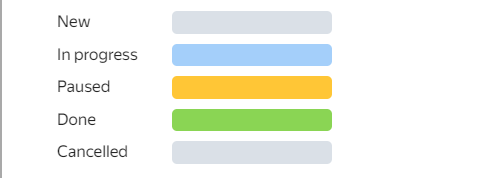
To select a different color scheme:
-
Above the timeline on the right, click Chart settings.
-
Under Color, you can choose a color scheme:
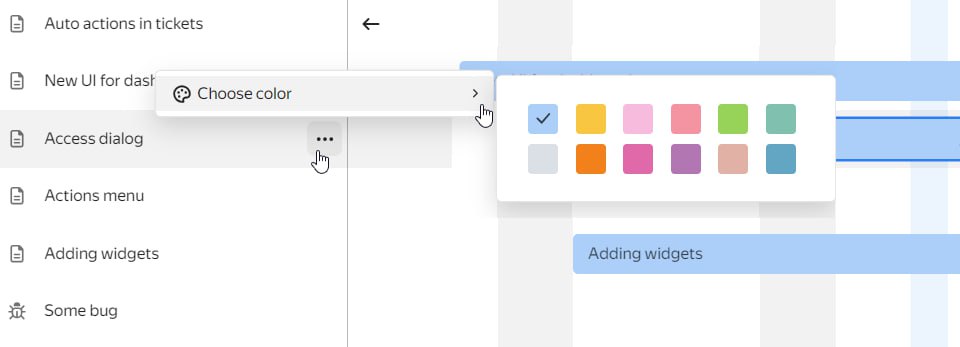
Setting a color manuallySetting colors based on issue parametersMonochromeThis option allows you to set issue colors right on the chart.
- Select manual.
- Click Apply.
Select an issue from the list to the left of the chart and click . This will open a palette where you can set the issue color.
This option will be of use if you need to differentiate issues by a certain parameter, such as a queue or tag.
- Select by issue parameters.
- Specify the parameter whose values you want to set colors for.
- Click Apply.
All issue bars on the chart will be blue.
- Select monochrome.
- Click Apply.
Critical path
A critical path allows you to assess the risks of failing to meet a project's deadline. Issues with the farthest deadlines will have paths from the blocking issues specified in the project.
To have the critical path displayed, click above the timeline on the right:
-
A red line will appear on the timeline. It indicates an interval from the start date of the earliest issue to the deadline of the latest issue.
-
The issue with the latest deadline will be highlighted in red. All issues blocking the project's final issues will also be highlighted in red.
To disable critical path display, click once again.
Baselines
A baseline is a saved version of the project's Gantt chart. With it, you can look back and compare the originally planned dates with the current ones. Baselines help you forecast the project outcome and, in retrospect, understand what can be improved in planning.
To open the project baseline panel, click above the time scale on the right.
Creating a baseline
Create a baseline when the chart has up-to-date deadlines, milestones, and links between issues. When you create a baseline, the current dates on the Gantt chart will be saved. To create a baseline:
- On the project baseline panel, click Create.
- By default, the name of the baseline includes the day and month it was created. If required, adjust the name of the baseline and click Create.
The baseline will save the current state of issue dates in the project. On the baselines panel, you can compare the current issue dates in the project with those fixed in baselines: how many days the actual dates are ahead of or behind the planned ones (based on the last issue in the project).
Applying a baseline
Baselines can be overlaid on top of the original project Gantt chart. To do this, open the baselines panel and click on a baseline. In comparison mode, you can evaluate the differences on the chart:
- Lag from the fixed deadline for specific issues: when hovering over the issue deadlines in the baseline.
- Converting an issue to a milestone or vice versa: the appearance of the issue or milestone on the chart will change, and a comment will appear when hovering the cursor.
- Deleting issues from the project: deadlines of such issues will not be displayed in the comparison mode.
- Adding new issues to the project: such issues will not have old deadlines fixed.
To turn off comparison mode, hover over and click the highlighted baseline.