Creating a product ad
You can use product ads to promote all products and catalog pages across your site.
Each ad group can include up to two active product ads. To add another product ad, pause and archive one of your existing ads, then create a new one.
You can create ads based on a data source or feed. You can use either method if you offer products on your site. If you promote services, training courses, tickets, or other non-product categories, it's best to use a feed.
For "Auto" and "Real estate" categories, ads for catalog pages can only be generated from an XML feed. Feeds make it possible to receive more information about each advertised item and configure selection rules more carefully. Products can also be added manually.
You can upload a feed via a URL or from your computer. You can also use a CSV file to generate ads.
You can create product ads for any product categories except those listed in the requirements.
How to configure
-
Select a source for creating product and catalog ads.
New site feedUploading a new feed via link or from desktopManual product managementYandex Direct automatically finds products and catalog pages on your site and creates an ad for each product and catalog page. If no products or catalog pages were found, make sure your site meets the requirements.
For our system to correctly identify your catalog pages, they must contain specific microdata.
Ads for catalog pages found on the site can only be generated for products.
If you already have a feed with up-to-date prices and a list of products and catalog pages, use that feed. This can be one of the previously uploaded product feeds or a new feed added via a link or uploaded from a device.
YML or XML feedCSV file-
Add a link to the feed or select the feed file.
The file format depends on the selected type of feed. Also enter your username and password if they are required to access the link.
-
To submit catalog page data, use a YML feed for products or an XML feed for vehicles and real estate. Use a feed with a special
collectionstag to pass information about catalogs: collection id, link, image, title, and description.More about catalogs of products, vehicles, and real estate.
-
1C-Bitrix users can quickly generate a YML feed containing catalog pages by following the instructions in the 1C-Bitrix documentation.
-
If you work with the InSales platform and have set up automatic feed updates, catalog info will be automatically added to it, with no additional actions required on your part.
You can create a product YML feed with catalog pages using custom Yandex Market exports, as shown in the InSales documentation.
-
Click Upload feed.
Advertising and promotional content that you provide, including feed data (product name, image, price, description) can be used to place information about your offers in various Yandex services. This is free. To opt out, write to our customer service department.
You can use a universal CSV feed to generate ads. Note that this feed format can be used to promote only products or only catalog pages.
File requirements:
- CSV format with UTF-8 encoding.
- Use commas “,” or semicolons “;” as the separator. If you use a comma as a separator, check if any field contains a comma in its text. If it does, the entire text of that field must be enclosed in quotes. For example: "Dairy, plant-based drinks".
- The file header must contain all column names.
- The maximum number of rows is 1000.
Learn more about creating a universal feed for products
Download a sample universal CSV feed for products
Field names and descriptions for promoting catalog pages:
Name
Description
Required
URL
Link to the catalog page. Each link must be unique
Yes
Title
Catalog name. Up to 56 characters including spaces and punctuation
Yes
Description
Description. Up to 81 characters including spaces, and up to 15 punctuation marks
Recommended
Offer minimal price
Minimum product price in the category. Integer without separators. If the number is a fraction, round it to a whole number. For example: 150000
No
Currency
The currency that the product price is indicated in. Letter code, for example, RUB, USD, EUR
Yes, if "Offer minimal price" is filled in
Image url 1, Image url 2, Image url 3, Image url 4, Image url 5
Links to images on the site. These must be direct links to an image, rather than links to a page where the image can be downloaded. For example, you can't use links to Yandex Disk
Recommended
How to create a CSV file
Enter your data in any spreadsheet editor, like Excel or Numbers. Save the file in CSV format with comma delimiters.
-
In Excel (Windows)
- In the top menu, select File → Save as.
- Name the file using the File name field.
- Select File format — CSV (Comma delimited) (*.csv).
- Click Save.
-
In Numbers (iOS)
- In the top menu, select File → Export to → CSV...
- In the Export Your Spreadsheet window, go to the CSV tab and open the Advanced Options.
- In the Text Encoding field, select Unicode (UTF-8).
- Click Next...
Possible errors when uploading a file
- Invalid encoding: Make sure that your file has UTF-8 encoding.
- File can't be empty: Make sure that your file contains rows with catalogs.
- List can't include more than 1000 rows: Make sure that your file contains less than 1000 rows.
- Field can't be empty: Make sure that all required fields are filled in.
- Title can only include characters supported in banners: Make sure that the file doesn't contain invalid characters.
- Word length can’t exceed: Make sure that there are no words longer than 56 characters in the file header and 81 characters in the file body.
- Loose comma: Make sure that all commas and quotes adhere to the CSV schema.
- Enter different values: Make sure that all links in the URL field are unique.
You can add product descriptions manually. Fill in the card for each product:
- Specify the link to the product, add the name and description.
- Add up to 5 images of at least 450 × 450 pixels and up to 10 MB.
- Specify the price and additional information: product category, manufacturer, model, and availability.
All the added products will be consolidated into a single feed per username. You can add up to 1000 products from different categories.
All descriptions and images must meet the requirements.
-
-
In the Products section, under Filter, specify which products to include and which to exclude when generating ads. The criteria are joined using the “AND” operator. Products meeting all the criteria will be selected for serving.
You can also use custom elements in filters.
When you are setting up the filter parameters, Yandex Direct checks in real time how many offers match the selected criteria. Use the suggestion from Yandex Direct to avoid situations when your ads stop because no product matches the filter criteria.
Example
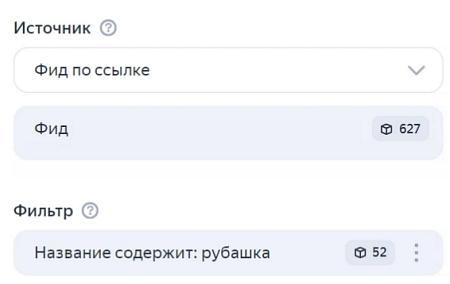
If product ads are generated based on a site, the Converting pages filter is available to you. When you use it, Yandex Direct only creates ads for products that already had conversions for the campaign's goals. Only conversions that came from click-throughs on the product page are counted.
The filter works automatically, so if you change campaign goals or if new product pages with conversions appear on your site, the filter will update the ad links.
-
In the Catalogs section, under Filter, specify which catalog pages to include and which to exclude when generating ads.
If you are transmitting data about catalog pages using a YML feed, you can filter ads by link to catalog page (url), offer name (name), and catalog (collection id). For CSV files, you can set up filters by title and URL. For pages found on a site, filters by name (in the site microdata) and by URL are available.
Filtering conditions are joined using the “AND” operator, so only those catalogs that match all the conditions will generate impressions. If ads for catalog pages are generated based on a site, the following two filters are available:
- Catalog pages matching the products: Yandex Direct will create ads only for catalogs featuring products already promoted in the campaign.
- Converting pages: Yandex Direct will create ads only for catalogs featuring products that already generated conversions for the campaign's goals. Only conversions that came from click-throughs on the catalog page are counted. If a campaign's conversion action (for example, clicking a phone number) can also be completed on the catalog page, such conversions are counted as well.
The filter works automatically: if you change the campaign's goals, or new catalog pages with conversions appear on the site, the filter will update the set of links in the ad.
-
If you're using a feed file or uploading product information manually, choose how you want to use the feed elements:
-
Automatic: The title is generated automatically based on the feed data.
-
Manual: Specify the feed elements:
-
Title: The texts from the specified elements will be used as ad titles. You can specify up to 5 elements. Their data will be added step-by-step until the title length reaches 56 characters. If there are more characters, the title may be cut off.
-
Text: The texts from the specified elements will be used in the ad. You can specify up to 5 elements. Their data will be added step-by-step until the text length reaches 81 characters. If there are more characters, the text may be cut off.
-
When specifying the names of feed elements, avoid special characters and make sure to use the right capitalization. For example,
titleandTitleare different names.List of supported elements for each feed type
-
Yandex Market feed:
name,typePrefix,model,vendor,description,sales_notes. -
Feed in Google Shopping format:
title,g:title,description,g:description,brand,g:brand,color,g:color,material,g:material. -
Google Ads' Custom feed (CSV):
Item title,Item description. -
Universal feed (CSV):
Title,Description. -
Auto.ru feed:
mark_id,folder_id,modification_id,body_type,year. -
Yandex Realty feed (XML):
description; -
Google Ads' Hotels and Rentals feed (CSV):
Property name,Destination name,Facilities. -
Google Ads' Flights feed (CSV):
Destination name,Destination address,Origin name. -
Google Ads' Travel feed (CSV):
Destination name,Destination address,Origin name,Title.
If these elements are missing from the feed, ad titles are generated automatically, and the ad is created using the feed data.
-
-
When generating ads for catalog pages based on a YML or XML feed, set up ad titles and texts in the Texts section.
When creating ads, you can use titles and texts that Yandex Direct will automatically generate from the elements within the
collectionsfeed, rephrasing them as necessary. As part of manual setup, the title is taken from thenameelement, and the text is taken from thedescriptionelement. -
Double-check the company's contact details.
-
Describe the advantages and benefits of your offer using callouts.
-
Use Sitelinks to provide shortcuts to important information on your site.
-
Fill in all the ad elements, including the additional title. Yandex Direct uses them in different design options for creatives, including the various layouts that appear in search results.
If needed, you can replace the feed when creating or editing an ad. To do this, select the desired feed from the sources or upload a new one. Yandex Direct will try to reuse filters that were previously set up in the ad.
If the information about categories and products in the feed has changed, check and adjust the filter. If there are no elements in the feed that match the filter, it will be reset.
You can turn off promotion for products or catalog pages if needed.
As an advertising data operator, Yandex assigns each creative a unique identifier (token) when creating campaigns. It uses this token to aggregate all your placement data and send it to the Unified Register of Online Advertising (ERIR). Learn more about ad labeling.
Ad moderation and launching a campaign
Once created, your ad will be reviewed for compliance with our requirements. Click Submit for review and accept the terms of the Offer that regulates how Yandex serves your ads. Moderators usually review an ad within a few hours. On weekends and holidays, moderation may take longer than on weekdays.
Your moderation results will be emailed to the address you provided when you created the campaign.
Once your ads pass the review, you'll receive a notification at the email address you provided when you created the campaign. The campaign status in the list will change to "accepted by moderator".
Your ads will start running as soon as Yandex processes your payment.
Setting up ads for promoting products on marketplaces
If you promote your stores on Yandex Market and Ozon:
-
Create a product ad. Select “Products from the marketplace” as the source and provide a link to your store or product on Yandex Market or Ozon. Yandex Direct automatically creates a feed. You can find it under Feeds.
-
Use filters to select the products you want to promote. For Yandex Market, you can filter products by category, name, description, manufacturer, price, and price before discount. For Ozon, you can filter them by name, description, price, and price before discount.
-
Create combinatorial or image ads by providing links to your store or a product on a marketplace.
-
For sales on marketplaces, product ads only support product promotion.
Questions and answers
What do I do if I can't generate product ads?
Alert
Make sure that there is money in the account. Ad generation won't start if there isn't any money.
I can't generate product ads from a feed (via URL or uploaded from a computer)
Make sure that the conditions are met:
-
Your feed meets the requirements.
-
The feed contains offers that match the filter condition:
-
If the filter includes the Only in stock parameter, the feed must show products with the attribute
available = "true". If the criteria includes other filters, such as products from a certain category, then there must be products of this category in stock. -
When configuring a filter by manufacturer, in the feed there must be a product with the
vendorelement. The value of this element must match the value specified in the filter. -
If a filter based on the
categoryIdparameter is applied, there must be products from that category in the feed. If there are no products in that category, product ads won't generate for it. If the parent category (a category that has nested categories with theparentIdattribute) has a sub-category that contains products, the filter configured for the parent category that has no products won't work.
-
I can't generate ads for catalog pages from a feed (via URL or uploaded from a computer)
-
Ads for catalog pages may not generate if the feed requirements or the CSV file requirements aren't met.
-
If you used separate catalogs selected using filters, check the filter conditions, making sure that:
- Catalog matches the catalog ID in the feed (collection id).
- Catalog name matches the one in the feed (name).
- Catalog link matches the catalog links in the feed (url).
I can't generate ads from products found on my site
Make sure that the conditions are met:
-
Your site meets the requirements.
-
Your site is available.
-
Your site has products that match the filter conditions:
-
Title matches the title of the product on the site.
-
Site sections match the links to product pages.
Good site pageBad site pagePage contains links to products.
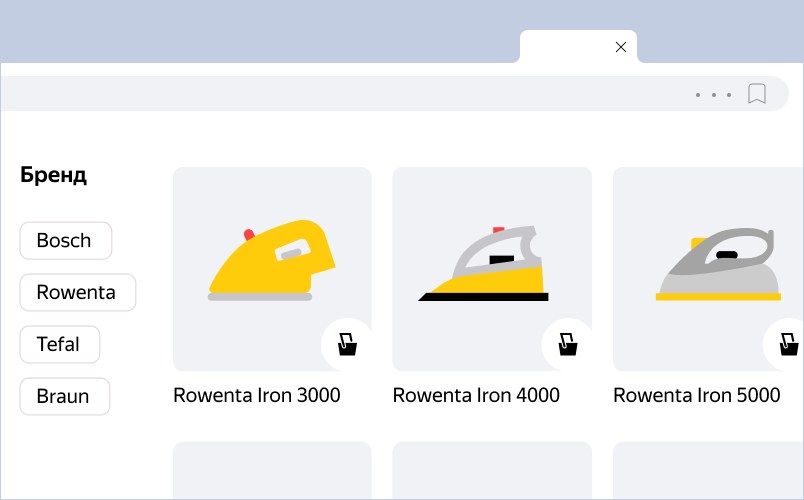
Page contains a list of product categories and not links to products.
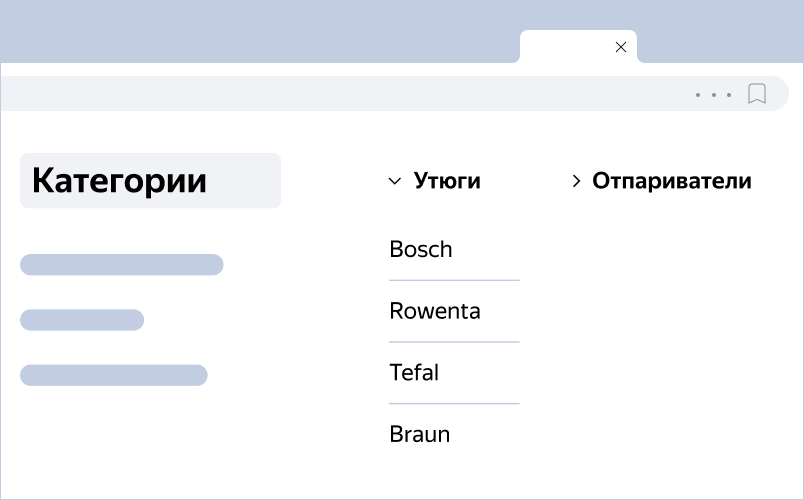
-
Product link matches the one on the site.
-
Product price matches the price on the site.
-
I can't create ads for catalog pages found on my site
Make sure that the conditions are met:
- Your site meets the requirements.
- Your site has catalogs that match the filter conditions:
- Catalog name matches the name of the catalog page on the site.
- Catalog link matches the catalog links on the site.
I can't generate ads created from manual product management
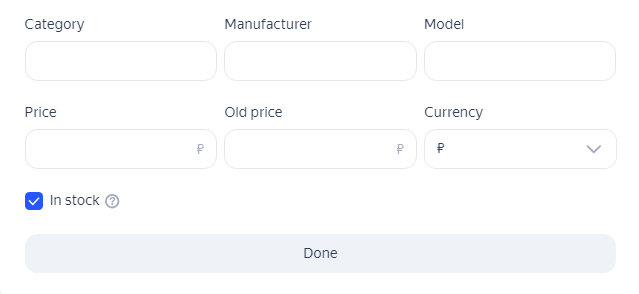
Check that the products in the product profile meet the filter conditions:
-
If the filter has the Only in stock parameter selected, make sure that the product is in stock and available on the site.
-
When applying a filter by the Manufacturer parameter, make sure that the element value is included in the product profile and matches the filter.
-
If you set a filter by the Category parameter, make sure that the element value is included in the product profile and matches the filter.
I can't generate ads for products from a marketplace
Make sure that the conditions are met:
-
A valid store link is specified. Product ads can only be created using a store link or a link to product sold in the store.
-
Ozon: The link must contain the seller keyword:
ozon.ru/seller/{seller_name}. -
Yandex Market: The link must contain the business keyword:
market.yandex.ru/business-{seller_ID}.
-
-
The advertised products are in stock. Ads won't be served if the product is out of stock in the marketplace store.
-
The store has products that match the specified filters. Ads won't be served if no products can be found for one of your filters.
Have questions?
Alert
Our customer service department can only help you with the campaigns created under the same username you use to contact us. You can check your username by opening ya.ru in another browser tab. Our team can access your data only when processing your request.
Scan the QR code or tap it to follow the link.


If you choose Telegram or WhatsApp, keep in mind that Yandex doesn't control and takes no responsibility for how third-party messaging apps store your chats and data.