AI editor for creativesβ
With the AI editor for creatives, you can use text prompts to generate, edit, and animate images for your ads. The tool is powered by cutting-edge AI algorithms from Yandex Ads.
How it works
Where you can access the AI editor:
- Campaign Wizard.
- Unified performance campaign:
- When creating combinatorial ads, including ads for promoting mobile apps.
- When creating ads to promote mobile apps on Connected TVs and desktops.
- When creating ads for messaging apps.
- When creating ads for messaging apps in a reach campaign.
Based on your text description, the AI creates unique images, changes their aspect ratio, and generates videos in the Yandex Direct interface.
Available tools
Generate images
To generate a creative:
-
When setting up an ad:
-
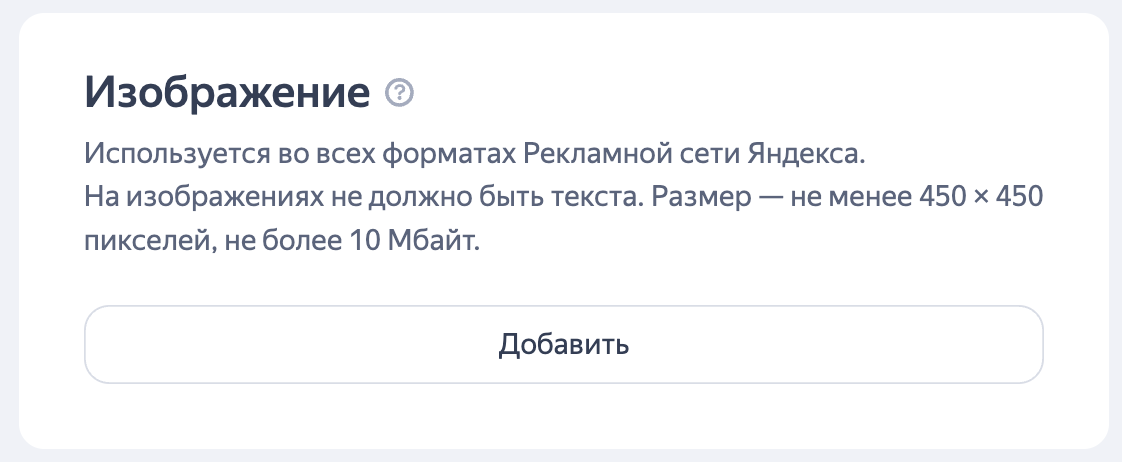
In a unified performance campaign, click Add under Images.
-
In the Campaign Wizard, click Select other images under Images.
-
-
In the side menu, select AI-creative editor.
-
In the Create tab, describe the image you want to generate by entering a description of the main object and its surroundings. For example, "Modern, beige armchair in a minimalist interior".
Tip
Be as detailed as possible about what you want to see in the image and avoid abstract descriptions.
-
Select an aspect ratio and click Generate.
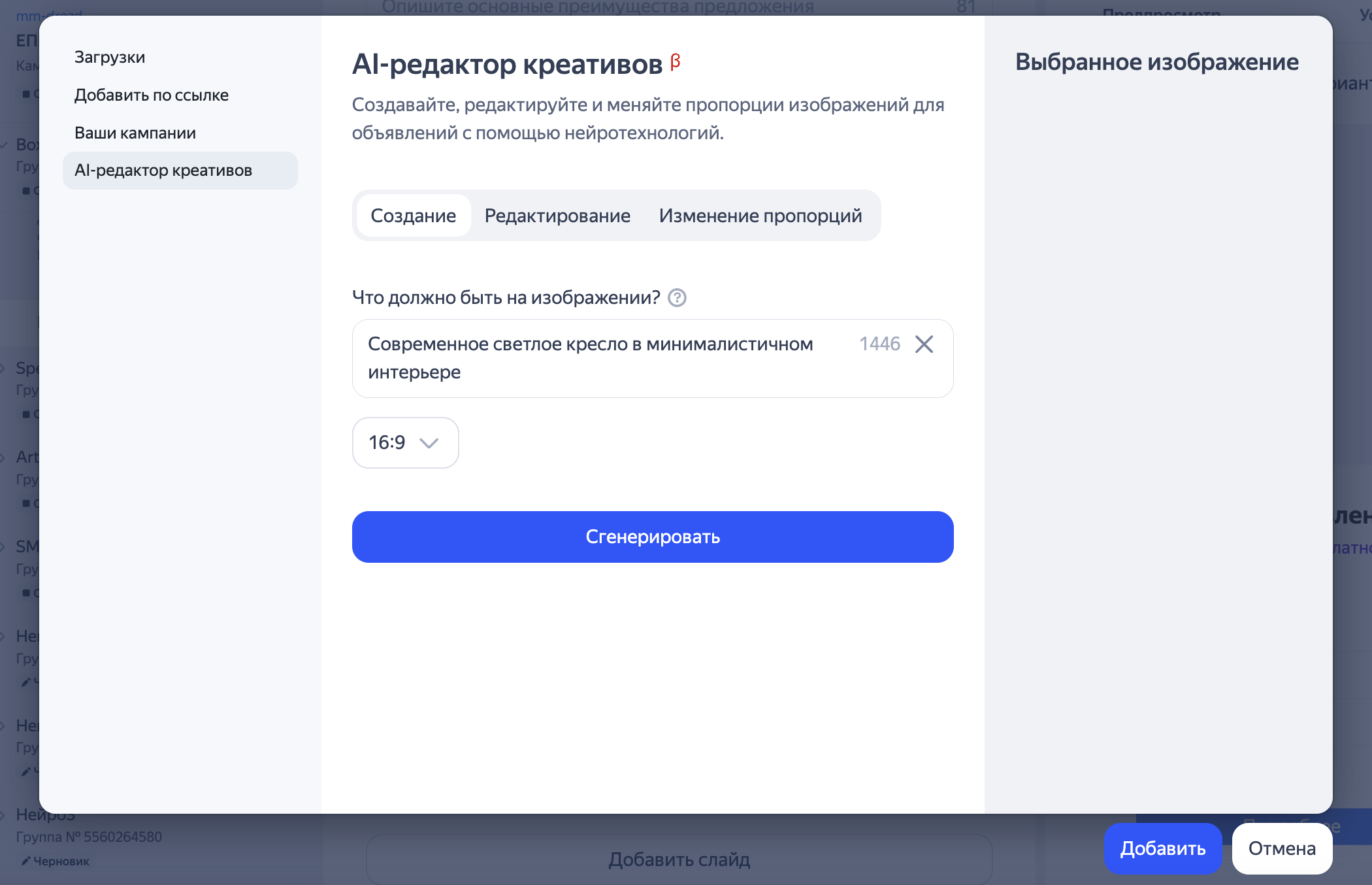
On average, image generation takes less than a minute, though wait times may vary depending on the number of users in the queue. If the generation process is expected to take longer than a minute, you'll see a notification with the estimated wait time.
Don't close the editor window during generation, or the process will be canceled.
-
To change the generated image, click Back, edit the description, and generate another image.
-
Add the generated creative:
-
To an ad by clicking Add.
-
To a list of images selected for an ad by clicking Select. Use this option if you want to generate more images.
-
Edit creatives
With the AI editor, you can make changes to existing images, for example, to tailor them to specific audience segments or seasonal offers.
To edit an image:
-
Under AI-creative editor, in the Edit tab, upload an image by clicking Select file or select an image using the line below.
File requirements
-
When the aspect ratio is between 1 : 1 and 3 : 4 / 4 : 3, each side can range between 450 and 5000 pixels.
-
When the aspect ratio is 16 : 9, image size can range between 1080 × 607 and 5000 × 2812 pixels.
-
Maximum file size is 10 MB.
-
Format: JPG, PNG or GIF (only the first frame will be used).
-
-
Describe what you want to change, for example, "Add a floor lamp in the background", then click Apply. The editor replaces or modifies the specified elements while preserving the overall composition and style of the original image.
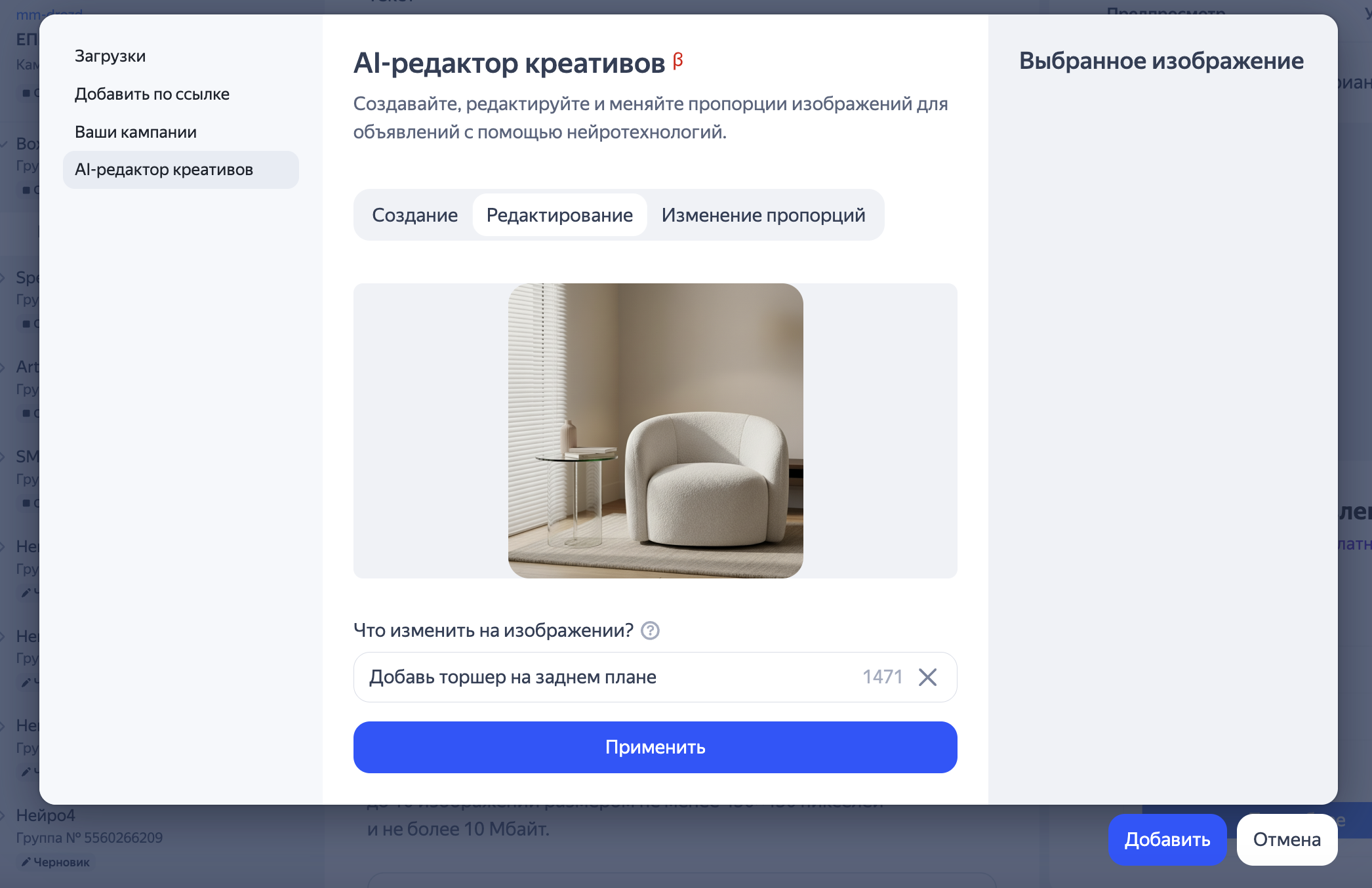
On average, image edits take less than a minute, though wait times may vary depending on the number of users in the queue. If the generation process is expected to take longer than a minute, you'll see a notification with the estimated wait time.
Don't close the editor window during generation, or the process will be canceled.
-
Add the generated creative:
-
To an ad by clicking Add.
-
To a list of images selected for an ad by clicking Select. Use this option if you want to generate more images.
-
Adjust aspect ratio
With the AI editor, you can adjust the aspect ratio of an image to ensure your creative looks good across different placements. Available aspect ratios are 16:9, 4:3, 1:1, and 3:4.
To change the aspect ratio:
-
Under AI-creative editor, in the Change aspect ratio tab, upload an image by clicking Select file or select an image using the line below.
-
Select a new aspect ratio and click Apply. The AI algorithms preserve the image's key elements and carefully extend the background, ensuring the ad looks good across different formats.
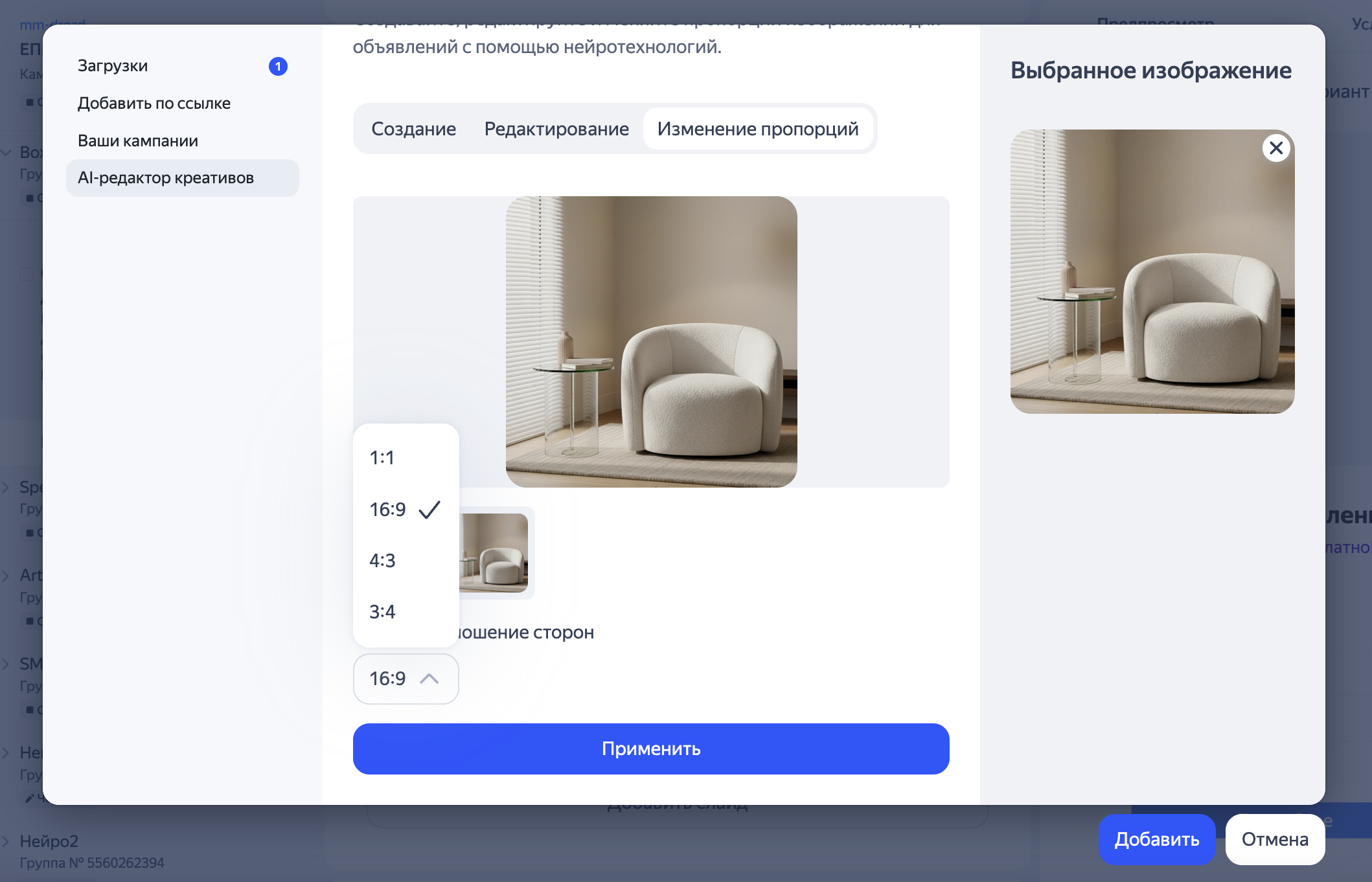
On average, changing the aspect ratio takes less than a minute, though wait times may vary depending on the number of users in the queue. If the generation process is expected to take longer than a minute, you'll see a notification with the estimated wait time.
Don't close the editor window during generation, or the process will be canceled.
-
Add the generated creative:
-
To an ad by clicking Add.
-
To a list of images selected for an ad by clicking Select. Use this option if you want to generate more images.
-
Animate images for video ads
Video content increases user engagement and can be used in place of images on suitable sites or in the Yandex Video Network. Learn more about video formats.
To generate a video:
-
When setting up an ad:
-
When configuring ads in a unified performance campaign or reach campaign for messaging apps, click Add under Videos.
-
In the Campaign Wizard, click Upload or select under Video options.
-
-
In the side menu, select Animate image.
-
Upload an image by clicking Select file or select an image using the line below.
File requirements
-
When the aspect ratio is between 1 : 1 and 3 : 4 / 4 : 3, each side can range between 450 and 5000 pixels.
-
When the aspect ratio is 16 : 9, image size can range between 1080 × 607 and 5000 × 2812 pixels.
-
Maximum file size is 10 MB.
-
Format: JPG, PNG or GIF (only the first frame will be used).
-
-
Describe what should happen in the video, for example, "A Yorkshire terrier jumps onto a chair", then click Animate. A 5-second video will be generated from your image.
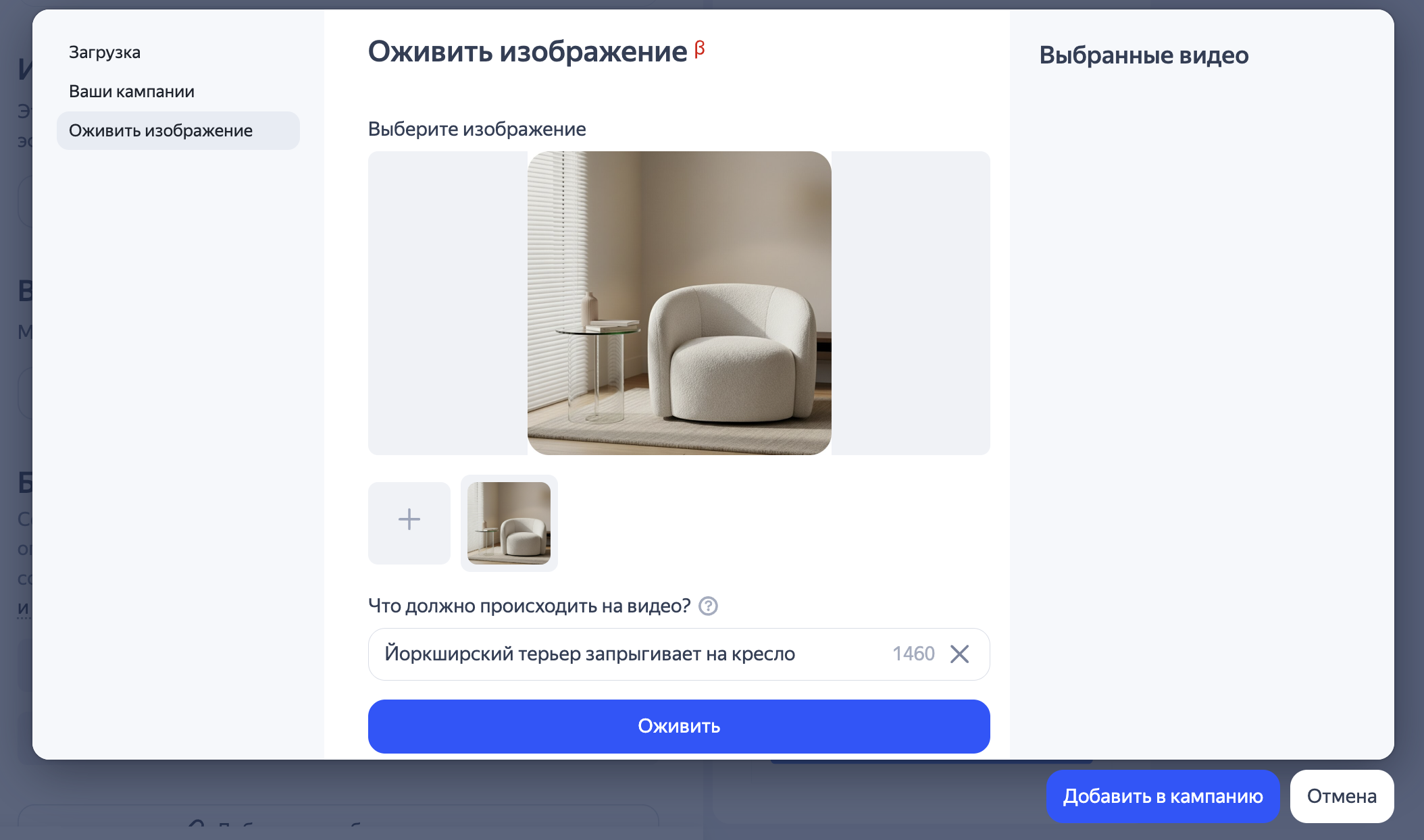
On average, video generation takes up to two minutes, though wait times may vary depending on the number of users in the queue. If the generation process is expected to take longer than a minute, you'll see a notification with the estimated wait time.
Don't close the editor window during generation, or the process will be canceled.
-
To change the generated video, click Back, edit the description, and generate another video.
-
Add the generated video:
-
To an ad by clicking Add.
-
To a list of videos selected for an ad by clicking Select. Use this option if you want to generate more videos.
-
Subjects prohibited from generation
-
Sexual content or subtext.
-
Political or ideological content.
-
Content that violates laws or public safety.
-
Depictions of children, regardless of their actions and context.
-
Shocking content.
-
Content related to military operations.
-
Disrespect toward religious, national, or social values.
-
Consumption of alcoholic beverages.
-
Use of illegal drugs or other prohibited substances.
-
Cigarette smoking or vaping.
Have questions?
Alert
Our customer support can only assist you with campaigns linked to the username you are contacting us from. You can check your username by opening ya.ru in another browser tab. Our team can access your data only when processing your request.
Scan the QR code or tap it to follow the link.

If you select Telegram or WhatsApp, keep in mind that Yandex does not control and is not liable for how third-party messengers store your data and chat history.