Setup in the Campaign Wizard
Conversions and traffic for site promotion
When you set up a campaign to promote a site in the Campaign Wizard, autotargeting is enabled by default, with all categories selected.
How to disable autotargeting
When setting up an ad campaign in the Campaign Wizard, you can't completely disable autotargeting, but you can restrict the query categories where it's enabled.
To disable autotargeting categories:
-
Under Define your audience, select Manual setup for the Audience parameter.
-
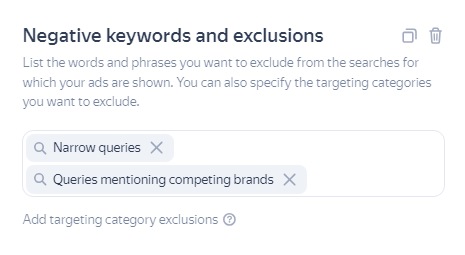
Under Negative keywords and exclusions, select the categories for which you want to disable impressions:
- Narrow queries
- Broad queries
- Alternative queries
- Related queries
- Queries mentioning your brand
- Queries mentioning competitors' brands
App promotion
When setting up app promotions in the Campaign Wizard, autotargeting is enabled by default. You can manage autotargeting categories, but you can't disable impressions for targeted queries.
To select autotargeting categories:
- Under Define your audience, select Advanced audience settings.
- Select the Targeting categories for which you want to display ads.
How to disable autotargeting
When setting up app promotion campaigns in the Campaign Wizard, you can't completely disable autotargeting, but you can restrict the query categories where it's enabled.
When setting up app promotion via a UPC, you can enable autotargeting the same way as in a UPC.
Have questions?
Alert
Our customer service department can only help you with the campaigns created under the same username you use to contact us. You can check your username by opening ya.ru in another browser tab. Our team can access your data only when processing your request.
Scan the QR code or tap it to follow the link.

If you choose Telegram or WhatsApp, keep in mind that Yandex doesn't control and takes no responsibility for how third-party messaging apps store your chats and data.