Personalization
Note
We've updated how ad text optimizes for search queries. This feature is now part of the Personalization tool. Learn more
This tool tailors ad titles and texts to specific search queries and user interests. It helps you accurately meet user expectations to drive more clicks and bring in additional conversions. According to our test data, the tool increases campaign conversion rates by 12% on average.
You can enable this option:
- In a unified performance campaign, including app promotions.
- In the Campaign Wizard for site promotion or in a product campaign.
- In Direct Commander under the advanced unified performance campaign settings.
- In the Yandex Direct API.
How it works
The tool is powered by Yandex Neuro Ads, a cutting-edge solution in neural network technology.
The process consists of three steps:
-
Analyzing context and generating versions in real time
The system analyzes the search query and the user's interests, their current objective, device type, and content interaction patterns. It then uses your original ads and landing page to generate texts and titles tailored to that specific user.
-
Reviewing and filtering content
All personalized ads undergo moderation.
If an adapted text contains any words or phrases added to your Negative keywords, that variation is deleted.
-
Performance forecast and ad impressions
In real time, our AI compares the estimated conversion rates of your original ad and its adaptation before serving the most effective of the two.
|
Original ad |
Search query and user context |
Personalized ad |
|
Upholstery dry cleaning in Moscow Arrival on short notice. Stain and odor removal to refresh your furniture |
Query: "clean sofa urgently". Searched from a mobile device on the go. This indicates the user needs the service as soon as possible. |
Urgent sofa dry cleaning in Moscow Arrival on short notice. Stain and odor removal. |
|
Note: The FAQ section on the landing page includes the question, "Do you offer urgent cleaning? Yes, provided there are cleaners available". In addition, the system optimized the text length for mobile display. |
||
|
Original ad |
Search query and user context |
Personalized ad |
|
Ritmo online Spanish school. Lessons from ₽648 Noticeable progress in just a few weeks. Lessons for all levels |
Query: "Spanish tutor". The user is searching for a tutor from desktop. |
Spanish tutor at Ritmo online school Noticeable progress in just a few weeks. Lessons for all levels. Experienced teachers. |
|
Note: Because the user is searching for a tutor and the landing page includes information about individual lessons and teacher experience, the system incorporated this into the title and added information about the teaching staff as an additional selling point in the desktop text. |
||
Setup in a unified performance campaign
When creating or editing a campaign
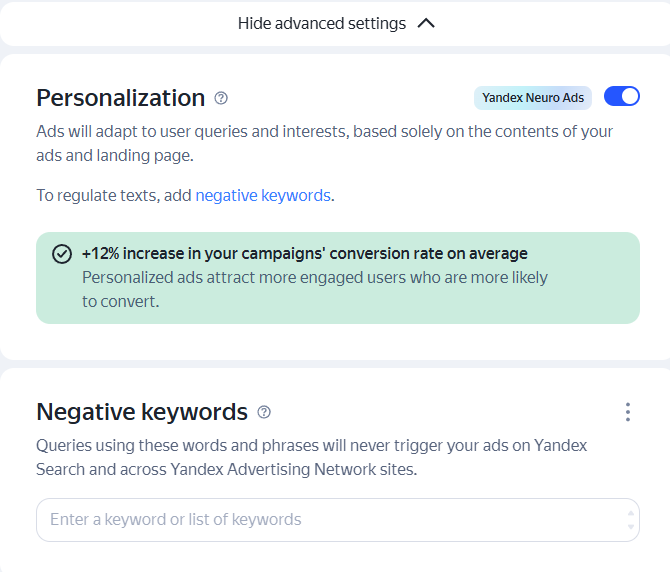
Enable or disable Personalization under Advanced settings at the bottom of the page.
Using bulk actions
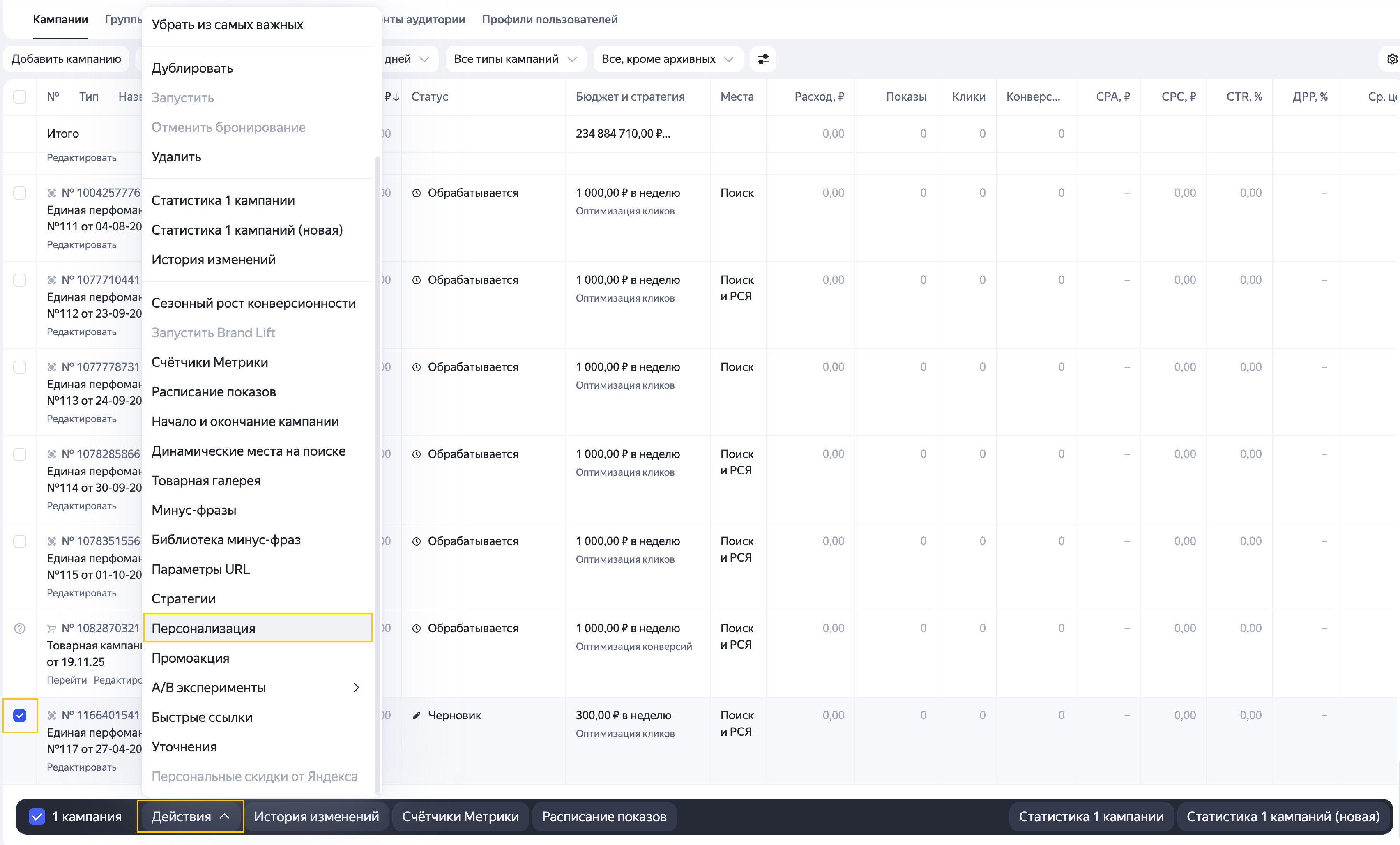
You can manage personalization across multiple campaigns at once. On the Campaigns page, select the desired campaigns and click Actions → Personalization. Enable or disable the option.
You can select up to 100 campaigns for bulk actions on the Campaigns page.
How to view adapted ad options
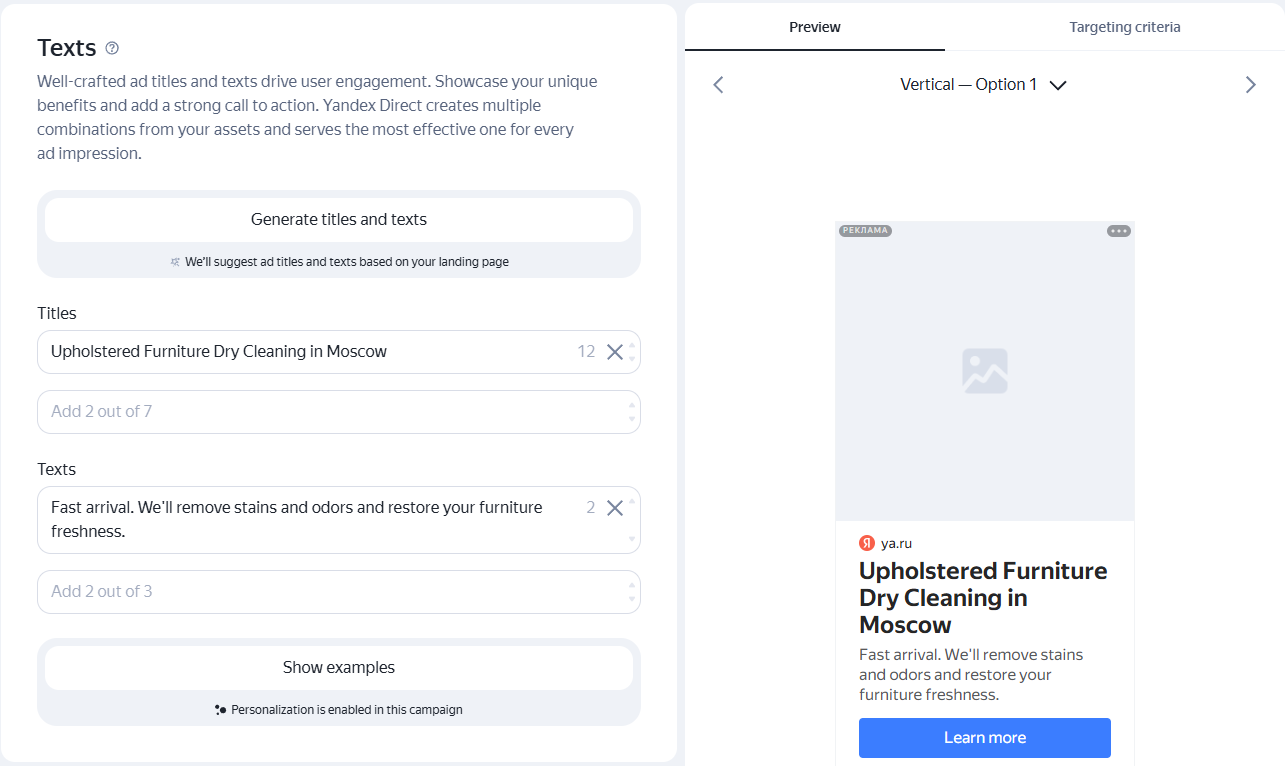
Once you specify a link, title, and text for each ad, the Show examples button and Examples of adapted ads section appear. There you can preview examples of texts personalized for popular search queries that could trigger your ad.
You can also check additional options in the Ads tab of the Campaigns page.
Preview on the Campaigns page is only available when personalization is enabled.
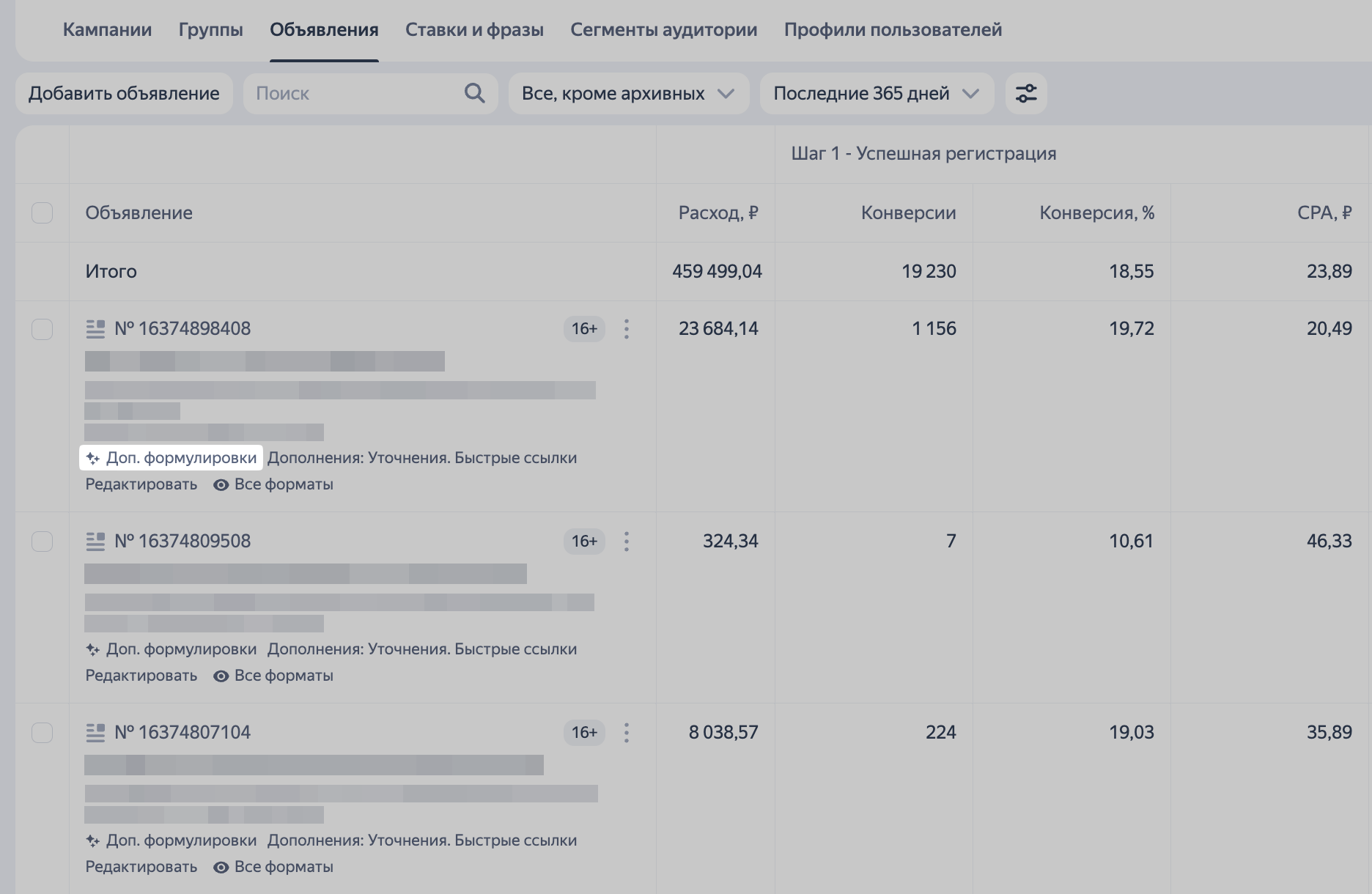
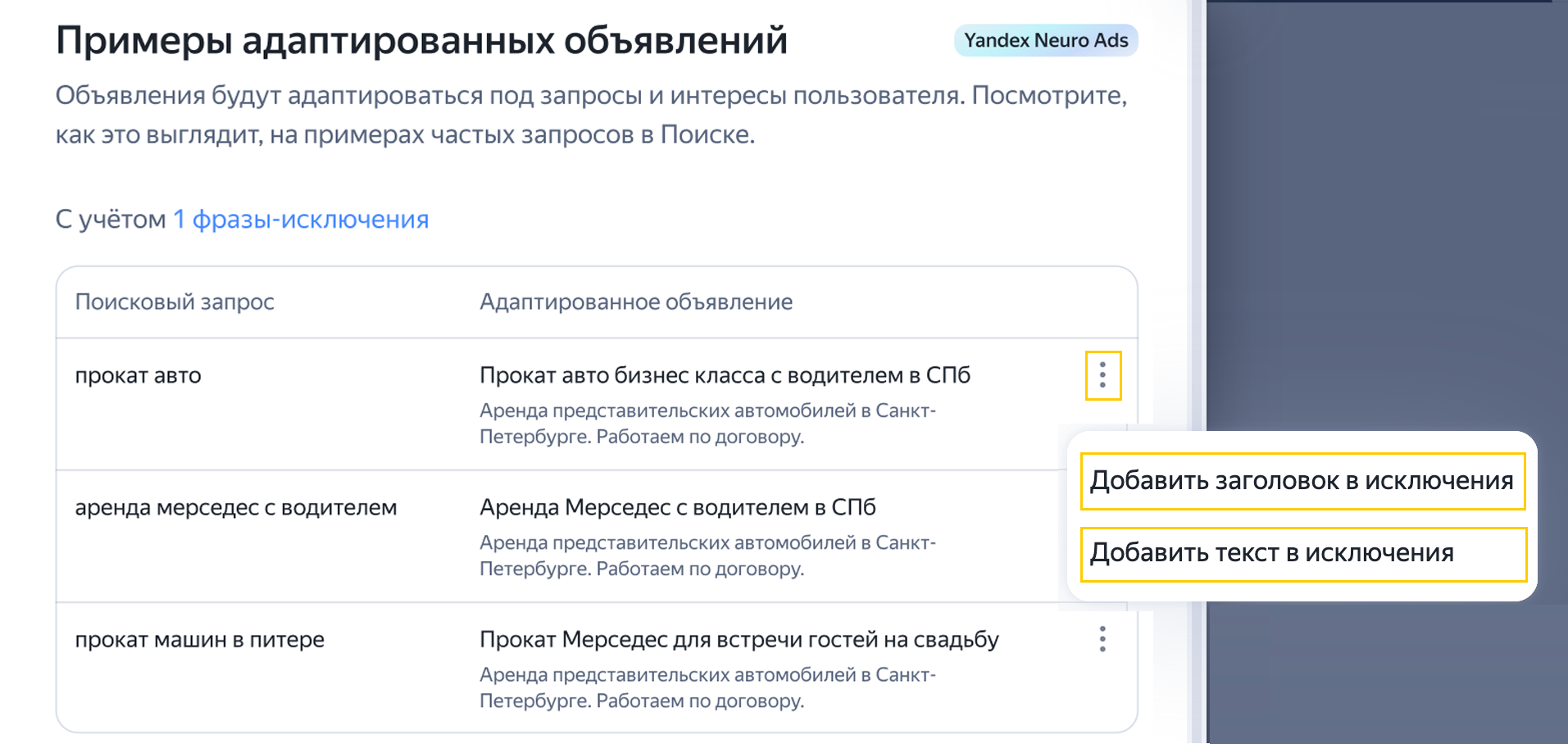
During preview, you can exclude irrelevant keywords from titles and texts by clicking  → Add title to exceptions or Add text to exceptions, respectively.
Warning
The Report Wizard displays only the original titles and texts. It doesn't show any information about generated text variations. You can see it only in the preview section in the campaign settings or in the Ads tab of the Campaigns page.
Examples of adapted ads appear for combinatorial ads when:
- A valid website link is specified.
- A valid title without a template is specified.
- A valid text without a template is specified.
- The ad language is Russian.
Setup in the Campaign Wizard
This tool is only available for site promotions and product campaigns.
-
Under Title options and Ad text options, add one or more title and text options.
-
Click Show examples under the text options. This button only appears when you add at least one title option and one text option for your ad.
-
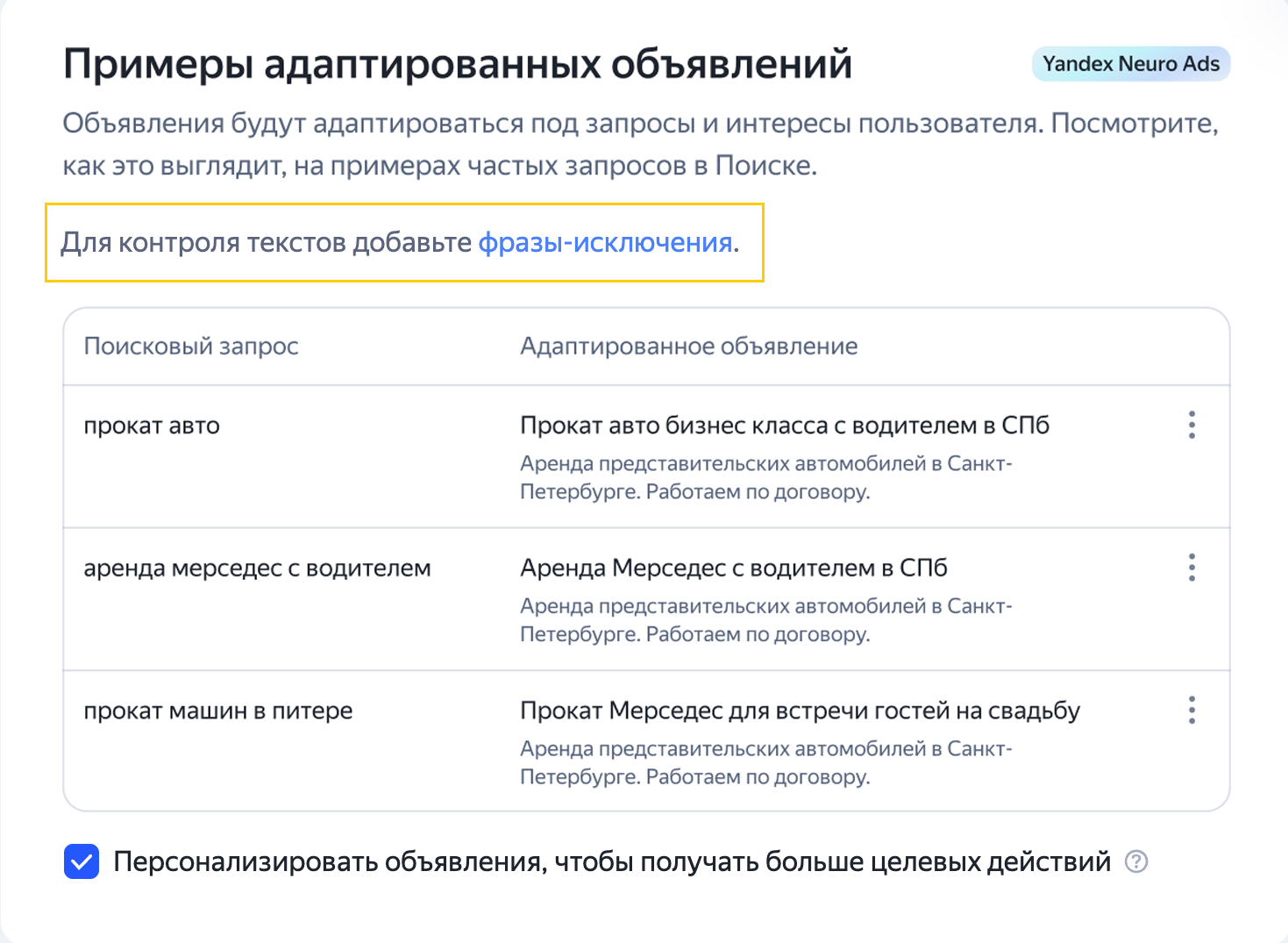
In the Examples of adapted ads window that opens, the tool selects title and text options tailored to popular queries. Once the generation is complete, you can toggle Personalize ads to attract more conversions.
-
To block a title or text option you don't like, click
and select Add title to exceptions or Add text to exceptions.
Set up negative keywords
Negative keywords are words or phrases that you don't want to appear in your personalized ad texts. For example, if you're promoting a service that can't be provided on short notice, you can add "urgent" as a negative keyword.
Negative keywords only affect the content of titles and texts tailored for specific queries. To exclude search queries that shouldn't trigger your ads, use Negative keywords in the impression criteria settings.
Warning
Negative keywords apply across all campaigns in the dashboard that have query-based text optimization enabled.
-
Go to the section for adding negative keywords.
Unified performance campaignsCampaign WizardAccount settings-
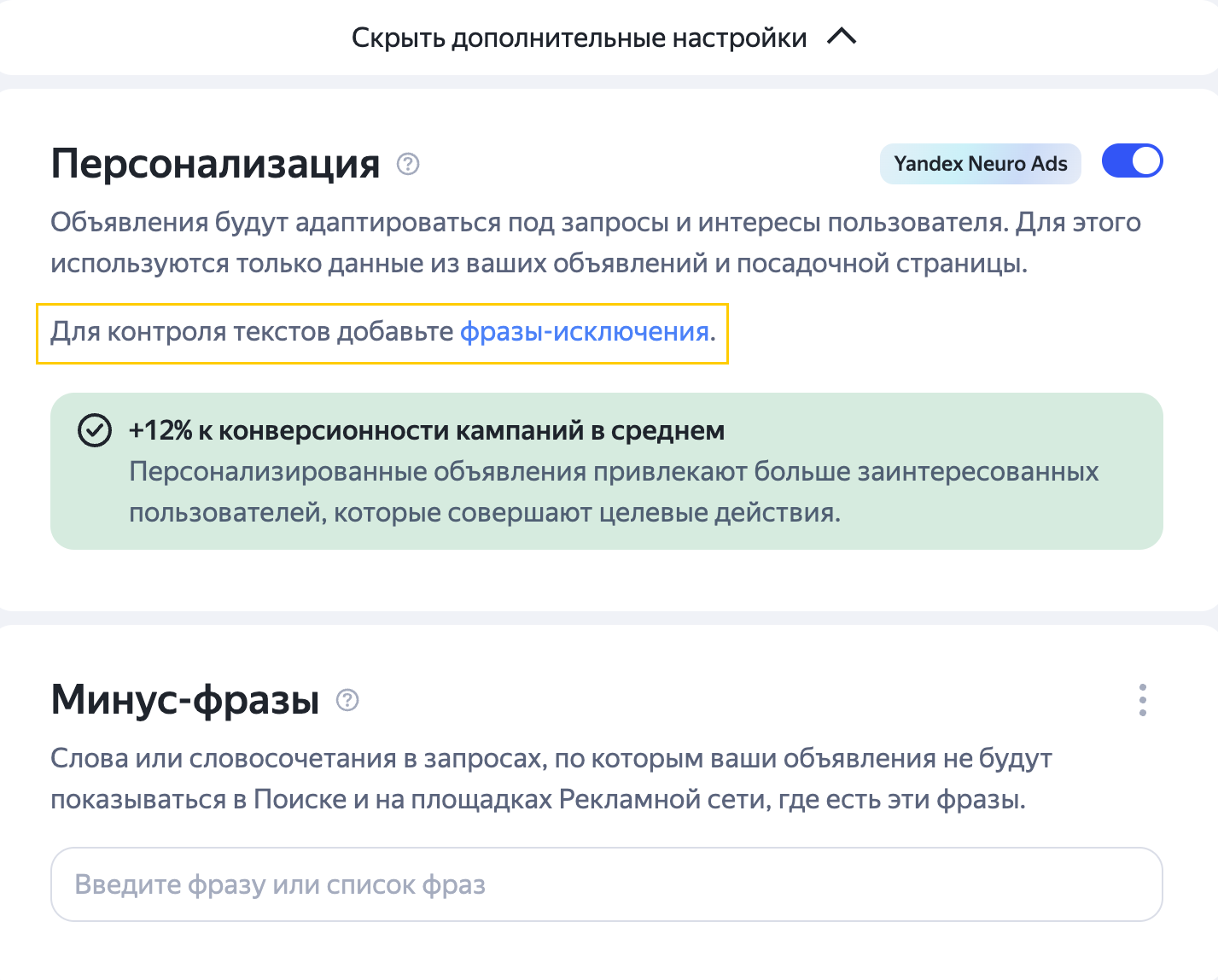
In the campaign settings, under Advanced settings → Personalization.
-
In the ad settings, under Examples of adapted ads.
-
In the list of ads, under Campaigns, click Additional text options.
When configuring personalization in the Examples of adapted ads window, open the negative keyword settings.
In the sidebar, click your username, then select Account and notifications. Under Account → Personalization, click
→ Edit.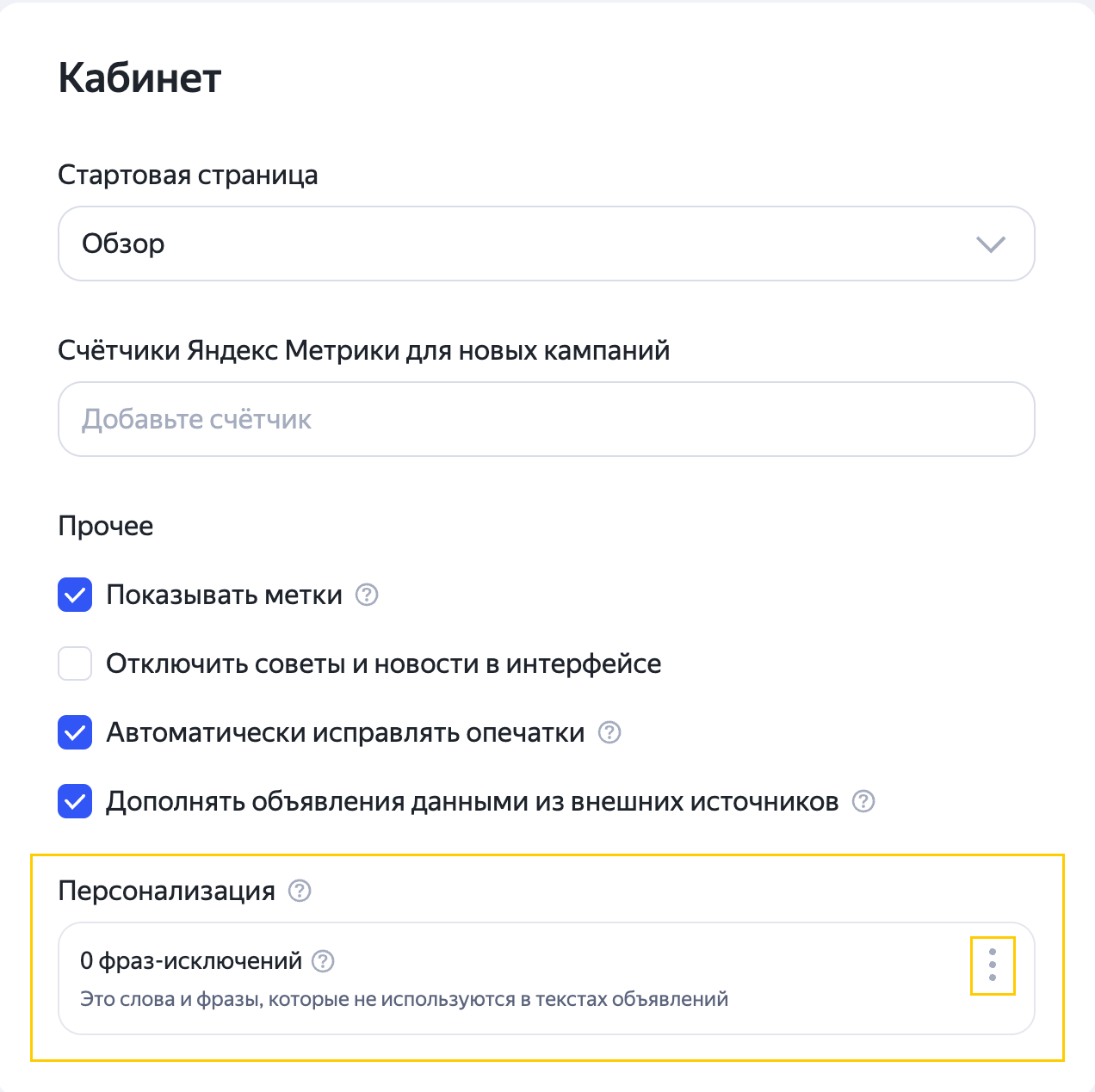
You can add negative keywords in your account settings even if none of your campaigns have query-based text optimization enabled. Your negative keywords only apply to additional text options if you enable the relevant option.
-
-
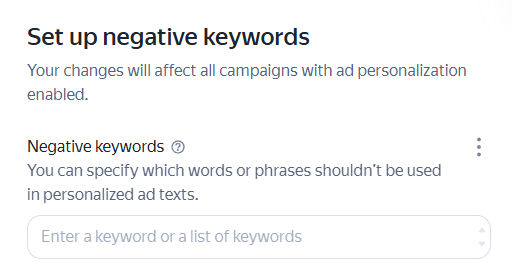
In the window that opens, enter all the words or phrases you want to exclude from your ads.
-
You can add up to 4000 keywords per account.
-
Each keyword can be up to 150 characters long, including operators.
Click
next to the Negative keywords header to access additional actions:-
Display as one field: Enter and view all keywords in a single field.
-
Display as multiple fields: Enter and view each keyword in a separate field.
-
Sort keywords: Sort keywords alphabetically.
-
Copy keywords: Copy all keywords.
-
Clear: Clear all fields with keywords.
-
If you specify a negative keyword, none of the word forms (for example, run — runS) in that keyword will be used in additional text options, regardless of the order in which they appear in the negative keyword or the user's search query.
Example
If you specify a negative keyword, all its word forms are excluded from additional text options, regardless of their order.
Example
If you specify "Same-day dry cleaning" as a negative keyword, an ad with the text "Dry cleaning in New York same-day pickup" will be filtered out, while an ad with the text "Dry cleaning in New York" won't, because it doesn't contain the word "same-day".
To exclude specific word forms, use the ! operator. If you need to exclude a keyword only when it follows a specific word order, use the [] operator. To match the exact number of words, use the "" operator. No other operators are supported for negative keywords. Learn more about operators.
Statistics
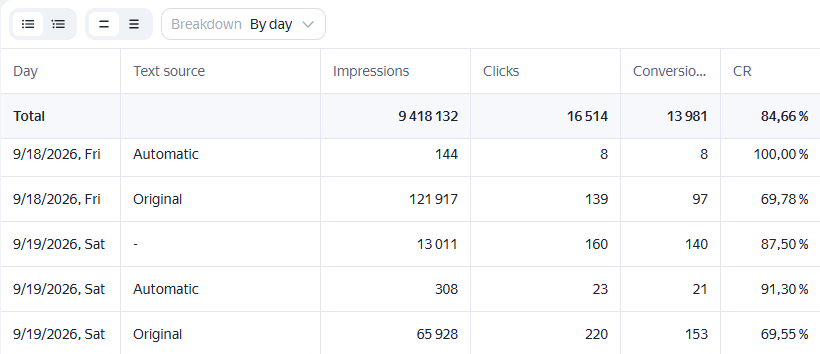
You can view statistics for your adapted ads using the Text source dimension in the Report Wizard. Impressions with additional text options are marked as “Automatic”.
Metrics in the Text source dimension reflect the actual performance of your ads. You can run A/B experiments in Yandex Direct to measure actual growth resulting from personalization.
To ensure accurate results in your A/B experiment, compare two identical campaigns that differ only in whether Personalization is turned on or off. Learn more about A/B experiments.
Have questions?
Alert
Our customer support can only assist you with campaigns linked to the username you are contacting us from. You can check your username by opening ya.ru in another browser tab. Our team can access your data only when processing your request.
Scan the QR code or tap it to follow the link.
When choosing Telegram, please note that Yandex does not control or take responsibility for how third-party messaging apps store your data and chat history.