Geotargeting
Campaign success in Yandex Direct depends on more than just a compelling ad — your campaign should also reach people who can take action on it. Users are generally interested in goods and services located in the regions where they live or plan on visiting. Using geotargeting, you can ensure that you are reaching customers in your region.
How does geotargeting work?
Geotargeting is a feature that lets you manage where your ads appear. Yandex Direct serves ads to people who are most likely to make a purchase or place an order. This includes:
- Permanent residents of your targeted region.
- People currently there.
- People showing interest in your promoted products or services.
So if you only deliver pizza in Moscow, select Moscow as your display region in your campaign or ad group settings. You can also specify an exact area on the map, such as the street near your store, and show ads to people who live, work, or are currently nearby.
Geotargeting in Yandex Direct uses a broad range of location data to serve ads only to users who may find your offer relevant. The system analyzes user location along with search context, location change patterns, and past experience, such as areas where the user shops most often. This helps effectively reach:
-
Users who turn off location sharing or change their device location.
-
Users who are currently outside of their home region but regularly shop in your targeted region. For example, if a home renovator from Perm is on a business trip in Moscow, they can still see ads for furniture stores in Perm.
-
People who plan to make a purchase or use a service in your targeted region. For example, someone in Moscow searching for a flower shop in Saint Petersburg.
Geotargeting examples
Example 1. The user is in your targeted region
The user lives in Irkutsk and is looking for a wedding photographer.
Yandex Direct detects the user's region and serves them ads from Irkutsk-based businesses for the search query wedding photographer.
Example 2. The user is temporarily outside their home region
The user lives in Saint Petersburg but goes on a business trip to Moscow. Their birthday is next week right after they get back, and they want to order a cake.
Yandex Direct analyzes the user's current location (Moscow) and the region where they shop most often (Saint Petersburg). The user can see ads from businesses based in Saint Petersburg, which helps advertisers drive more conversions.
Example 3. The user searches in another city
The user lives in Tyumen. Next month, the user is going to Yekaterinburg for a conference, and they plan to have dinner with friends at a restaurant. While still in Tyumen, the user searches for restaurant in Yekaterinburg.
Yandex Direct takes the user's search query into account and serves them ads for restaurants in Yekaterinburg, even though the user is currently in Tyumen. This helps the user book a table for their get-together in advance.
Example 4. The user disabled location access
The user lives in Saratov and turns off location sharing on their phone. They decide to buy a T-shirt and search for one using their phone.
Yandex Direct analyzes the regions where the user shops most often, estimates the likelihood of a conversion in Saratov, and serves them ads for local online stores.
How to configure
You can set up geotargeting at the ad group level under Geotargeting.
In the List countries, regions, and cities field:
-
Start typing a region name, open the region selection tree, and select the regions where you want to show ads. By clicking the flag next to the name of the region, you select the whole region including all the towns within it (even if they are not shown separately in the region tree).
In Yandex Direct, you can target small towns or regions with populations starting at 1000 people. To set up targeting for such an area, enter its name or select it from the region tree. This helps you fine‑tune your campaign and reach the right audience.
How to find a specific location
- Go to your geo-targeting settings and open the region list.
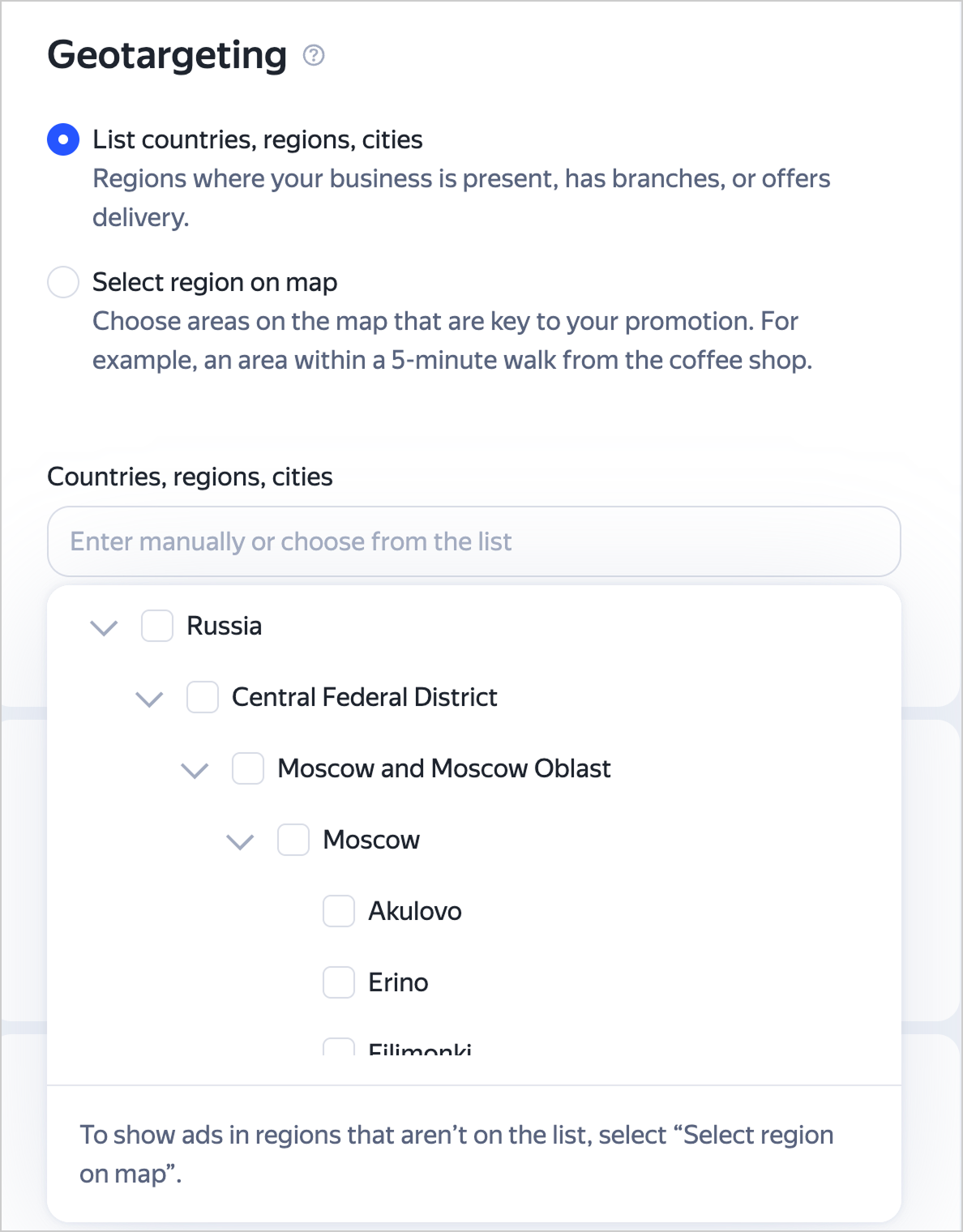
- You can manually browse for an area or use the search bar to find and select your target region.
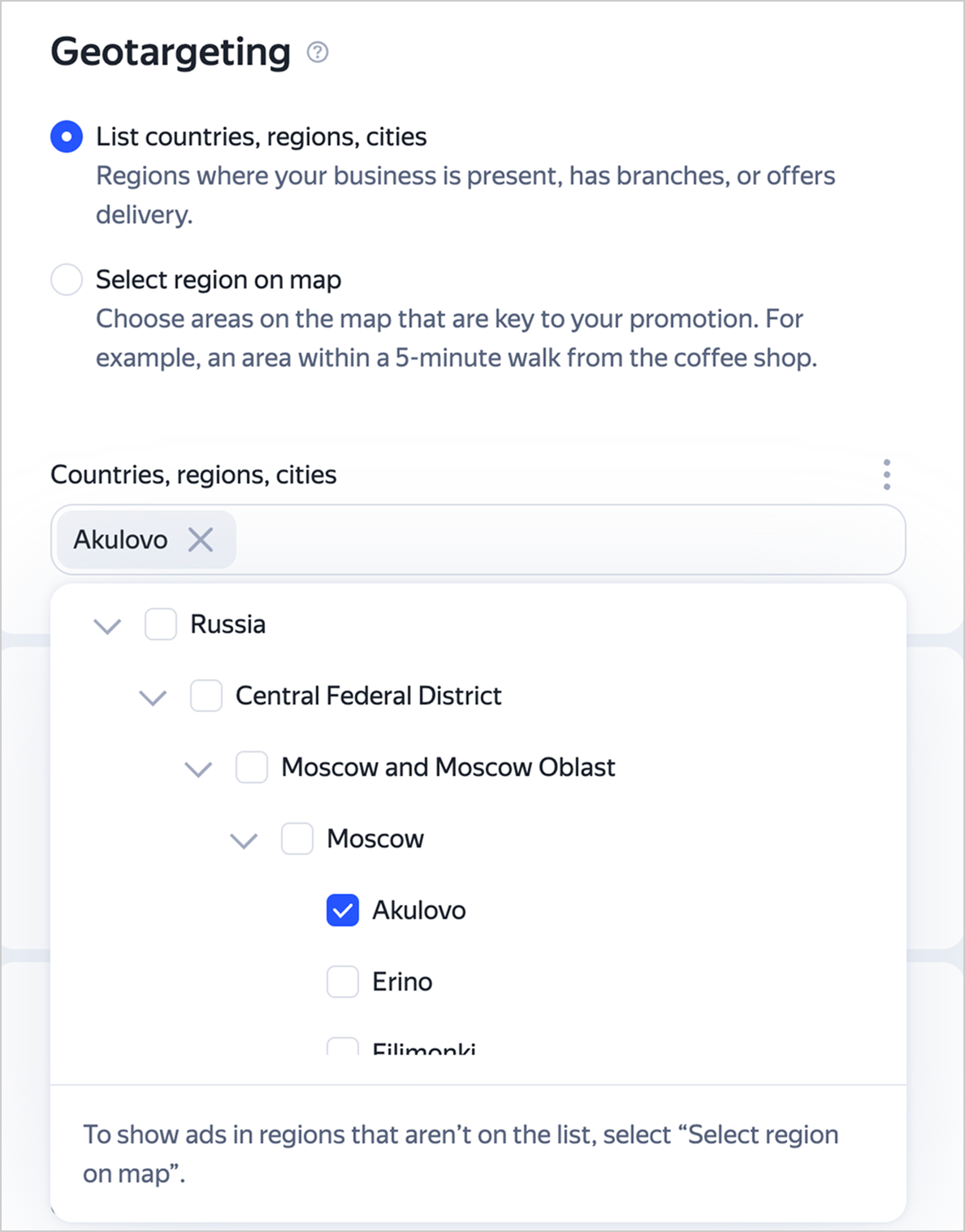
-
If necessary, specify the regions that you want to exclude from geotargeting. To do this, start typing the name of a region or locality in the field next to display regions. Select regions from the suggested options or from the selection tree.
You can exclude any region listed in this field. It doesn't have to be part of the specified display region. For example, you can choose to serve ads in the Moscow Region, excluding Balashikha.
Region selection tree
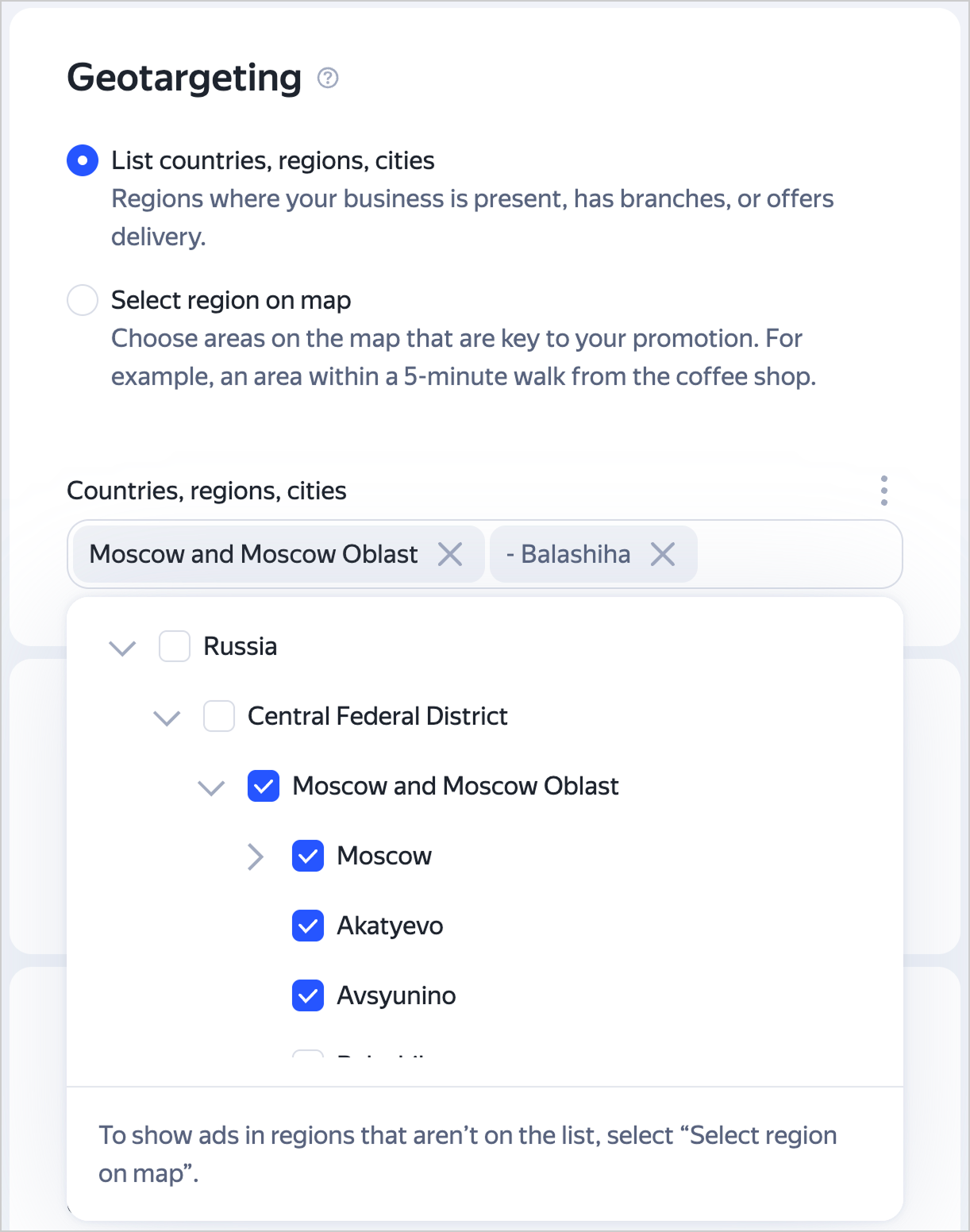
For each new group in the campaign, the region settings of the first ad group are automatically applied.
Specify the region on the map:
-
Choose this option if you want to show ads in a specific area, such as near your cafe, or if you only target customers within a tight radius. For example, you have a small business without city-wide delivery.
-
If your locality is missing from the region selection tree.
Keep in mind that selecting regions on the map may greatly limit your geotargeting area and cause you to miss out on potential customers.
-
Enter the addresses as a free text or copy the list from another group: you can use a maximum of 100 addresses. You can pinpoint addresses on the map. Determine the display radius: From 0.5 km to 10 km near each address.
-
Choose your target audience: people who regularly visit the area, residents, local workers, or anyone currently nearby. If you want to reach a broader audience, select users who are often in the area — these are the people who live and work nearby.
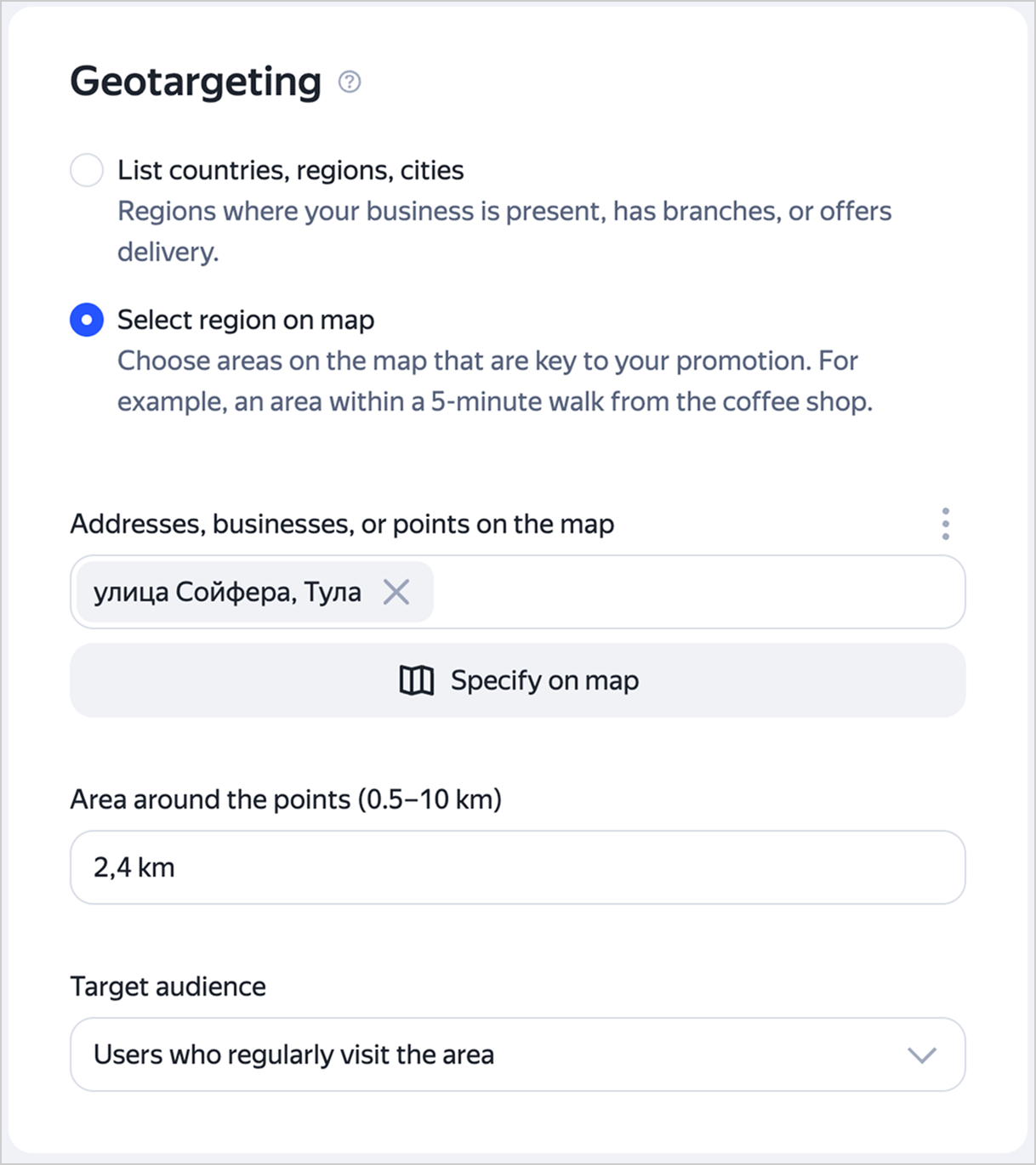
You can only replace or delete an existing point in an ad group:
-
If you add a new point, the previous ones are deleted.
-
If you specify multiple points and then edit the radius, it changes for all points.
Bulk editing of display regions
To change display regions in multiple groups of a single or multiple campaigns:
-
Select the necessary campaigns in the Campaigns tab.
-
Select the necessary groups or check all of them in the Ad groups tab.
-
At the bottom of the page, click Actions → Display regions.
-
Select edit mode and list display regions or specify the location on the map:
-
Replace: To replace current regions with selected regions. You can switch between serving ads in a region or city and serving them in a specified area on the map.
-
Add to list: To add the selected regions to the current regions. For example, you can add new addresses for a region on the map or an area to the list of regions.
-
Remove from list: To delete the selected regions from the current regions.
-
Using geotargeting in your first campaign
To quickly launch a geotargeting campaign, create a new campaign and set display regions for your first ad group based on where you sell products or offer services.
Waiting several days after your ad impressions begin will give Yandex Direct time to collect statistics about the number of impressions and clicks in different regions. If the reports show that the regional distribution of clicks is uneven, it's best to carefully reconfigure your regional display settings.
Specifying regions and gathering detailed geographical information
By analyzing click and conversion statistics, you may discover that user responses to your offer vary by region.
For example, when reviewing performance for a campaign promoting an amusement park (keyword: amusement park, display regions: Moscow and Moscow Region), you might notice high click volumes from both Moscow and Tver. If this happens, we recommend:
- Creating a new ad in your campaign and targeting this ad specifically at users in Moscow (including the Moscow Region).
- Creating a new ad campaign targeted specifically at users in Tver (keyword: amusement park moscow, display region: Tver).
Splitting campaigns by region helps you manage bids more effectively and saves your budget, since you won't need to adjust bids in one market to match competition in another. You can view the impressions forecast for a specific region in Wordstat.
Have questions?
Alert
Our customer support can only assist you with campaigns linked to the username you are contacting us from. You can check your username by opening ya.ru in another browser tab. Our team can access your data only when processing your request.
Scan the QR code or tap it to follow the link.

If you select Telegram or WhatsApp, keep in mind that Yandex does not control and is not liable for how third-party messengers store your data and chat history.