Downloading files
By clicking the link, you can download the file or open it for viewing. The file is opened for viewing if Yandex Browser supports its format, otherwise it is downloaded to your computer. As soon as the file starts downloading, the file icon with the download indicator  appears to the right of the SmartBox.
Note
Yandex Browser checks archives and executable files for viruses and adware while they're downloading.
Stopping and restarting downloading
To stop downloading a file
- Open the context menu for the icon of the file being downloaded.
- Click Stop download.
To restart downloading a file
- Open the context menu for the icon of the file
 being downloaded.
 - Click Restart download.
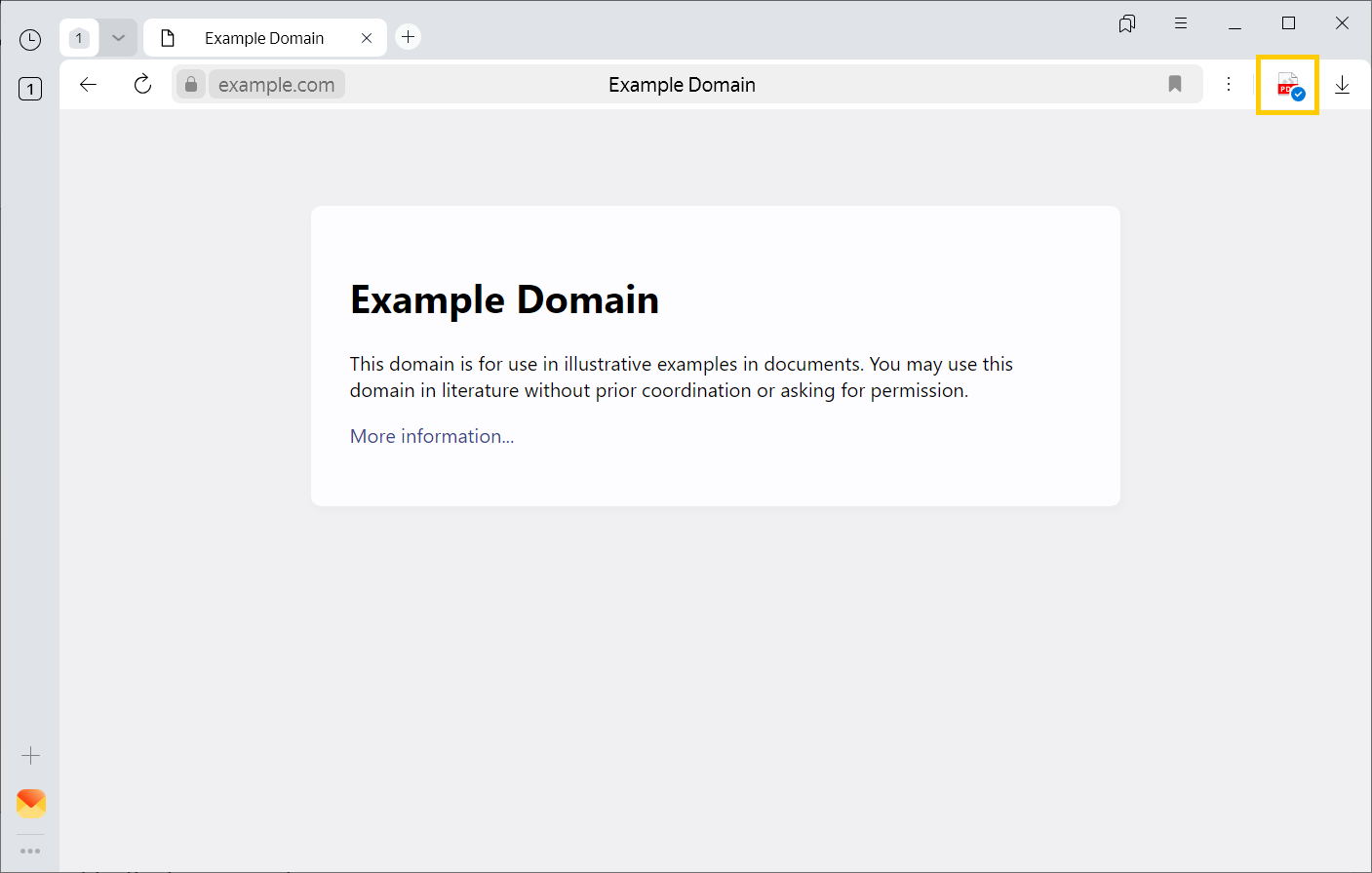
Saving a file that is open for viewing
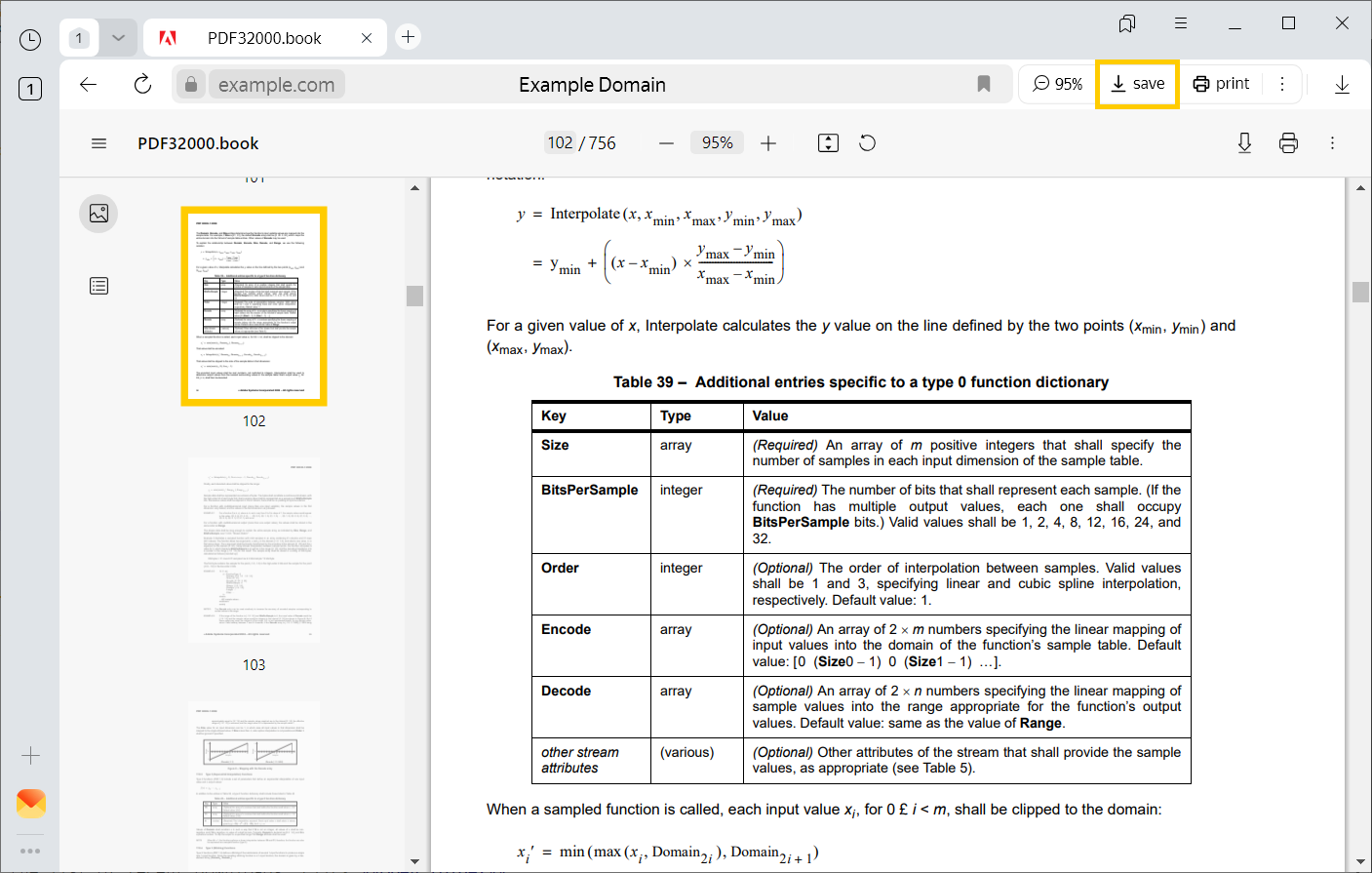
Click save in the right half of the SmartBox:
How do I open a downloaded file?
Open a downloaded file
- On the right side of the SmartBox, click
 .
. - Select the file you need. If it is not in the list of recent downloads, click Open folder.
Open downloaded files automatically
- On the right side of the SmartBox, click .
- Select a file of the desired format.
- Click
 → Open
 automatically .
Where downloaded files are saved
By default, files are saved in the following folders:
|
Operating system |
Directory |
|
Windows 7, Windows 8, Windows 10 |
|
|
macOS |
|
Note
Support for Microsoft Windows 7, 8, and 8.1 ended in December 2024.
Support for Microsoft Windows XP and Vista ended in April 2017.
Open Downloads folder
- On the right side of the SmartBox, click .
- Click Open folder in the upper-right corner of the window that opens.
Find out which folder your downloaded files are saved in
-
Click → Settings → Tools.
-
The path to the file folder is specified in the Downloads section.
Change the folder for downloaded files
-
Click → Settings → Tools.
-
In the Downloads section, select Download location:
. -
To the right of the selected option, click Edit and choose a new path.
If you want Yandex Browser to ask what folder to save files to:
1. Click → Settings → Tools.
2. In the Downloads section, enable the Ask where to save each file before downloading option.
This way, you'll be able to rename files when downloading.
View the list of downloaded files in Yandex Browser
To go to the list of all downloaded files, click  → Downloads.
Hide a file from the download history
- Click → Downloads.
- Select the file you need.
- Next to the file, click More and select Remove from list.
The file will be deleted from the downloads but will remain on your computer. You will find it in the folder where the downloaded files are saved.
Clear downloads list
- Click → Downloads.
- In the lower-left corner of the page, click Hide downloads.
The list of downloads in Yandex Browser will be cleared. The actual files won't be deleted from your computer.
Delete downloaded files
- Click → Downloads.
- In the lower-left corner of the page, click Open folder.
- Select the files you want.
- Click Delete.
Notifications
To receive notifications that the download is finished and warnings if you've already downloaded the files:
-
Click → Settings → Tools.
-
In the Downloads section, enable the options Notify me when a download is complete and Tell me if a file has been downloaded before.
Keyboard shortcuts for managing downloads
Keyboard shortcuts
|
Open list of downloads |
Ctrl + J |
|
Open the tool for clearing your browsing data, cache, and downloads |
Ctrl + Shift + Del |
|
Save page as... |
Ctrl + S |
|
Print page |
Ctrl + P |
|
Download file ( |
Alt + click link |
Keyboard shortcuts
|
Open list of downloads |
Shift + ⌘ + J |
|
Save page as... |
⌘ + S |
|
Print page |
⌘ + P |
Learn more
Problems with downloading
Browser blocks file downloads
The browser blocks a file download if it contains a malicious program. To find out more, see Blocking dangerous files.
Download was interrupted
Try to restart the download:
- Click → Downloads or press Ctrl + J.
- Select the file you need.
- On the right, click More → Resume download.
If the download doesn't resume, try downloading the file again:
- Click → Downloads or press Ctrl + J.
- Select the file you need.
- On the right, click More → Download again.
The download may be affected by the antivirus installed on your computer. Try temporarily disabling it and download the file again.
The browser takes too long to check files
Alert
You can disable downloaded file checks, but this would require you to disable protection from malicious sites and malware in Yandex Browser completely. We strongly recommend that you don’t do this.
If you want to disable file checks:
-
In the upper-right corner, click → Settings.
-
Go to Security.
-
In the Protection from malicious files and websites section, uncheck the box labeled Run security checks on websites and downloaded files.
Files take too long to download
-
Open → Extensions and turn off all extensions.
-
Download the files again.
Couldn't download files from Google Drive
- Go to the Google Drive website. On the right side of the SmartBox, click
 .
. - In the Trackers on this web page section, click Site not working?
- In the window that opens, click Allow third-party cookies.
There's no notification when a download is complete
A notification that the download is complete appears if:
- The download takes more than 15 minutes.
- Multiple files are downloaded.
Check if notifications of completed downloads are enabled in Yandex Browser:
-
Click → Settings → Tools.
-
In Downloads, enable the Show download complete notifications option.
The image is downloaded in WebP format
The format of the downloaded image depends on the server. The server might generate a WebP format if it detected Yandex Browser as a program that recognizes WebP. In this case, Yandex Browser cannot affect the format selection.
Not all images are downloaded in WebP. For example, an image from Yandex Images will be saved in JPEG format.
Learn more
The icon may look different depending on which application is installed.