|
macOS users You're reading Help for the beta version of Yandex Browser, which isn't available for macOS. For information on Yandex Browser for macOS, see Help for the main browser version. |
Import and export
Import bookmarks
From another browser
- Click → Bookmarks → Import bookmarks from another browser.
- In the Data import window, select the browser you want to import bookmarks from.
- Select Bookmarks. If you want to import only bookmarks, deselect other options.
- Click Import. A window opens with a notification about successfully importing bookmarks.
- If necessary, disable the Show bookmarks bar option.
- Click Ok.
From an HTML file
- Click → Bookmarks → Bookmark manager.
- In the Bookmarks bar line on the right, click → Import bookmarks from HTML file.
- Specify the path to the file containing your bookmarks and click Open.
The imported bookmarks will be put:
- to the Bookmarks from HTML file folder, if there already were bookmarks in Yandex Browser.
- to the root of the bookmark tree, if there were no bookmarks in Yandex Browser.
You can rename, move, or delete a folder with bookmarks. To learn more, go to Folder structure.
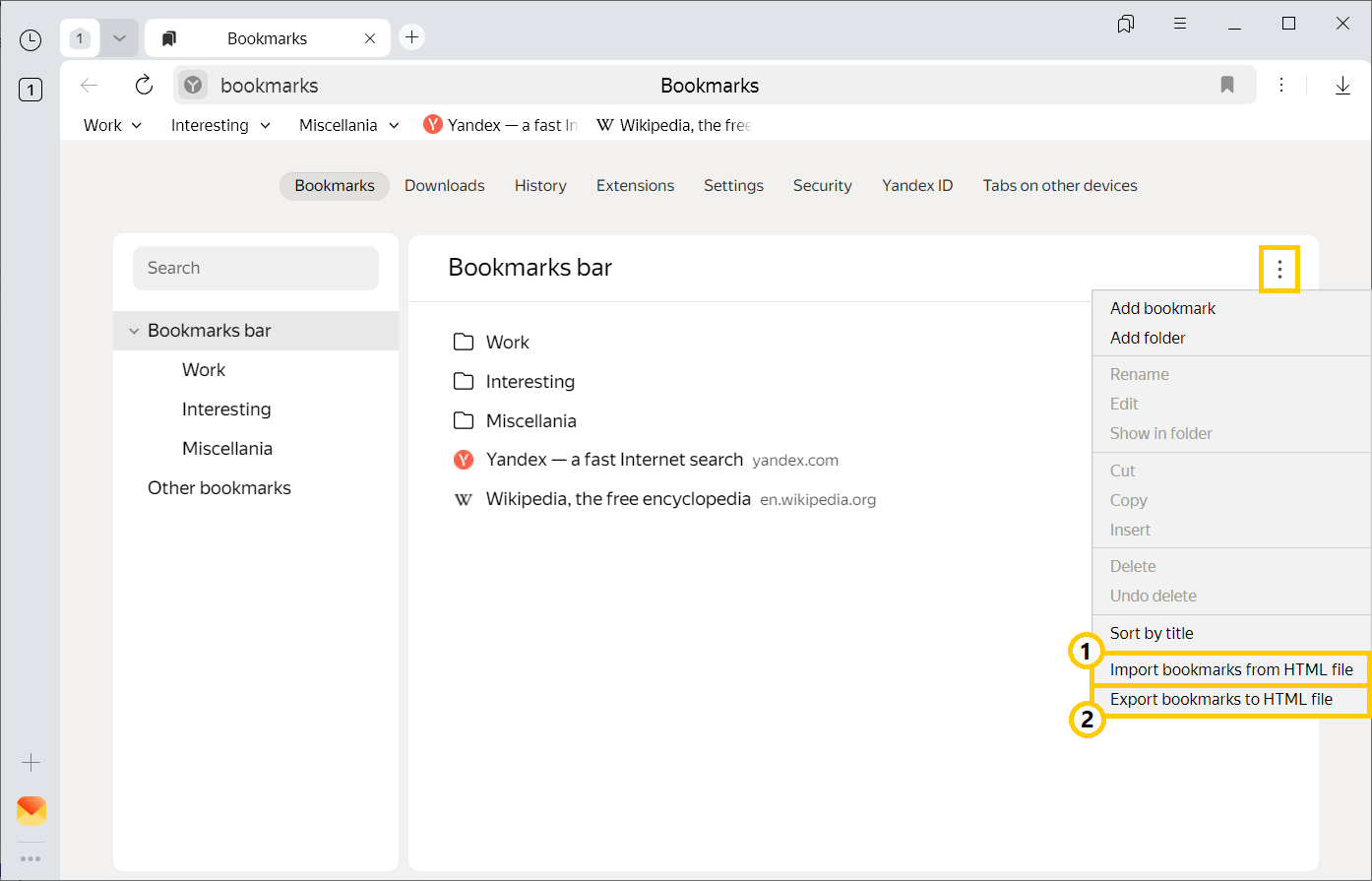
— Import bookmarks from a file.
— Save bookmarks to a file.
Export bookmarks to a file
-
Click → Bookmarks → Bookmark manager.
-
In the Bookmarks bar line on the right, click
 → Export bookmarks to HTML file.
 -
Select a place to save your bookmarks file.
-
Enter a name for the file and click Save.
Was the article helpful?
Previous